Posts

Wiring Dakota Digital GRFX Gauges with the IPM1 Kit

Table of Contents

Overview

Dakota Digital has been in the business of making advanced electrical products for the automotive aftermarket for a long time. Their products include gauges, lighting, cruise control systems, gear indicators, linear actuators, climate control interfaces and other automotive accessories. Their GRFX series represents the latest in their electronic dashboard technology. The GRFX system features full-color TFT displays with user-configurable layouts, themes and colors. A lot of our customers have asked about how to connect their GRFX controller box to our Infinitybox system. This blog post is going to walk you through the details of wiring Dakota Digital GRFX gauges with the IPM1 Kit featuring the MASTERCELL NGX.

This post is specific to our IPM1 Kit with the MASTERCELL NGX. If you have our legacy 20-Circuit Kit or our 3-Cell Kit, the wiring connections are different.

Before we go too far, this post is only going to cover wiring primary power, ground, key-on power, gauge illumination and the signals for the indicators on the dash. Their manual will cover the details for the rest of the wiring. If you are using the VHX or RTX gauges, we have separate posts covering those systems.

The big advantage of the IPM1 Kit is how the MASTERCELL NGX simplifies these connections. The MASTERCELL NGX has built-in low-current indicator outputs. In most installations, the MASTERCELL is located behind the dash — right where the Dakota Digital GRFX controller box is also located. With the IPM1 Kit, you can connect the MASTERCELL NGX indicator outputs directly to the GRFX controller without running wires back to the front POWERCELL. This is a significant wiring simplification compared to the legacy 20-Circuit Kit.

Important: The indicator outputs on the MASTERCELL NGX are limited to 1 amp each. The Dakota Digital documentation shows that the IGNITION PWR terminal on the GRFX controller draws less than 1 amp, which means it can be connected directly to a MASTERCELL NGX output. The turn signal indicators, high-beam indicator and gauge illumination outputs are designed to drive low-current loads. Do not connect anything else to these outputs that could push the total current draw over the 1-amp threshold.

This diagram shows an overview of the connections from the MASTERCELL NGX to the GRFX controller box.
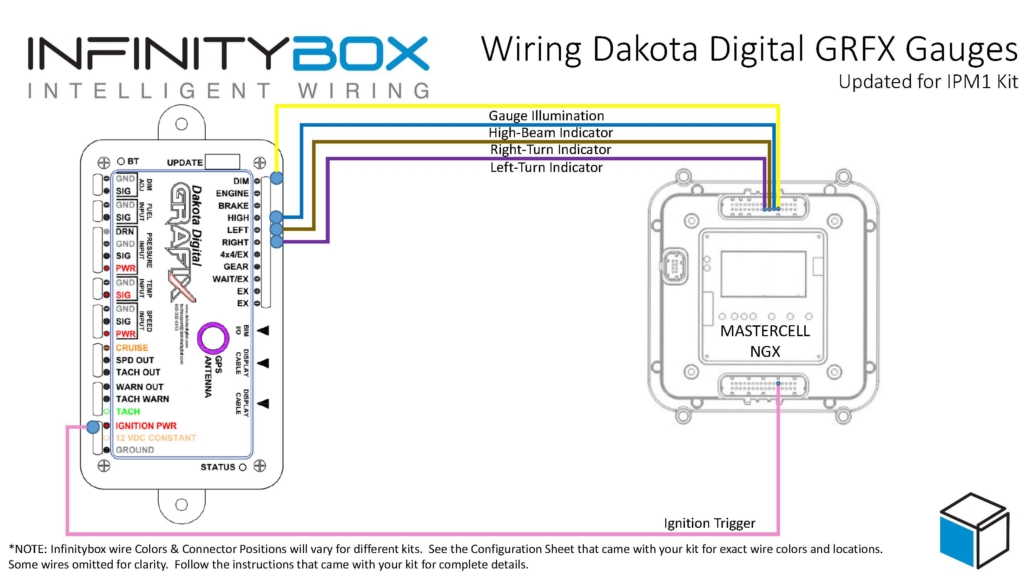
Picture of wiring diagram showing how to wire Dakota Digital GRFX Gauges with the Infinitybox IPM1 Kit featuring the MASTERCELL NGX

Wiring diagram showing how to wire the Dakota Digital GRFX Controller Box to the Infinitybox IPM1 Kit.

Constant Power and Ground

The GRFX controller needs constant power from the battery. Connect the 12 VDC CONSTANT terminal on their controller box directly to the positive terminal on the battery. You must fuse this wire at the battery for safety. Dakota Digital recommends a fused 5 to 20 amp circuit for this connection.

You also have to connect the GROUND terminal on their controller box to a good chassis ground connection. This must be a metal-to-metal connection that is free of paint, powder coating, dirt and debris.

Key-On Power

The GRFX controller box needs ignition or key-on power. This is what turns the gauges on when you turn the key in the car. With the IPM1 Kit, your MASTERCELL NGX has a dedicated indicator output for the ignition signal. Connect this output to the IGNITION PWR terminal on the GRFX controller box.

Since the MASTERCELL NGX is located behind the dash, this connection is short and direct. You are connecting two components that are both behind the dash. With the legacy 20-Circuit Kit, this power came from the front POWERCELL ignition output and you had to run a wire from the front of the car back to the GRFX controller behind the dash.

Check the configuration sheet that came with your IPM1 Kit to confirm the specific output assignment for your ignition indicator.

Gauge Illumination

You need to connect the gauge illumination output on the MASTERCELL NGX to the DIM(+) terminal on the GRFX controller box. This will change the display colors and brightness on the GRFX gauges when you have your parking or headlights on.

Again, this is a direct behind-the-dash connection with the IPM1 Kit. The MASTERCELL NGX indicator output for the gauge illumination connects straight to the DIM(+) terminal on the GRFX controller.

Turn Signal and High-Beam Indicators

Lastly, you need to connect the MASTERCELL NGX indicator outputs for your turn signals and high-beam to their respective terminals on the GRFX controller box. Connect the left turn signal indicator output to the LEFT(+) terminal, the right turn signal indicator output to the RIGHT(+) terminal and the high-beam indicator output to the HIGH(+) terminal.

When the MASTERCELL NGX is commanding the left turn signal, the indicator output will trigger and the left turn signal indicator will flash on the Dakota Digital GRFX display. The same applies for the right turn signal and the high-beam indicator.

These are all low-current indicator signals. The MASTERCELL NGX indicator outputs are purpose-built for this type of connection.

Legacy 20-Circuit Kit vs. IPM1 Kit

With the legacy 20-Circuit Kit, all of the signals going to the GRFX controller box came from outputs on the front POWERCELL. The ignition power, parking light dimmer, turn signals and high-beam connections all required splicing into POWERCELL output wires at the front of the car and running those wires back behind the dash to reach the GRFX controller. That meant longer wire runs and more splices.

The IPM1 Kit with the MASTERCELL NGX eliminates those long wire runs. The MASTERCELL NGX has built-in low-current indicator outputs that connect directly to the GRFX controller box. Since both the MASTERCELL NGX and the GRFX controller are located behind the dash, these connections are short and direct. You get a cleaner installation with less wiring.

The constant power and ground connections remain the same in both systems. The GRFX controller still gets its constant power directly from the battery and its ground from the chassis.

Downloads and Support

You can download a PDF of this wiring diagram by clicking this link.

Our technical support team is available to answer any questions about this blog post or any other topics about wiring your car with our Infinitybox system. Click on this link to get in touch with our team.

Picture of the Dakota Digital RTX Gauges

Wiring Dakota Digital RTX Gauges with the IPM1 Kit

Table of Contents

Overview

Dakota Digital has been in the business of making advanced electrical products for the automotive aftermarket for a long time. Their products include gauges, lighting, cruise control systems, gear indicators, linear actuators, climate control interfaces and other automotive accessories. Their RTX gauge family brings classic styling with modern features to any hot-rod, street rod, resto-mod or Pro-Touring build. A lot of our customers have asked about how to connect their RTX gauge controller box to our Infinitybox system. This blog post is going to walk you through the details of wiring Dakota Digital RTX gauges with the IPM1 Kit featuring the MASTERCELL NGX.

This post is specific to our IPM1 Kit with the MASTERCELL NGX. If you have our legacy 20-Circuit Kit or our 3-Cell Kit, the wiring connections are different. Click on this link to get to the wiring diagram for the legacy system.

Before we go too far, this post is only going to cover wiring primary power, ground, key-on power, gauge illumination and the signals for the indicators on the dash. Their manual will cover the details for the rest of the wiring. If you are using the VHX or GRFX gauges, we have separate posts covering those systems.

The big advantage of the IPM1 Kit is how the MASTERCELL NGX simplifies these connections. The MASTERCELL NGX has built-in low-current indicator outputs. In most installations, the MASTERCELL is located behind the dash — right where the Dakota Digital RTX controller box is also located. With the IPM1 Kit, you can connect the MASTERCELL NGX indicator outputs directly to the RTX controller without running wires back to the front POWERCELL. This is a significant wiring simplification compared to the legacy 20-Circuit Kit.

Important: The indicator outputs on the MASTERCELL NGX are limited to 1 amp each. The turn signal indicators, high-beam indicator and gauge illumination outputs are designed to drive low-current loads like LEDs. Do not connect anything else to these outputs that could push the total current draw over the 1-amp threshold.

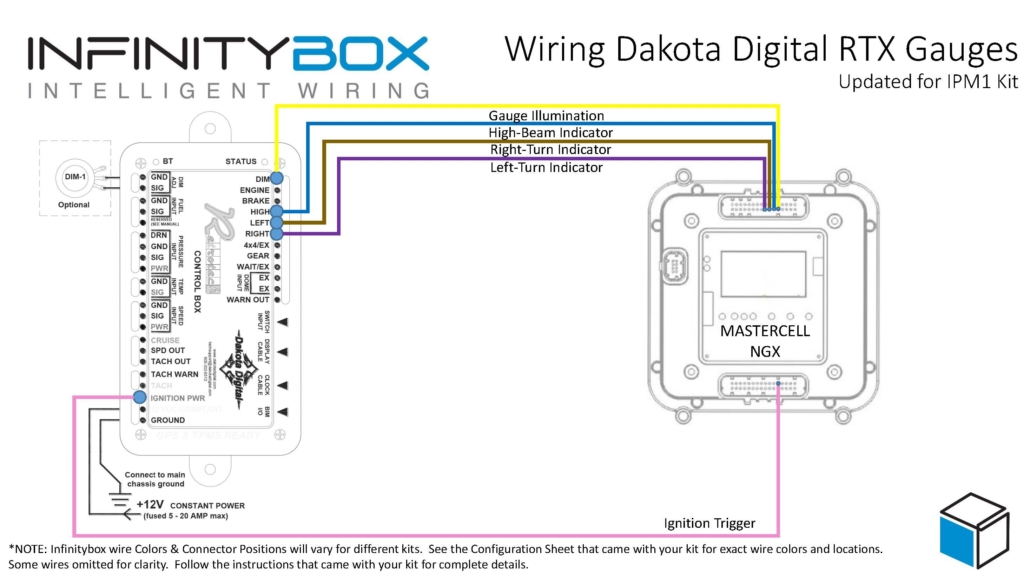
This diagram shows an overview of the connections from the MASTERCELL NGX to the RTX controller box.

Picture of wiring diagram showing how to wire Dakota Digital RTX Gauges with the Infinitybox IPM1 Kit featuring the MASTERCELL NGX

Wiring diagram showing how to wire the Dakota Digital RTX Gauge Controller Box to the Infinitybox IPM1 Kit.

Constant Power and Ground

The RTX controller needs constant power from the battery. Connect the 12 VDC CONSTANT terminal on their controller box directly to the positive terminal on the battery. You must fuse this wire at the battery for safety.

You also have to connect the GROUND terminal on their controller box to a good chassis ground connection. This must be a metal-to-metal connection that is free of paint, powder coating, dirt and debris.

Key-On Power

The RTX controller box needs ignition or key-on power. This is what turns the gauges on when you turn the key in the car. With the IPM1 Kit, your MASTERCELL NGX has a dedicated indicator output for the ignition signal. Connect this output to the IGNITION PWR terminal on the RTX controller box.

Since the MASTERCELL NGX is located behind the dash, this connection is short and direct. You are connecting two components that are both behind the dash. With the legacy 20-Circuit Kit, this power came from the front POWERCELL ignition output and you had to run a wire from the front of the car back to the RTX controller behind the dash.

Check the configuration sheet that came with your IPM1 Kit to confirm the specific output assignment for your ignition indicator.

Gauge Illumination

You need to connect the gauge illumination output on the MASTERCELL NGX to the DIM terminal on the RTX controller box. This will turn on the illumination on the RTX gauges when you have your parking or headlights on.

Again, this is a direct behind-the-dash connection with the IPM1 Kit. The MASTERCELL NGX indicator output for the gauge illumination connects straight to the DIM terminal on the RTX controller.

Turn Signal and High-Beam Indicators

Lastly, you need to connect the MASTERCELL NGX indicator outputs for your turn signals and high-beam to their respective terminals on the RTX controller box. Connect the left turn signal indicator output to the LEFT terminal, the right turn signal indicator output to the RIGHT terminal and the high-beam indicator output to the HIGH terminal.

When the MASTERCELL NGX is commanding the left turn signal, the indicator output will trigger and the left turn signal indicator will flash on the Dakota Digital gauges. The same applies for the right turn signal and the high-beam indicator.

These are all low-current indicator signals designed to drive LEDs. The MASTERCELL NGX indicator outputs are purpose-built for this type of connection.

Legacy 20-Circuit Kit vs. IPM1 Kit

With the legacy 20-Circuit Kit, all of the signals going to the RTX controller box came from outputs on the front POWERCELL. The ignition power, parking light dimmer, turn signals and high-beam connections all required splicing into POWERCELL output wires at the front of the car and running those wires back behind the dash to reach the RTX controller. That meant longer wire runs and more splices.

The IPM1 Kit with the MASTERCELL NGX eliminates those long wire runs. The MASTERCELL NGX has built-in low-current indicator outputs that connect directly to the RTX controller box. Since both the MASTERCELL NGX and the RTX controller are located behind the dash, these connections are short and direct. You get a cleaner installation with less wiring.

The constant power and ground connections remain the same in both systems. The RTX controller still gets its constant power directly from the battery and its ground from the chassis.

Downloads and Support

You can download a PDF of this wiring diagram by clicking this link.

Our technical support team is available to answer any questions about this blog post or any other topics about wiring your car with our Infinitybox system. Click on this link to get in touch with our team.

Control module for the Dakota Digital VHX Gauges

Wiring Dakota Digital VHX Gauges with the IPM1 Kit

Table of Contents

Overview

Dakota Digital has been in the business of making advanced electrical products for the automotive aftermarket for a long time. Their products include gauges, lighting, cruise control systems, gear indicators, linear actuators, climate control interfaces and other automotive accessories. Their VHX series of gauges has become very popular in the market and a lot of our customers have asked about how to connect their VHX gauge controller box to our Infinitybox system. This blog post is going to walk you through the details of wiring Dakota Digital VHX gauges with the IPM1 Kit featuring the MASTERCELL NGX.

This post is specific to our IPM1 Kit with the MASTERCELL NGX. If you have our legacy 20-Circuit Kit or our 3-Cell Kit, the wiring connections are different. Click on this link to get to the wiring diagram for the legacy system.

Before we go too far, this post is only going to cover wiring primary power, ground, key-on power and the signals for the indicators on the dash. Their manual will cover the details for the rest of the wiring. If you are using the RTX or GRFX gauges, we have separate posts covering those systems.

The big advantage of the IPM1 Kit is how the MASTERCELL NGX simplifies these connections. The MASTERCELL NGX has built-in low-current indicator outputs. In most installations, the MASTERCELL is located behind the dash — right where the Dakota Digital VHX controller box is also located. With the IPM1 Kit, you can connect the MASTERCELL NGX indicator outputs directly to the VHX controller without running wires back to the front POWERCELL. This is a significant wiring simplification compared to the legacy 20-Circuit Kit.

Important: The indicator outputs on the MASTERCELL NGX are limited to 1 amp each. The Dakota Digital documentation shows that the ACC POWER feed draws less than 1 amp, which means it can be connected directly to a MASTERCELL NGX output. The turn signal indicators, high-beam indicator and gauge illumination outputs are designed to drive low-current loads like LEDs. Do not connect anything else to these outputs that could push the total current draw over the 1-amp threshold.

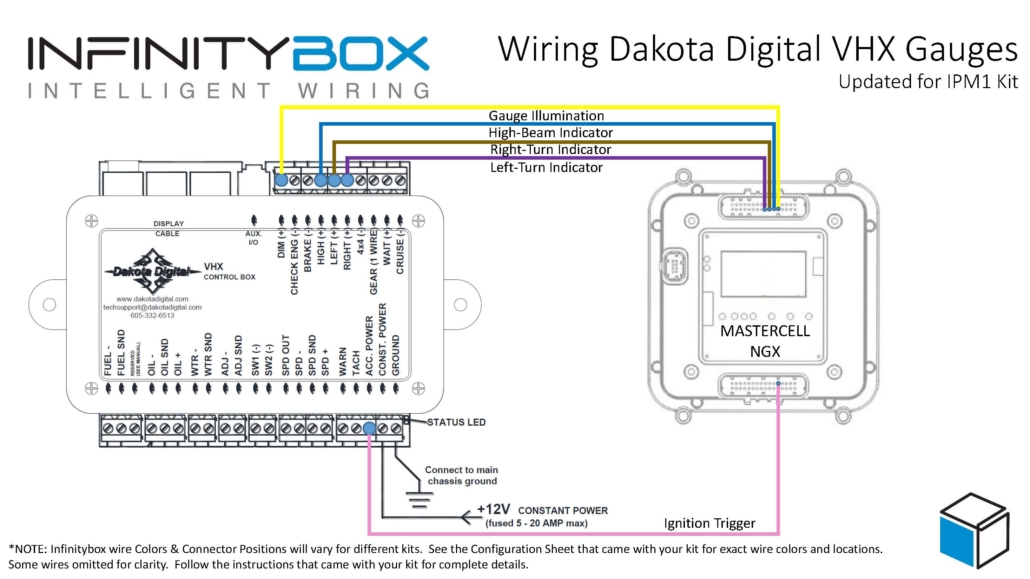
This diagram shows an overview of the connections from the MASTERCELL NGX to the VHX controller box.

Picture of wiring diagram showing how to wire Dakota Digital VHX Gauges with the Infinitybox IPM1 Kit featuring the MASTERCELL NGX

Wiring diagram showing how to wire the Dakota Digital VHX Gauge Controller Box to the Infinitybox IPM1 Kit.

Constant Power and Ground

The VHX controller needs constant power from the battery. Connect the CONST. POWER terminal on their controller box directly to the positive terminal on the battery. You must fuse this wire at the battery for safety.

You also have to connect the GROUND terminal on their controller box to a good chassis ground connection. This must be a metal-to-metal connection that is free of paint, powder coating, dirt and debris.

Key-On Power

The VHX controller box needs ignition or key-on power. This is what turns the gauges on when you turn the key in the car. With the IPM1 Kit, your MASTERCELL NGX has a dedicated indicator output for the ignition signal. Connect this output to the ACC POWER terminal on the VHX controller box.

Since the MASTERCELL NGX is located behind the dash, this connection is short and direct. You are connecting two components that are both behind the dash. With the legacy 20-Circuit Kit, this power came from the front POWERCELL ignition output and you had to run a wire from the front of the car back to the VHX controller behind the dash.

Check the configuration sheet that came with your IPM1 Kit to confirm the specific output assignment for your ignition indicator.

Gauge Illumination

You need to connect the gauge illumination output on the MASTERCELL NGX to the DIM(+) terminal on the VHX controller box. This will turn on the illumination on the VHX gauges when you have your parking or headlights on.

Again, this is a direct behind-the-dash connection with the IPM1 Kit. The MASTERCELL NGX indicator output for the parking lights connects straight to the DIM(+) terminal on the VHX controller.

Turn Signal and High-Beam Indicators

Lastly, you need to connect the MASTERCELL NGX indicator outputs for your turn signals and high-beam to their respective terminals on the VHX controller box. Connect the left turn signal indicator output to the LEFT(+) terminal, the right turn signal indicator output to the RIGHT(+) terminal and the high-beam indicator output to the HIGH(+) terminal.

When the MASTERCELL NGX is commanding the left turn signal, the indicator output will trigger and the left turn signal indicator will flash on the Dakota Digital gauges. The same applies for the right turn signal and the high-beam indicator.

These are all low-current indicator signals designed to drive LEDs. The MASTERCELL NGX indicator outputs are purpose-built for this type of connection.

Legacy 20-Circuit Kit vs. IPM1 Kit

With the legacy 20-Circuit Kit, all of the signals going to the VHX controller box came from outputs on the front POWERCELL. The ignition power, parking light dimmer, turn signals and high-beam connections all required splicing into POWERCELL output wires at the front of the car and running those wires back behind the dash to reach the VHX controller. That meant longer wire runs and more splices.

The IPM1 Kit with the MASTERCELL NGX eliminates those long wire runs. The MASTERCELL NGX has built-in low-current indicator outputs that connect directly to the VHX controller box. Since both the MASTERCELL NGX and the VHX controller are located behind the dash, these connections are short and direct. You get a cleaner installation with less wiring.

The constant power and ground connections remain the same in both systems. The VHX controller still gets its constant power directly from the battery and its ground from the chassis.

Downloads and Support

You can download a PDF of this wiring diagram by clicking this link.

Our technical support team is available to answer any questions about this blog post or any other topics about wiring your car with our Infinitybox system. Click on this link to get in touch with our team.
How to Enable inRESERVE with the MASTERCELL NGX

Table of Contents

The Problem: Battery Drain on Modern Classics

Classic cars were simple. An old car with mechanical switches and a set of points had practically no draw from the battery when the ignition was off. The car could sit in a garage for months with no issues. As our customers add computer-controlled EFI systems, audio systems, alarms and our Infinitybox system, the steady-state draw from the battery increases significantly. If the car sits for an extended period, that draw can drain the battery to the point where it will not start. Deep discharging is also detrimental to battery life, shortening the overall lifespan of the battery.

Our inRESERVE Active Battery Management System solves this problem by protecting your battery in two ways. First, it always preserves enough stored energy in the battery to crank the engine and get your car started. Second, it protects the battery from being deep-cycled. Deep cycling a battery can cause permanent damage and dramatically shorten its lifespan. inRESERVE monitors the battery voltage when the ignition is off and disconnects the battery before either of these becomes an issue. This post shows you how to enable inRESERVE on the MASTERCELL NGX in your IPM1 Kit.

How inRESERVE Works

The inRESERVE kit includes a latching solenoid that sits between the battery and the rest of the electrical system. The solenoid is a simple mechanical device — the intelligence is in the MASTERCELL NGX. When the ignition is off, the MASTERCELL NGX continuously monitors the battery voltage. If the voltage drops below the threshold for longer than the configured time period, the MASTERCELL NGX commands a POWERCELL output to send a momentary pulse to the solenoid. That pulse latches the solenoid open, disconnecting the battery from the rest of the system and preserving the remaining charge.

The inRESERVE kit also includes a momentary push button. If you know your car will be sitting for a while, you can press the button to manually disconnect the battery before the voltage drops. When you are ready to drive again, press the button to reconnect the battery and you are good to go.

Legacy Kit vs. IPM1 Kit

With our legacy 20-Circuit Kit, inRESERVE had to be pre-programmed on the MASTERCELL at the factory. If a customer ordered inRESERVE with their kit, we configured the MASTERCELL before it shipped. If they decided to add inRESERVE later, we had to reprogram their MASTERCELL to enable the feature. This meant extra lead time and coordination.

The IPM1 Kit eliminates that dependency entirely. The MASTERCELL NGX lets you enable inRESERVE yourself, right from the inSIGHT display. You choose the POWERCELL, the output, the timing and the voltage threshold — all without any factory involvement. You can add inRESERVE to your system whenever you are ready.

Before You Start

To enable inRESERVE, your MASTERCELL NGX must be running software version 1.3 or higher. If you are not sure which version you are running, follow the steps in our How to Check the Software Version on Your MASTERCELL NGX post to find out.

You will also need your IPM1 Kit configuration sheet so you can identify which POWERCELL outputs are available for inRESERVE. The available outputs are the OPEN outputs on your configuration sheet. These are universal and auxiliary outputs that are not assigned to fixed functions like turn signals, ignition or starter.

Step 1: Open the inRESERVE Menu

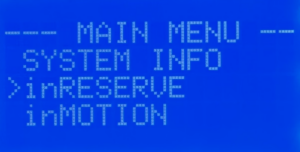
Press and release the HOME button on the MASTERCELL NGX to bring up the Main Menu. Use the SCROLL UP and SCROLL DOWN buttons to move the cursor to the inRESERVE option. Press and release SELECT.

Step 2: Enable inRESERVE

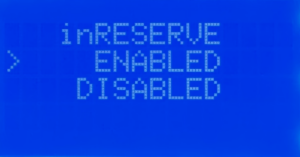
The next screen gives you the option to enable or disable inRESERVE. By default, inRESERVE is disabled. Use the SCROLL UP and SCROLL DOWN buttons to move the cursor to ENABLED. Press and release SELECT.

Step 3: Select the POWERCELL

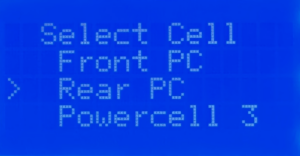
Next, you need to select which POWERCELL will control the inRESERVE solenoid. You will see options for Front PC, Rear PC and Powercell 3. Choose the POWERCELL that is closest to where the solenoid and battery are located in your car. If the battery is in the trunk, select Rear PC. If the battery is under the hood, select Front PC. The Powercell 3 option is only used for custom configurations developed with our team.

Use the SCROLL UP and SCROLL DOWN buttons to move the cursor to the POWERCELL you want. Press and release SELECT.

Step 4: Select the Output

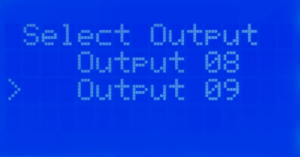
The MASTERCELL NGX will show you the available POWERCELL outputs based on which cell you selected in the previous step. These are the OPEN outputs on your configuration sheet. In the standard front-engine configuration, the available outputs on the Front POWERCELL are outputs 7, 8, 9 and 10. On the Rear POWERCELL, the available outputs are 4, 5, 6, 7, 8 and 9.

Use the SCROLL UP and SCROLL DOWN buttons to move the cursor to the output you want to use for inRESERVE. Press and release SELECT.

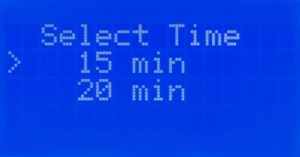
Step 5: Select the Time

Next, you need to select the time delay. This is the amount of time that the battery voltage must remain below the threshold before inRESERVE activates and disconnects the battery. Your options are 15 minutes and 20 minutes. The default is 15 minutes and we strongly recommend keeping this setting. This gives enough time for brief voltage dips during normal operation without triggering a disconnect.

Use the SCROLL UP and SCROLL DOWN buttons to move the cursor to the time you want. Press and release SELECT.

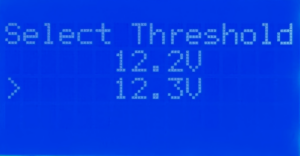
Step 6: Select the Voltage Threshold

The last setting is the voltage threshold. This is the battery voltage level that triggers the time delay. When the ignition is off and the battery voltage drops below this threshold, the countdown begins. Your options are 12.2V and 12.3V. We strongly recommend 12.2V. This is the standard threshold that we used on our legacy kits and provides the right balance between protecting the battery and avoiding unnecessary disconnects.

Use the SCROLL UP and SCROLL DOWN buttons to move the cursor to the voltage threshold you want. Press and release SELECT. Your inRESERVE settings are automatically saved when you press SELECT on this final screen.

Wiring the inRESERVE Solenoid

Once you have enabled inRESERVE on the MASTERCELL NGX, you need to wire the solenoid. The inRESERVE kit includes everything you need: the latching solenoid, a MEGA fuse and fuseholder, a momentary reset button, an inline fuse holder with a 10-amp fuse, ring terminals, terminal boots and 14 AWG wire. Download the inRESERVE wiring schematic for the complete wiring details. Do not run the starter current through the solenoid.

Make sure that the reset button is mounted in an accessible location. When inRESERVE disconnects the battery, the car will have no power. You need to be able to reach the button to reconnect the system. The button included with the kit can be replaced with any momentary button rated to at least 7A at 12V.

Questions?

If you have any questions about how to enable inRESERVE or anything else about your Infinitybox system, our technical support team is here to help. Give us a call at (847) 232-1991 or fill out our contact form and we will get back to you.

How to Select Your IPM1 Kit Configuration

Table of Contents

What is the IPM1 Kit Configuration?

Every IPM1 Kit ships with a base configuration loaded on the MASTERCELL NGX. This configuration is the roadmap that you use to wire your car. It identifies each MASTERCELL input wire, its function and the POWERCELL outputs that it controls. This includes all of the key electrical functions in your car like ignition, starter, turn signals, headlights, parking lights, horn, fuel pump, cooling fans and more.

The configuration sheet is the document that details all of these assignments. It shows you the MASTERCELL input wire colors, the POWERCELL output wire colors and the personalities assigned to each output. This link will take you to an example of the front-engine configuration for the IPM1 Kit. You can learn more about how to read the configuration sheet and understand the POWERCELL output assignments by clicking this link. You should keep your configuration sheet handy throughout your entire wiring project. It is the single most important reference document for your build.

About 95% of our customers use the stock configuration with no changes. For those who need to make modifications, our inCODE NGX programming tool lets you customize your configuration to meet the specific needs of your project.

Front-Engine vs. Rear-Engine Configurations

The IPM1 Kit has two core configurations: front-engine and rear-engine. The main difference between these two configurations is where the ignition and starter outputs are located.

In the front-engine configuration, the ignition and starter outputs are on the front POWERCELL. This makes sense for most builds because the engine is in the front of the car and the POWERCELL that is closest to the engine handles the ignition and starter.

In the rear-engine configuration, the ignition and starter outputs move to the rear POWERCELL. This is the right choice if you are building a mid-engine or rear-engine car like a Factory Five GTM or a Race Car Replicas SL-C. In these builds, the engine is behind the driver and the rear POWERCELL is closest to the engine.

Most of our customers are building front-engine cars, so the IPM1 Kit ships with the front-engine configuration loaded by default. If you are building a mid-engine or rear-engine car, you can easily change this yourself right from the MASTERCELL NGX.

Legacy Kits vs. the IPM1 Kit

With our legacy 20-Circuit Kit and 3-Cell Kit, we had to pre-program the configuration at the factory before shipping it to you. If you needed a rear-engine setup, you had to let us know when you placed your order and we would program the kit accordingly.

The IPM1 Kit puts this control in your hands. You can select your IPM1 Kit configuration directly from the MASTERCELL NGX without needing to contact us or send anything back. This is a big improvement in flexibility. If you change your mind about your build or want to start fresh, you can reload a configuration yourself at any time.

Please note that this process only works for the MASTERCELL NGX module that comes with the IPM1 Kit.  It will not work for the Legacy MASTERCELL that came with the 3-Cell kit or the 20-Circuit Kit.  Contact our technical support team if you need support for these legacy systems.  

How to Select Your IPM1 Kit Configuration

The MASTERCELL NGX has three buttons on the front of the unit: SELECT, SCROLL UP and SCROLL DOWN. You will use these buttons to select your IPM1 Kit configuration. Here are the steps to follow.

Step 1 — Start with the system powered off. Make sure that your MASTERCELL NGX is not powered up. The main power from the battery should be disconnected.

Step 2 — Press and hold the SELECT button. With the system off, press and hold the SELECT button on the MASTERCELL NGX. While you are holding the SELECT button, turn the main power on.

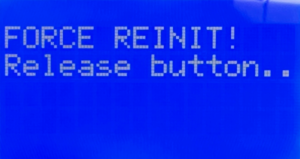
Step 3 — Release the SELECT button. When the MASTERCELL NGX powers up, you will see a screen that says FORCE REINIT! Release button. This tells you that the MASTERCELL NGX is ready to load a new configuration. Release the SELECT button.

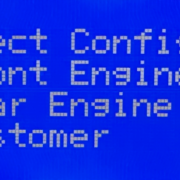
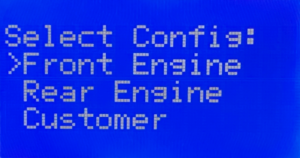
Step 4 — Select your configuration. You will see a screen that says Select Config: with three options listed. The options are Front Engine, Rear Engine and Customer. Use the SCROLL UP and SCROLL DOWN buttons to move the cursor to the configuration that you want.

If you are building a front-engine car, select Front Engine. If you are building a mid-engine or rear-engine car, select Rear Engine. Do not select the Customer option unless you have worked with us to create a custom configuration for your project.

Step 5 — Confirm your selection. When the cursor is on the configuration that you want, press and release the SELECT button.

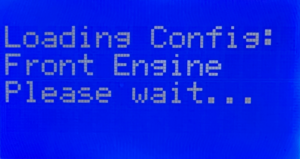
Step 6 — Wait for the configuration to load. You will see a screen that says Loading Config: followed by the name of the configuration that you selected. The MASTERCELL NGX will take about 30 seconds to load the configuration. Do not turn off the power or press any buttons during this process.

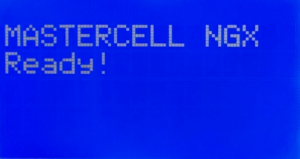
Step 7 — Confirm the configuration is loaded. When the process is complete, the screen will display MASTERCELL NGX Ready! and the main screen will appear. Your configuration is now loaded and you are ready to start wiring.

Important Notes

There are a couple of important things to keep in mind when you select your IPM1 Kit configuration.

First, this process loads the default configuration for the option that you select. If you previously made changes to your configuration using inCODE NGX, those changes will be lost. The MASTERCELL NGX will return to the stock configuration. You will need to re-apply any custom changes with inCODE NGX after the configuration is loaded.

Second, this process only needs to be done if you want to change your configuration. If your kit shipped with the front-engine configuration and that is what you need, you do not need to do anything. Your kit is ready to go right out of the box.

Third, the Customer option on the configuration selection screen is only for customers who have worked with our team to create a custom configuration. If you do not have a custom configuration, do not select this option.

Click this link to contact our team with any questions about how to select your IPM1 Kit configuration.

Holley Terminator X EFI System

Wiring the Holley Terminator EFI with the IPM1 Kit

Our Infinitybox system can power any ignition and fuel injection system out there. This post covers how to wire the Holley Terminator EFI system with our new IPM1 Kit featuring the MASTERCELL NGX. The wiring approach covered here also applies to the Holley Terminator X and Terminator X MAX systems. We will cover the differences between these systems below. If you have one of our Legacy 20-Circuit Kits, click here to get to the wiring details for that system.

We have blogged before about the Dominator and given detailed instructions on how to wire that system with our 20-Circuit Kit. You can see that here.

Table of Contents

Overview

Holley makes several versions of the Terminator EFI system. The original Terminator EFI is a self-learning throttle body injection system. The Terminator X is a multi-port fuel injection system designed for LS and LT engine swaps. The Terminator X MAX adds drive-by-wire throttle body control to the Terminator X platform. All three systems use the same types of trigger signals for the fuel pump and cooling fans. That means the wiring approach with your Infinitybox IPM1 Kit is the same across the entire Terminator family.

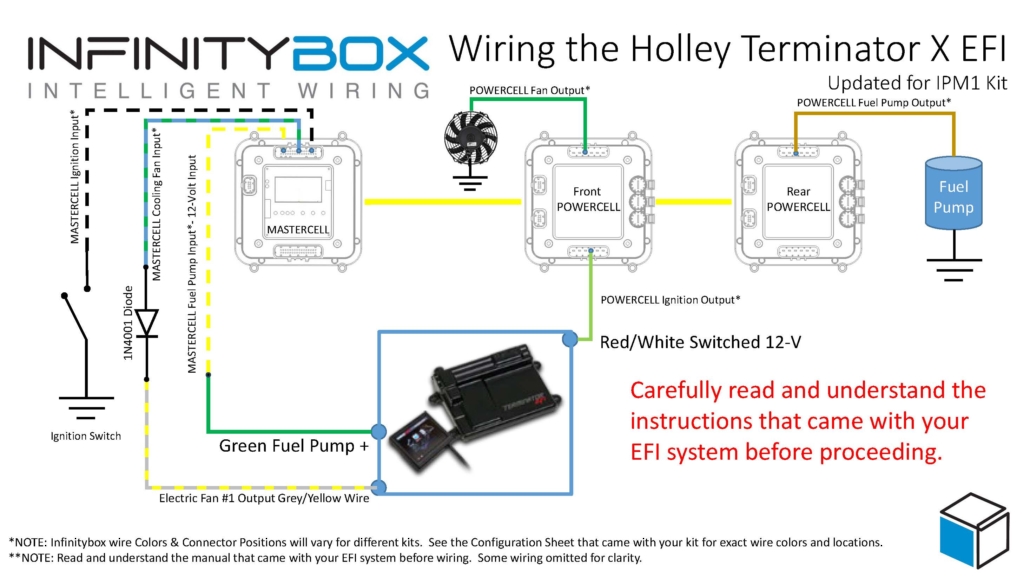
Your Infinitybox IPM1 Kit is going to provide the ignition power to the Holley ECU. It is also going to take the fuel pump trigger signal from their ECU and the cooling fan trigger. These two triggers will go to the MASTERCELL NGX which will send signals to the POWERCELL in the front of the car for the cooling fan and the POWERCELL in the rear of the car for the fuel pump. This eliminates the need to add external relays because they are switched from inside the POWERCELLs. This also eliminates the need to run high-current wiring from the Holley Terminator EFI system to the front and back of the car. Those signals are sent through our CAN cable.

Before You Start

Before we go any farther, it is very important that you completely read and fully understand the manual that came with your Holley system. There are many different parts of properly installing these systems. The wiring is just one step. Here are links to the Holley manuals:

Once you have read and understand their manual, you must make all of the constant power and ground connections necessary for their system to work. There are multiple constant power feeds that must be wired directly to the battery and multiple ground connections. You must also wire in all of the other connections including the coil, tach, O2 sensors and others. Their manual will cover these details.

Connection Summary

Here are the points where your IPM1 Kit will connect to the Holley Terminator EFI system. These same connection points apply to the Terminator X and Terminator X MAX:

  1. The ignition output on your POWERCELL will supply the key-on power to their system.
  2. Their system will trigger the fuel pump output on your rear POWERCELL through the MASTERCELL NGX.
  3. Their system will trigger the cooling fan output on your front POWERCELL through the MASTERCELL NGX.


Infinitybox wiring diagram showing how to wire the Holley Terminator EFI with the IPM1 Kit and MASTERCELL NGX including fuel pump and cooling fan connections

Wiring diagram showing the connections between the Holley Terminator EFI and the Infinitybox IPM1 Kit with the MASTERCELL NGX. This diagram also applies to the Holley Terminator X and Terminator X MAX systems.


You can download a PDF version of this wiring diagram by clicking on this link.

Wiring the Ignition Power

Let’s start with the key-on ignition power. This connection is the same across the original Terminator, the Terminator X and the Terminator X MAX. Check your configuration sheet and find the ignition output wire. In most cases, this is the light-green wire on the front POWERCELL. System configurations may vary so check the configuration sheet that came with your kit. The POWERCELL ignition output wire is going to connect to the red wire with the white stripe in the Holley ECU harness.

Wiring the Fuel Pump Trigger

The following section covers the fuel pump wiring for the original Holley Terminator EFI. If you have a Terminator X or Terminator X MAX, skip to the Terminator X section below for the details specific to your system.

Next, you need to connect the fuel pump trigger. In the ECU harness, there is a green fuel pump wire. This wire supplies 12-volts to drive a pump directly or to drive a relay coil.

The MASTERCELL NGX in the IPM1 Kit has both ground-switched and high-side switched inputs. The high-side switched inputs accept a 12-volt signal directly. This means you can connect the green fuel pump wire from the Holley Terminator harness directly to a high-side input on the MASTERCELL NGX. There is no need for an inVERT Mini or an external relay to flip this signal. This is one of the key advantages of the MASTERCELL NGX over our legacy MASTERCELL.

Check the configuration sheet that came with your kit. Find the MASTERCELL NGX input for your fuel pump. Confirm the wire color on your configuration sheet as different systems may have different wire colors.

There are several advantages of using the Infinitybox system to control the fuel pump directly from the Holley Terminator harness. First, we can disable the fuel pump as a security measure if you have our inLINK Radio upgrade. More importantly, having the Infinitybox system control the fuel pump means that you have to run less wire in the car. The MASTERCELL NGX is located close to the EFI system. The rear POWERCELL is mounted near the fuel pump in the tank. There is no extra fuel pump wiring required to make it work.

Wiring the Cooling Fan Trigger

The following section covers the cooling fan wiring for the original Holley Terminator EFI. If you have a Terminator X or Terminator X MAX, skip to the Terminator X section below for the details specific to your system.

Lastly, you need to wire the cooling fan trigger from the Holley Terminator EFI system to your MASTERCELL NGX. The gray wire with the black stripe in the Holley harness is the cooling fan trigger. This is a ground-switched signal so it can connect directly to a ground-switched input on the MASTERCELL NGX.

We recommend installing a 1N4001 diode in series between the MASTERCELL NGX input and the cooling fan trigger on the Holley harness. This diode acts as a one-way valve for the electrical signal. It protects the MASTERCELL NGX input from any voltage surges or back-feeds that could come from the ECU. You can get a 1N4001 diode from any electronics supplier.

Please note that the orientation of the diode is very important. The anode side of the diode connects toward the MASTERCELL NGX and the cathode side connects toward the Holley ECU. The cathode is the side of the diode with the stripe. The stripe on the diode should be on the ECU side of the connection, facing away from the MASTERCELL NGX. Check the wiring diagram above for the correct orientation.

There are several advantages to using the Infinitybox system to control the cooling fan directly off of the Holley Terminator harness. First, you do not need to add a relay. That is built into the POWERCELL. Second, our cooling fan outputs are set to soft-start the motor. Click here to learn more about the benefits of soft-starting.

How It All Works Together

When you turn the key, the front POWERCELL is going to apply battery power to the ignition input on the Holley Terminator EFI system. When the Terminator wants the fuel pump to turn on, it will send a 12-volt signal to the high-side input on the MASTERCELL NGX. The MASTERCELL NGX will then tell the rear POWERCELL to turn on the fuel pump. When the Terminator wants to turn the cooling fan on, it will send a ground signal to the MASTERCELL NGX. The MASTERCELL NGX will tell the front POWERCELL to turn on the cooling fan.

Terminator X and Terminator X MAX

Holley also makes the Terminator X and the Terminator X MAX. The Terminator X is a multi-port fuel injection (MPFI) system designed for LS and LT engine swaps. The Terminator X MAX adds drive-by-wire throttle body control. Both of these systems connect to the Infinitybox IPM1 Kit using the same wiring approach described above.

Fuel Pump

The Terminator X and Terminator X MAX have a green fuel pump wire that supplies 12-volts. This is the same type of signal as the original Terminator. Connect this green wire directly to a high-side input on the MASTERCELL NGX. There is no need for an inVERT Mini or an external relay. Please note that the Holley manual states that this green wire can power a fuel pump directly if it draws less than 15 amps. When you are using our Infinitybox system, you are not powering the pump from this wire. You are using it as a trigger signal to the MASTERCELL NGX. The rear POWERCELL will supply the power to run the fuel pump.

The Terminator X also has a separate fuel pump control output on Pin C5 of the I/O connector. This is a dark-blue wire that provides a low-current ground signal. If you prefer to use this output instead of the green wire, you can connect it to a ground-switched input on the MASTERCELL NGX with a 1N4001 diode for protection. Either approach will work. Consult the manual that came with your Terminator X or Terminator X MAX for the details on these wires and their connector locations.

Cooling Fans

The Terminator X and Terminator X MAX have dedicated cooling fan outputs on their 8-pin I/O connector. These are ground-switched signals that trigger external relays. Since these are ground signals, they connect directly to ground-switched inputs on the MASTERCELL NGX. Install a 1N4001 diode in series for protection, just like the original Terminator. The orientation of the diode is the same. The stripe on the diode faces away from the MASTERCELL NGX, toward the ECU.

The Terminator X and Terminator X MAX support two separate cooling fan outputs from the I/O connector. If you have a dual-fan setup, you can connect both fan outputs to separate inputs on the MASTERCELL NGX and control them independently. This gives you the ability to stage your cooling fans based on the temperature thresholds that you set in the Holley software.

Ignition Power

The key-on ignition power connection is the same for the Terminator X and Terminator X MAX. Connect your POWERCELL ignition output to the red wire with the white stripe in the Holley harness. Always check your Infinitybox configuration sheet and the Holley manual to confirm wire colors for your specific system.

Legacy 20-Circuit Kit vs. IPM1 Kit

If you have one of our Legacy 20-Circuit Kits, the wiring for the Holley Terminator EFI is slightly different. The legacy MASTERCELL only has ground-switched inputs. That means you need an inVERT Mini or an external relay to convert the 12-volt fuel pump trigger from the Holley harness to a ground signal for the MASTERCELL input. Click here to get to the Legacy 20-Circuit Kit wiring details for the Holley Terminator EFI.

The MASTERCELL NGX in the IPM1 Kit eliminates the need for that extra component. Its high-side switched inputs accept 12-volt signals directly. The IPM1 Kit also includes built-in low-current indicator outputs on the MASTERCELL NGX for your dash indicators and the system is fully programmable and configurable by the customer using our inCODE NGX software.

Questions

If you have questions about this wiring diagram or wiring anything else with our Infinitybox system, click on this link to contact a member of our team.

Picture of the Holley Sniper EFI System

How to Wire the Holley Sniper EFI with the Infinitybox IPM1 Kit

Until recently, electronic fuel injection was completely out of the hands of your typical automotive enthusiast. Over the past years, many different companies have introduced powerful and elegant systems to bring the benefits of EFI to anyone. Holley’s Sniper EFI system is one of the most popular. It is a cost-effective throttle body EFI system that can handle up to 650 horsepower and can be tuned without a laptop. Wiring the Holley Sniper EFI system is a breeze with our Infinitybox Intelligent Power Management Kit, the IPM1. This blog post will take you through the details.

Note: This post covers wiring the Holley Sniper EFI with our current IPM1 Kit and the MASTERCELL NGX. If you are wiring the Sniper with our Legacy 20-Circuit Kit, click here to see our original Holley Sniper EFI wiring guide.

Table of Contents

What Changed: IPM1 Kit vs. the Legacy 20-Circuit Kit

If you are familiar with our earlier blog posts, you may have seen our original guide for wiring the Holley Sniper EFI with our Legacy 20-Circuit Kit. We have replaced that kit with the IPM1 Kit, which includes our new MASTERCELL NGX. There are some important differences that simplify how you wire the Sniper EFI.

The biggest change is that the MASTERCELL NGX has both ground-switched and high-side switched inputs. Our Legacy 20-Circuit Kit only had ground-switched inputs on the MASTERCELL. If a trigger from an aftermarket system like the Sniper sent a 12-volt signal, you had to install an inVERT Mini inline to flip that signal to a ground trigger. With the MASTERCELL NGX, high-side switched inputs are built in. The fuel pump trigger from the Sniper EFI is a 12-volt signal. You can now connect it directly to a high-side input on the MASTERCELL NGX without needing an inVERT Mini. This saves you a component and simplifies your wiring.

The MASTERCELL NGX also includes dedicated low-current indicator outputs that can directly drive dash indicators like your turn signal indicators, high-beam indicator, and gauge illumination. On top of that, the MASTERCELL NGX is fully programmable and configurable by the customer.

Wiring the Holley Sniper EFI System with your Infinitybox IPM1 Kit

Our Infinitybox system can interface with any electronic fuel injection system on the market. Wiring the Holley Sniper EFI is as simple as wiring their Terminator or their Dominator. Click on this link to get to the details of wiring the Holley Terminator. Click on this link to get to the details of wiring the Holley Dominator.

Before you start wiring the Holley Sniper EFI, you must thoroughly read and understand the instructions that came with your kit. This link will take you to the Holley manual. Note that this blog post is just going to cover wiring ignition power from your Infinitybox system and wiring the fuel pump and cooling fan. The Holley manual will cover the rest of the wiring details.

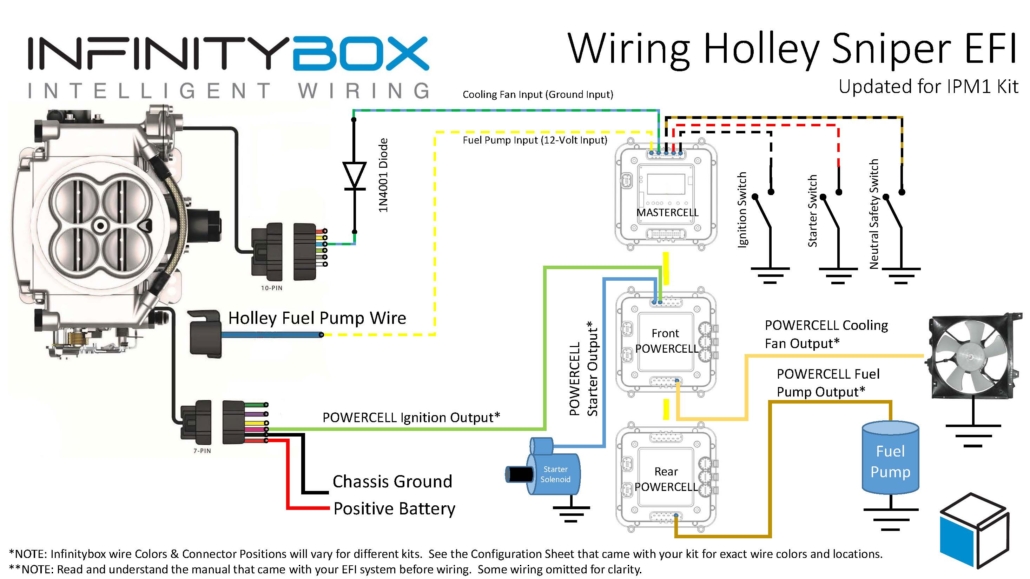
This diagram shows you the connections between your Holley Sniper EFI and your Infinitybox IPM1 Kit with the MASTERCELL NGX.


Wiring diagram showing how to connect the Holley Sniper EFI to the Infinitybox IPM1 Kit with the MASTERCELL NGX

Wiring diagram showing the connections between the Holley Sniper EFI and the Infinitybox IPM1 Kit with the MASTERCELL NGX, including the fuel pump trigger on a high-side input and the cooling fan trigger with a 1N4001 isolation diode.

Battery Power and Ground

First things first, you need to get battery power and ground to the Sniper. The red wire in their 7-pin connector must go directly to the positive terminal on your battery. The black wire in their 7-pin connector must go to ground. As we discuss in other blog posts, 90% of all electrical problems relate to a bad ground. Make sure that you have a solid metal-to-metal connection to your chassis with no paint, grease, powder coating, or dirt in the way.

Ignition Power to the Sniper EFI

Next, you need to bring ignition power from your POWERCELL to the pink wire on their 7-pin harness. In most Infinitybox systems, this is the light-green wire on your front POWERCELL but check your configuration to be sure. This POWERCELL output will supply battery power to the Sniper whenever you have the ignition switch on.

Wiring the Cooling Fan Trigger from the Holley Sniper EFI

Next, you need to connect the MASTERCELL NGX input for your cooling fan to the light-blue wire on the Sniper 10-pin harness. The cooling fan trigger from the Sniper is a ground-switched output. Even though the MASTERCELL NGX accepts ground-switched inputs directly, we always recommend isolating any ground-switched input from an external system like the Sniper EFI. The reason is that we do not know what the Sniper does with its trigger when it is off. It may let the trigger float or pull it up to battery voltage. Either of these conditions could cause erratic behavior on the MASTERCELL NGX input.

To isolate the input, you must install a 1N4001 diode in series between the MASTERCELL NGX input and the cooling fan trigger on the Holley harness. Install the diode with the anode facing the MASTERCELL NGX. Note that the orientation of this diode is critical. Check the diagram above for the correct orientation of the stripe on the diode.

There are several advantages to using the Infinitybox system to control the cooling fan directly off of the Sniper harness. First, you do not need to add a relay. That is built into the POWERCELL. Second, our cooling fan outputs are set to soft-start the motor. Click here to learn more about the benefits of soft-starting.

Wiring the Fuel Pump Trigger from the Holley Sniper EFI

Next, it is time to wire the fuel pump. The dark-blue wire on the 7-pin connector is the fuel pump trigger. This is a 12-volt signal from the Sniper. With the MASTERCELL NGX in your IPM1 Kit, you can connect this fuel pump trigger directly to one of the high-side switched inputs on the MASTERCELL NGX. There is no need for an inVERT Mini. The MASTERCELL NGX has the equivalent of that circuit built into its high-side inputs. This is one of the key improvements over the Legacy 20-Circuit Kit, which required an inVERT Mini inline to convert this 12-volt trigger to a ground signal.

The diagram above shows you how to connect the dark-blue fuel pump trigger wire from the Sniper directly to the high-side input on the MASTERCELL NGX.

There are several advantages to using the Infinitybox system to control the fuel pump directly from the Sniper harness. First, we can disable the fuel pump as a security measure if you have our inLINK Radio upgrade. More importantly, having the Infinitybox system control the fuel pump means that you have to run less wire in the car. The MASTERCELL NGX is located close to the EFI system. The rear POWERCELL is mounted near the fuel pump in the tank. There is no extra fuel pump wiring required to make it work.

Summary

Wiring the Holley Sniper EFI system with your Infinitybox IPM1 Kit and the MASTERCELL NGX is straightforward. The high-side switched inputs on the MASTERCELL NGX eliminate the need for an inVERT Mini on the fuel pump trigger, which simplifies your wiring. Remember to isolate the ground-switched cooling fan trigger with a 1N4001 diode to protect the MASTERCELL NGX input.

You can download a PDF of our wiring diagram by clicking this link.

Click this link to contact our team with any questions about how our Infinitybox IPM1 Kit can streamline your wiring projects.

Picture of Lokar 12-Volt Door Handle

Door Poppers with the Lokar 12-Volt Door Switches

How to Wire Lokar 12-Volt Door Handles to Infinitybox Systems for Door Poppers

Wondering how to connect Lokar 12-volt door handles to your Infinitybox system? This comprehensive guide shows you how to wire Lokar billet door handles with door popper solenoids using both the Legacy 20-Circuit Kit and the new inMOTION NGX system.

Understanding Lokar 12-Volt Billet Door Handles

Lokar manufactures premium billet accessories for custom cars and trucks. Their Billet Exterior 12-Volt Door Handles combine classic styling with modern functionality, featuring an integrated switch that activates door popper solenoids when you pull the handle. These bolt-on handles provide a sleek, modern touch to any vehicle’s exterior doors.

Learn more about Lokar Billet Exterior 12-Volt Door Handles

Wiring Lokar Door Handles with the Legacy 20-Circuit Infinitybox System

The Legacy Infinitybox system makes it simple to integrate Lokar door handles with electric door poppers. Follow these step-by-step instructions:

Installation Steps

1. Install the Hardware

  • Mount the Lokar door handles according to manufacturer instructions
  • Install door popper solenoids in each door per the included guidelines

2. Connect POWERCELL Outputs

  • Select OPEN outputs on your POWERCELL module for each door
  • Connect the POWERCELL output wire to one lead on the door popper solenoid
  • Ground the other solenoid lead

3. Wire MASTERCELL Inputs

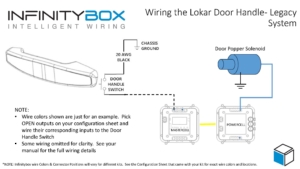
  • Connect the MASTERCELL input (corresponding to your OPEN output) to the switch inside the Lokar door handle
  • Ground the remaining switch wire

How It Works

When you pull the Lokar door handle, the MASTERCELL input grounds out. This triggers the MASTERCELL to command the POWERCELL to activate the output, pulsing the door popper solenoid and releasing the door latch.

Picture of Wiring diagram showing how to wire the Lokar 12-volt Door Handle to the Legacy Infinitybox System to control door poppers.

Picture of Wiring diagram showing how to wire the Lokar 12-volt Door Handle to the Legacy Infinitybox System to control door poppers.

Bonus Security Feature: We can program your system to block door popper switches when security is enabled via inLINK or inTOUCH NET. This ensures doors only open when you disable security using your inLINK key fob or smartphone app.

Wiring Lokar Door Handles with inMOTION NGX System

The Next Generation inMOTION NGX simplifies the installation even further. This door-mounted control module features two H-Bridge relays designed for power locks and power windows.

Simplified NGX Installation

The inMOTION NGX installs directly inside your door, keeping all wiring localized:

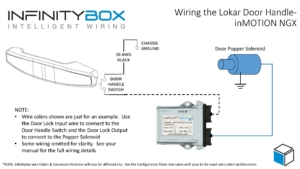
  • Use one output from the power lock relay pair to control the door popper solenoid
  • Wire the Lokar door handle switch directly to the inMOTION NGX in the same door
  • Control both the switch input and popper output from a single module

This configuration dramatically reduces wiring complexity compared to traditional systems.

Picture of wiring diagram showing how to wire the Locar 12-Volt Door Handles to control door poppers using the Infinitybox inMOTION NGX door control module.

Picture of wiring diagram showing how to wire the Locar 12-Volt Door Handles to control door poppers using the Infinitybox inMOTION NGX door control module.

The inMOTION NGX also supports security integration, allowing you to configure door poppers to function only when the vehicle security system is disarmed.

Download Wiring Diagrams

Need Help with Your Infinitybox Installation?

Our team is ready to answer your questions about connecting Lokar door handles or any other Infinitybox wiring project. Contact us at (847) 232-1991 or click here to reach our support team.


Keywords: Lokar 12-volt door handles, Infinitybox wiring, door popper solenoid, inMOTION NGX, Legacy 20-Circuit Kit, billet door handles, electric door poppers, POWERCELL, MASTERCELL, custom car wiring

NGX Configuration Sheet- POWERCELL Outputs

We have completely re-engineered our Infinitybox system to bring the latest in wiring and body control technology to anyone wiring a hot rod, street rod, resto-mod, kit car, race car or Pro-Touring build.  We have also re-engineered the NGX configuration sheet for this system.  This new configuration sheet format makes it easier to read, gives more detail and gives all of the wire colors needed to connect to your switches and your accessories in your car or truck.  This is the standard configuration that comes loaded on all new IPM1 kits.  With our inCODE NGX programming tool, you can modify this configuration to meet the needs of your unique project.

This link will take you to the Front Engine configuration for our IPM1 kit.  Watch the resources section of our website for other setups including the Rear Engine configuration.  This blog post will walk through the details for the POWERCELL output assignments and the outputs on the MASTERCELL NGX.  Watch out blog for details on the inMOTION NGX inputs and outputs.

To start, the configuration sheet is broken down into the different cells in the Infinitybox NGX system.  This includes the front & rear POWERCELLs and the different inMOTION NGX cells for the doors (driver, passenger, driver rear & passenger rear).  Our IPM1 kit comes standard with one MASTERCELL NGX and two of our POWERCELL NGXs.  You can add as many inMOTION NGX door modules as you need for your car or truck.  Most customers will add 2 or 4 inMOTION MGX modules to their system as accessories depending on if they are working on a 2 or 4 door car.  Since the MASTERCELL NGX has low-current outputs to drive indicators on the dash, we added a page that details the wiring for these.  Lastly, we added pages that detail all the wires in the MASTERCELL A & B connector harnesses.

For the front & rear POWERCELL pages, we’ve reorganized the columns to make this easier to read.  The first column lists the function assigned to each POWERCELL output.  This includes things like turn signals, ignition, starter solenoid, lights, cooling fans and fuel pumps.  Any output that is labeled as OPEN is an auxiliary.  There is no set function assigned to the output.  Its corresponding input will turn it on and off.

The next column gives the address of the POWERCELL.  By default, the front POWERCELL is addressed as 1 and the rear POWERCELL is addressed as 2.

The next column lists the POWERCELL output by number for the function.  There are 10 outputs on a POWERCELL and they are listed in numerical order.  Some functions list multiple outputs.  Examples include the 4-ways and the One-Button Start.  In these cases, the function uses two different outputs.  The 4-ways use the left and right turn signal outputs.  The One-Button Start function uses the outputs for both the ignition and starter.

The next column gives you the POWERCELL output connector that the output is connected to.  The manual for your IPM1 kit has a diagram that identifies the A & B output connectors on the POWERCELL.  Please pay attention to this diagram carefully.  The A & B connectors are interchangeable on the POWERCELL.

The next column defines the “personality” assigned to the POWERCELL output and its corresponding input.  The personality is how the output behaves when it is turned on.  The most basic and common personality is “track”.  Outputs assigned the track personality turn on when the input is turned on and turn off when the input is turned off.  The input tracks the state of its input.  You can learn more about the other available personalities by clicking this link.

The next column lists the wire color for each output on the POWERCELL output harness.  Please note that the output harness colors for the outputs are the same for the front and rear POWERCELLs.  Pay attention to the POWERCELL address to make sure you are connecting to the right output.

The last three columns tell you the details for the MASTERCELL inputs that are controlling each POWERCELL output.  The input number, the MASTERCELL connector (A or B) and the wire color are listed.

After the POWERCELL details, the next page details the low-current outputs on the MASTERCELL NGX.  These outputs give you easy access to low-current outputs to drive indicators on your dash.  There are 8 of these outputs.  The first 4 are assigned to the left-turn signal indicator, the right-turn signal indicator, the high-beam indicator and the illumination for your gauges.  The next 4 are auxiliary outputs and can be set up as an advanced feature of the MASTERCELL NGX.  Contact our tech support team for details.

Watch the blog for more details on our new configuration sheet format and the details for the inMOTION NGX.  Click here to contact our tech support team with any questions.


Wiring the Holley HP EFI System

This blog post goes through the details of wiring the Holley HP EFI System with our Infinitybox 20-Circuit Kit.  We will show you the ease and simplicity of wiring your EFI system with Infinitybox.  The wiring is simple and short and you can eliminate the need for external relays.  We’ll go through the key steps and give you a wiring diagram that shows you all the details to wire your Holley HP EFI Engine Management System with our Infinitybox system.

Before we get too far, you must thoroughly read and understand the instructions that came from Holley to install the HP EFI system.  Please consult their website to get the instillation instructions.  The other important thing to consider here is that we are going to show you how to connect your Infinitybox wiring system to the Holley HP.  This will include wiring the key-on ignition power, the cooling fan trigger and the fuel pump trigger.  Consult the Holley manual for all details regarding primary power from the battery, coil wiring, injector wiring, sensor wiring and grounds.  This diagram shows you the connections between your Infinitybox system and the Holley HP ECU.

Picture of wiring diagram showing how to wire Holley HP EFI system with the Infinitybox wiring system

Picture of wiring diagram showing how to wire Holley HP EFI system with the Infinitybox wiring system

Your Infinitybox 20-Circuit Kit powers the key electrical systems in your car.  We’re going to provide the key-on ignition power to the Holley HP system.  You are going to connect your POWERCELL ignition output to the 12V Switched wire in the Holley Harness.  This is their Red/White wire.  In most Infinitybox configurations, your ignition output is the light-green wire on your front POWERCELL but we encourage you to always use your configuration sheet to confirm wire colors in your specific kit.  You can get more details on your configuration sheet by clicking this link.  When you turn on your ignition switch, the POWERCELL will provide the key-on ignition power that the Holley HP needs to run.  You can learn more about wiring your ignition switch to your MASTERCELL by clicking this link.

You can use an output your Infinitybox rear POWERCELL to provide the power to your fuel pump.  There are several advantages to using the fuel pump output on your POWERCELL.  First, you do not need to use a relay.  The POWERCELL has the capability to control 25-amps to your fuel pump directly without a relay.  The second advantage is that you can power the fuel pump from the POWERCELL in the back of your car.  This keeps your wiring short and easy to install.  The Holley HP ECU has a fuel pump trigger that you can connect into the MASTERCELL input for your fuel pump.  The Holley fuel pump signal is +12 volts so you must use one of our inVERT Minis to flip this to a ground trigger to go into the MASTERCELL.  You can learn more about the inVERT Mini at this link.

You can also use an output on your Infinitybox front POWERCELL to power your cooling fan.  You get same benefits with your cooling fan as you do your fuel pump.  Your wiring is shorter and you do not need to use an external relay to control the fan.  You can either use a thermostatic switch on the engine or you can have the Holley HP ECU send the MASTERCELL the signal to control the fan.  This link will show you how wire in a thermostatic switch.  The Holley HP ECU has programmable outputs that can be used to signal the MASTERCELL input for the cooling fan.  You need to use one of their “G” or ground switched outputs and need to configure this within their software tool.  You must use a diode to isolate the output on the Holley HP from the MASTERCELL.  See the details in our wiring diagram.

Those are all of the connections that you need to make between your Infinitybox 20-Circuit Kit and the Holley HP EFI system.  You can download a PDF of this wiring diagram by clicking this link.

Click on this link to contact our technical support team if you have any questions about wiring your Holley HP EFI system with Infinitybox.