
 Copyright 2026 Infinitybox, LLC. All Rights Reserved.
 How to Check the MASTERCELL NGX Software Version
Table of Contents
- Continuous Innovation
- How to Check the MASTERCELL NGX Software Version
- Understanding the Software Version
- Configuration Variants
- IPM1 Kit Only
- Contact Us
Continuous Innovation
At Infinitybox, we are continuously innovating and evolving our products to react to our customers’ needs. All of our products can be updated in the field to add new features. We carefully track our software versions so we can best manage our customers’ systems. If you ever need to contact our tech support team, knowing your MASTERCELL NGX software version helps us provide you with the best and fastest support.
This post walks you through how to check the MASTERCELL NGX software version using the inSIGHT diagnostic screen. This is a quick and simple process that only takes a few seconds.
How to Check the MASTERCELL NGX Software Version
When you first power up your MASTERCELL NGX, the inSIGHT screen displays the main status screen. This screen shows the system name, CAN bus communication status and ignition and security states.
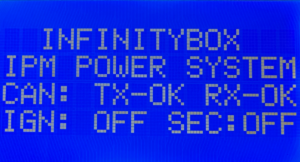
The main status screen on the MASTERCELL NGX inSIGHT display.
To get to the software version, press and release the HOME button on the MASTERCELL NGX. This brings up the MAIN MENU.
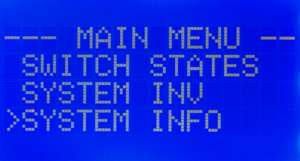
The MAIN MENU on the MASTERCELL NGX inSIGHT display.
Use the SCROLL UP and SCROLL DOWN buttons to move the cursor to the SYSTEM INFO option. Press and release the SELECT button. This brings up the SYSTEM INFO screen.
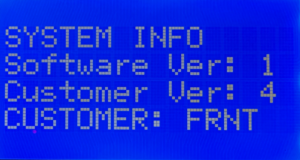
The SYSTEM INFO screen showing the MASTERCELL NGX software version.
Understanding the Software Version
The MASTERCELL NGX software version is made up of two parts displayed on the SYSTEM INFO screen: the Software Version and the Customer Version. In the example shown above, the Software Version is 1 and the Customer Version is 4. Combined, this means the MASTERCELL NGX is running Version 1.4.
The Software Version represents the core operating firmware on the MASTERCELL NGX. The Customer Version represents the specific configuration release that defines how inputs and outputs are assigned. When we release updates, either or both of these numbers may change.
Configuration Variants
The last line on the SYSTEM INFO screen shows the configuration variant loaded on your system. In this example, it reads CUSTOMER: FRNT, which means this MASTERCELL NGX has the front-engine configuration loaded. There is also a rear-engine configuration variant available for rear-engine and mid-engine builds.
IPM1 Kit Only
It is important to note that this process applies only to the IPM1 Intelligent Power Management Kit and the MASTERCELL NGX. The inSIGHT diagnostic screen and the SYSTEM INFO menu are specific to the NGX platform. This does not apply to the Legacy MASTERCELL that came with the 3-Cell Kit or the 20-Circuit Kit.
Contact Us
Our team is ready to help with any questions about your MASTERCELL NGX software version or your Infinitybox system. Contact us at (847) 232-1991 or click here to reach our support team.