Posts

Wiring the Cooling Fan with the IPM1 Kit

Table of Contents

Overview

Your Infinitybox IPM1 Kit makes it easy to control your cooling fan. The MASTERCELL NGX takes the trigger signal from your temperature switch or ECU. It sends a command over the CAN network to the front POWERCELL to turn the cooling fan on and off. The POWERCELL has the switching and fuse protection built in. This eliminates the need for an external relay and a separate fuse for your cooling fan circuit.

The POWERCELL also soft-starts the cooling fan motor. This reduces the in-rush current when the fan first turns on. Soft-starting lets you drive a larger fan with a smaller gauge of wire. Click here to learn more about the benefits of soft-starting.

There are two main ways to trigger your cooling fan with the MASTERCELL NGX. You can use a traditional thermostatic switch or you can use the trigger from your ECU. The MASTERCELL NGX accepts both ground-switched and high-side switched (12-volt) inputs. This gives you the flexibility to handle either type of trigger without adding external components.

Before you go any further, check the configuration sheet that came with your IPM1 Kit. Your configuration sheet is the single point of truth for the wire colors and connector locations in your system. It will tell you which MASTERCELL NGX input is assigned to your cooling fan and which POWERCELL output drives the fan motor.

Wiring a Thermostatic Switch

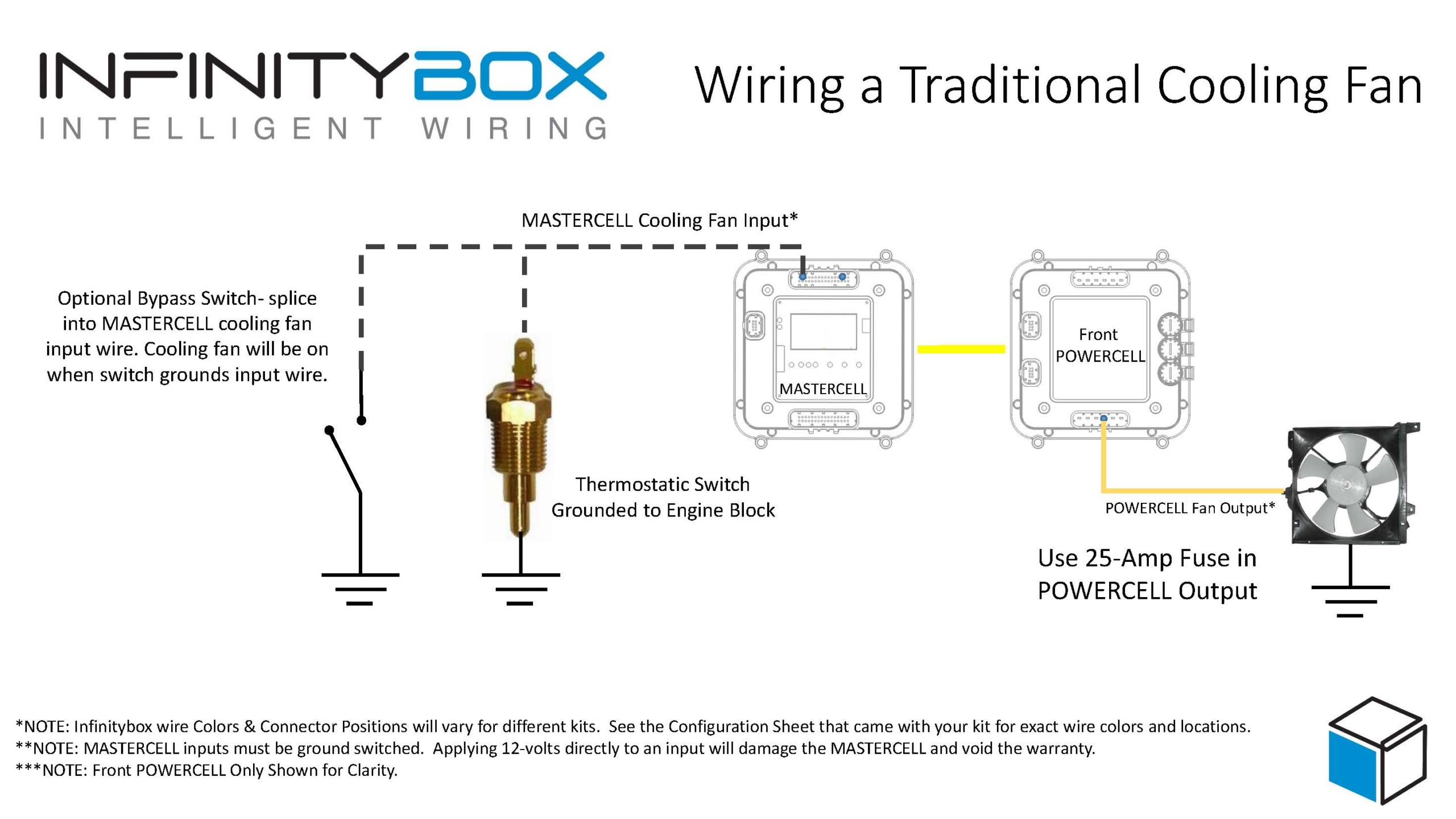
The most common way to trigger your cooling fan is with a thermostatic switch. This is a temperature-activated switch that is usually threaded into your radiator or your engine. Inside the switch, there is a bi-metal element that is set for a specific temperature. When the coolant temperature exceeds that set point, the switch closes internally and connects its terminal to ground. When the coolant temperature drops below the set point, the switch opens and disconnects from ground.

This is a ground-switched signal. You are going to connect the MASTERCELL NGX input for your cooling fan directly to the terminal on the thermostatic switch. When the switch closes, it will ground the MASTERCELL NGX input. The MASTERCELL NGX sees this change and sends a command to the front POWERCELL to turn on the cooling fan output. When the switch opens, the MASTERCELL NGX sends a command to turn the output off.

There are two common types of thermostatic switches. The most common type has a single quick-disconnect terminal. This type of switch grounds through its metal body when it threads into the radiator or the engine. You connect the MASTERCELL NGX input wire to that terminal.

The second type has two terminals. Both terminals are isolated from the metal body of the switch. You connect the MASTERCELL NGX input to one terminal and connect the other terminal to ground.

Image of wiring diagram showing how to wire a thermostatic cooling fan switch to the Infinitybox MASTERCELL

Image of wiring diagram showing how to wire a thermostatic cooling fan switch to the Infinitybox MASTERCELL

Here is an important note about temperature switches and temperature senders. There is a big difference between them. A temperature switch turns on and off at a set temperature. A temperature sender is a variable-resistance device that controls your temperature gauge. You cannot connect your cooling fan input on the MASTERCELL NGX to your temperature sender. They are two separate devices with two separate functions.

Wiring the Cooling Fan Trigger from an ECU

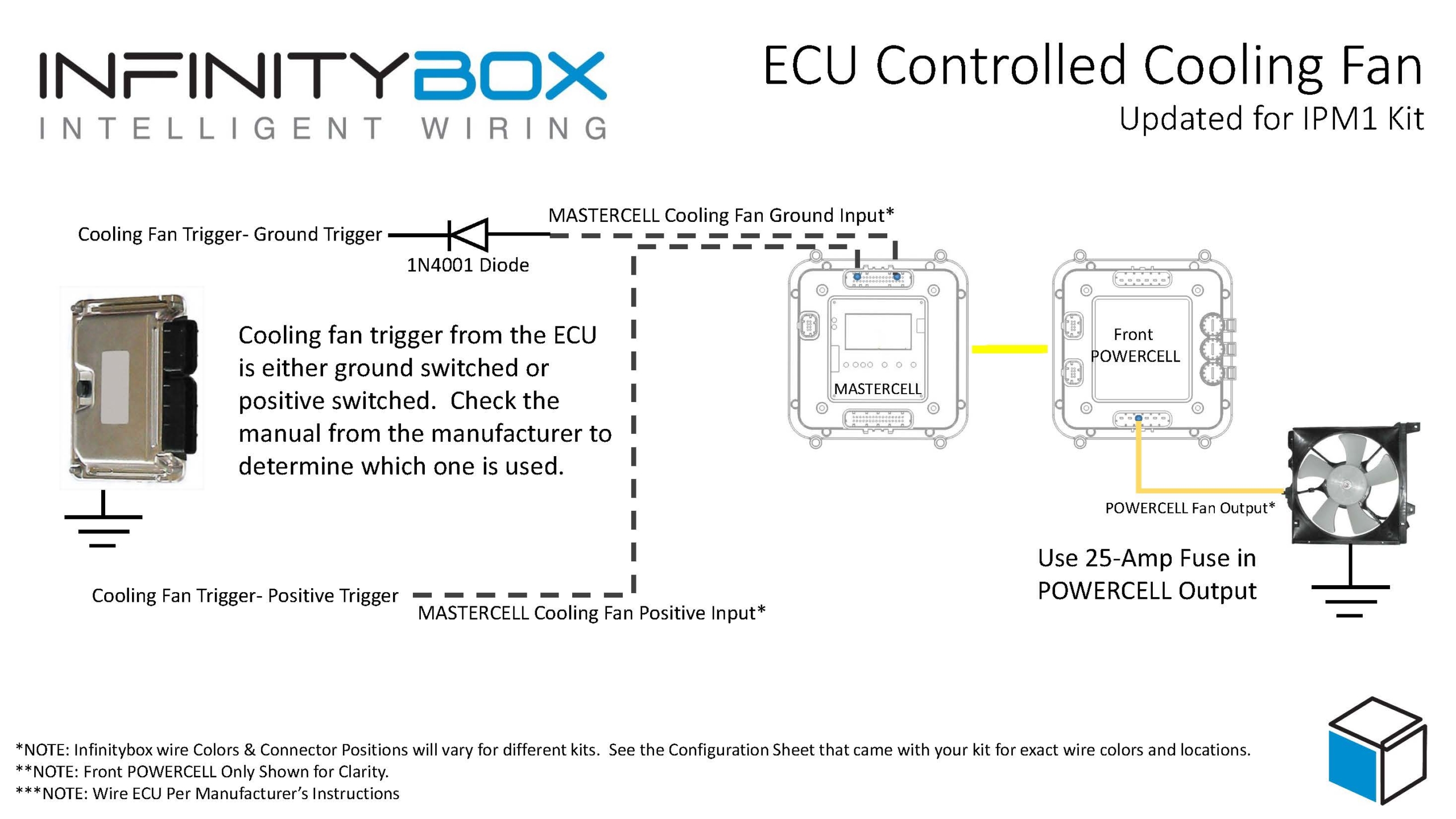
Many modern ECUs and EFI systems have a dedicated output to trigger the cooling fan. The ECU monitors the engine coolant temperature through its own sensor and decides when to turn the fan on and off. If your ECU has this capability, you can wire its cooling fan trigger directly to the MASTERCELL NGX instead of using a thermostatic switch.

The important thing to understand is whether your ECU has a ground-switched trigger or a 12-volt (high-side switched) trigger. Check the manual for your ECU to determine which type of trigger it has. The MASTERCELL NGX can handle both types of triggers natively.

Wiring diagram showing how to wire a thermostatic cooling fan switch to the MASTERCELL NGX in the Infinitybox IPM1 Kit

This diagram shows the connections between the thermostatic cooling fan switch, the MASTERCELL NGX, and the front POWERCELL in the Infinitybox IPM1 Kit.

Ground-Switched Trigger from ECU

If your ECU has a ground-switched cooling fan trigger, it internally connects the trigger wire to ground when it wants the fan on. You are going to connect this trigger to a ground-switched input on the MASTERCELL NGX.

We always recommend isolating any ground-switched input from an external system like an ECU with a 1N4001 diode. The reason is that we do not know what the ECU does with its trigger when it is off. It may let the trigger voltage float or it may pull the trigger up to battery voltage. Either of these conditions could cause erratic behavior on the MASTERCELL NGX input. To isolate the input, solder a 1N4001 diode in series between the MASTERCELL NGX input and the cooling fan trigger wire on the ECU. Install the diode with the anode facing the MASTERCELL NGX. The orientation of this diode is critical and the system will not work correctly if the diode is wired backwards.

12-Volt Trigger from ECU

If your ECU has a 12-volt cooling fan trigger, it outputs battery voltage on the trigger wire when it wants the fan on. You are going to connect this trigger to one of the high-side switched inputs on the MASTERCELL NGX.

The MASTERCELL NGX has the ability to accept 12-volt input signals directly on its high-side switched inputs. There is no need for an inVERT Mini or any other external component to flip this signal. This is one of the key advantages of the MASTERCELL NGX in your IPM1 Kit.

Adding a Bypass Switch

You may want to add a bypass switch that lets you turn on the cooling fan manually at any time. This is usually a simple toggle switch on the dash. It gives you the ability to turn the fan on even when the engine is not up to temperature.

To wire a bypass switch, connect a MASTERCELL NGX ground-switched input to one terminal on the toggle switch. Connect the other terminal to ground. You can assign this to the same cooling fan output on the POWERCELL through your inCODE NGX configuration. When you flip the switch, it grounds the MASTERCELL NGX input and turns on the cooling fan regardless of the state of your thermostatic switch or ECU trigger.

Check your configuration sheet for the specific input assigned to your bypass switch.

Wiring the POWERCELL Output to the Cooling Fan

Once you have the trigger side wired to the MASTERCELL NGX, you need to wire the output side. Connect the cooling fan output on your front POWERCELL to one wire on the cooling fan motor. Connect the other wire on the cooling fan motor to a good chassis ground. Make sure you have a solid metal-to-metal connection with no paint, grease, powder coating, or dirt in the way.

We recommend using a 25-amp fuse in the POWERCELL output to protect the wiring between the POWERCELL and the fan motor. Check your configuration sheet for the specific output and wire color for your cooling fan.

Resources

Our resources section has wiring diagrams for many different ECU and EFI systems. These show the specific connections between the ECU and the MASTERCELL NGX for the cooling fan trigger, fuel pump trigger, and ignition power. Check the blog on our website for your specific ECU.

Click here to contact our team or call us at (847) 232-1991 with any questions about wiring your cooling fan with the IPM1 Kit.

How to Select Your IPM1 Kit Configuration

Table of Contents

What is the IPM1 Kit Configuration?

Every IPM1 Kit ships with a base configuration loaded on the MASTERCELL NGX. This configuration is the roadmap that you use to wire your car. It identifies each MASTERCELL input wire, its function and the POWERCELL outputs that it controls. This includes all of the key electrical functions in your car like ignition, starter, turn signals, headlights, parking lights, horn, fuel pump, cooling fans and more.

The configuration sheet is the document that details all of these assignments. It shows you the MASTERCELL input wire colors, the POWERCELL output wire colors and the personalities assigned to each output. This link will take you to an example of the front-engine configuration for the IPM1 Kit. You can learn more about how to read the configuration sheet and understand the POWERCELL output assignments by clicking this link. You should keep your configuration sheet handy throughout your entire wiring project. It is the single most important reference document for your build.

About 95% of our customers use the stock configuration with no changes. For those who need to make modifications, our inCODE NGX programming tool lets you customize your configuration to meet the specific needs of your project.

Front-Engine vs. Rear-Engine Configurations

The IPM1 Kit has two core configurations: front-engine and rear-engine. The main difference between these two configurations is where the ignition and starter outputs are located.

In the front-engine configuration, the ignition and starter outputs are on the front POWERCELL. This makes sense for most builds because the engine is in the front of the car and the POWERCELL that is closest to the engine handles the ignition and starter.

In the rear-engine configuration, the ignition and starter outputs move to the rear POWERCELL. This is the right choice if you are building a mid-engine or rear-engine car like a Factory Five GTM or a Race Car Replicas SL-C. In these builds, the engine is behind the driver and the rear POWERCELL is closest to the engine.

Most of our customers are building front-engine cars, so the IPM1 Kit ships with the front-engine configuration loaded by default. If you are building a mid-engine or rear-engine car, you can easily change this yourself right from the MASTERCELL NGX.

Legacy Kits vs. the IPM1 Kit

With our legacy 20-Circuit Kit and 3-Cell Kit, we had to pre-program the configuration at the factory before shipping it to you. If you needed a rear-engine setup, you had to let us know when you placed your order and we would program the kit accordingly.

The IPM1 Kit puts this control in your hands. You can select your IPM1 Kit configuration directly from the MASTERCELL NGX without needing to contact us or send anything back. This is a big improvement in flexibility. If you change your mind about your build or want to start fresh, you can reload a configuration yourself at any time.

Please note that this process only works for the MASTERCELL NGX module that comes with the IPM1 Kit.  It will not work for the Legacy MASTERCELL that came with the 3-Cell kit or the 20-Circuit Kit.  Contact our technical support team if you need support for these legacy systems.  

How to Select Your IPM1 Kit Configuration

The MASTERCELL NGX has three buttons on the front of the unit: SELECT, SCROLL UP and SCROLL DOWN. You will use these buttons to select your IPM1 Kit configuration. Here are the steps to follow.

Step 1 — Start with the system powered off. Make sure that your MASTERCELL NGX is not powered up. The main power from the battery should be disconnected.

Step 2 — Press and hold the SELECT button. With the system off, press and hold the SELECT button on the MASTERCELL NGX. While you are holding the SELECT button, turn the main power on.

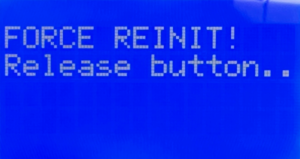
Step 3 — Release the SELECT button. When the MASTERCELL NGX powers up, you will see a screen that says FORCE REINIT! Release button. This tells you that the MASTERCELL NGX is ready to load a new configuration. Release the SELECT button.

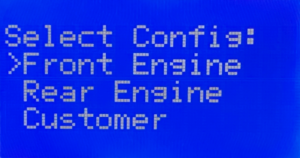
Step 4 — Select your configuration. You will see a screen that says Select Config: with three options listed. The options are Front Engine, Rear Engine and Customer. Use the SCROLL UP and SCROLL DOWN buttons to move the cursor to the configuration that you want.

If you are building a front-engine car, select Front Engine. If you are building a mid-engine or rear-engine car, select Rear Engine. Do not select the Customer option unless you have worked with us to create a custom configuration for your project.

Step 5 — Confirm your selection. When the cursor is on the configuration that you want, press and release the SELECT button.

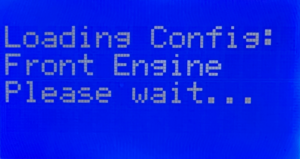
Step 6 — Wait for the configuration to load. You will see a screen that says Loading Config: followed by the name of the configuration that you selected. The MASTERCELL NGX will take about 30 seconds to load the configuration. Do not turn off the power or press any buttons during this process.

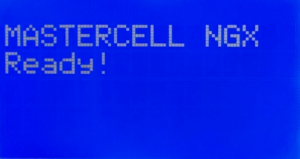
Step 7 — Confirm the configuration is loaded. When the process is complete, the screen will display MASTERCELL NGX Ready! and the main screen will appear. Your configuration is now loaded and you are ready to start wiring.

Important Notes

There are a couple of important things to keep in mind when you select your IPM1 Kit configuration.

First, this process loads the default configuration for the option that you select. If you previously made changes to your configuration using inCODE NGX, those changes will be lost. The MASTERCELL NGX will return to the stock configuration. You will need to re-apply any custom changes with inCODE NGX after the configuration is loaded.

Second, this process only needs to be done if you want to change your configuration. If your kit shipped with the front-engine configuration and that is what you need, you do not need to do anything. Your kit is ready to go right out of the box.

Third, the Customer option on the configuration selection screen is only for customers who have worked with our team to create a custom configuration. If you do not have a custom configuration, do not select this option.

Click this link to contact our team with any questions about how to select your IPM1 Kit configuration.

How to Configure inMOTION NGX Door Modules with the MASTERCELL NGX

Table of Contents

What Changed

If you purchased your inMOTION NGX modules before April 1st, 2026, they came preconfigured for a specific door position. You ordered a Driver Front module, a Passenger Front module and so on. Each one was programmed before it shipped.

Starting April 1st, 2026, every inMOTION NGX ships as a universal module. Instead of ordering a door-specific part number, you configure inMOTION NGX modules yourself using the MASTERCELL NGX. This is a one-time setup that takes less than a minute per module. Once configured, the module operates at its assigned door position. You can reconfigure it at any time by running this process again.

This change means you no longer need to worry about ordering the wrong module for a specific door. Every inMOTION NGX in your kit is identical until you tell it where it lives.

You need MASTERCELL NGX software revision 1.4 or higher to use this feature.  You can learn how to check your MASTERCELL NGX software version at this blog post.  

Before You Start

Before you configure inMOTION NGX modules, make sure the following are done:

  • Your inMOTION NGX modules are mounted in their doors (Step 1 in the installation manual).
  • Power and ground are connected to each module (Step 2 in the installation manual).
  • The CAN cables are spliced and connected between the inMOTION NGX modules and your IPM1 CAN network (Step 3 in the installation manual).

You will configure each module one at a time. The MASTERCELL NGX needs to see exactly one inMOTION NGX on the CAN network during this process. That means you will disconnect all but one module, configure it, then move to the next.

inMOTION NGX Door Positions

Each inMOTION NGX must be assigned to one of four positions. The position determines which CAN address the module uses and which commands it listens to on the network.

inMOTION NGX Name Location in Vehicle CAN Address
Driver Front Driver Front Door 3
Passenger Front Passenger Front Door 4
Driver Rear Driver Rear Door 5
Passenger Rear Passenger Rear Door 6

By default, all inMOTION NGX modules ship configured as Driver Front. If you are installing a 2-door vehicle, you only need a Driver Front and a Passenger Front module. For a 4-door vehicle, you will configure all four positions.

Step-by-Step: Configure inMOTION NGX

STEP 1. Make sure only one inMOTION NGX is connected to the CAN network. Disconnect the CAN wires from all other inMOTION NGX modules. The module that remains connected is the one you are about to configure.

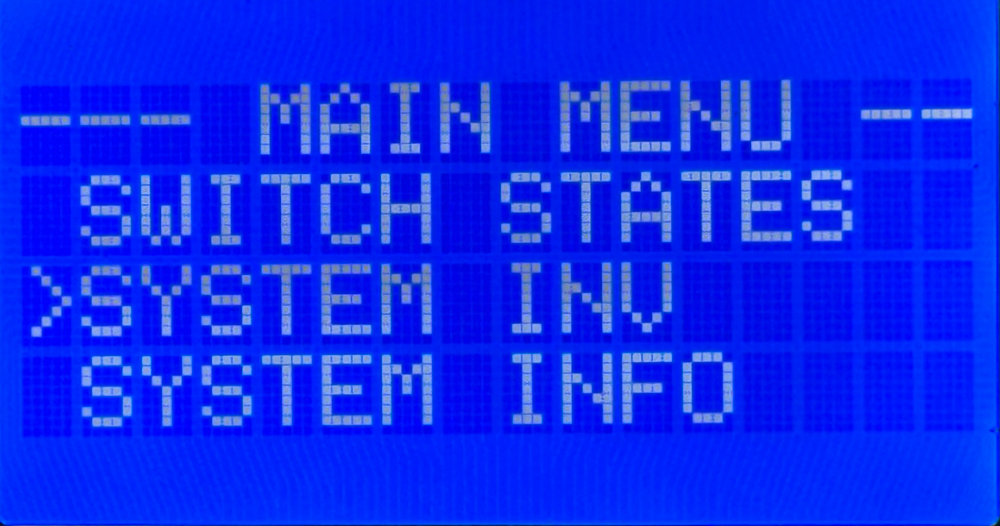
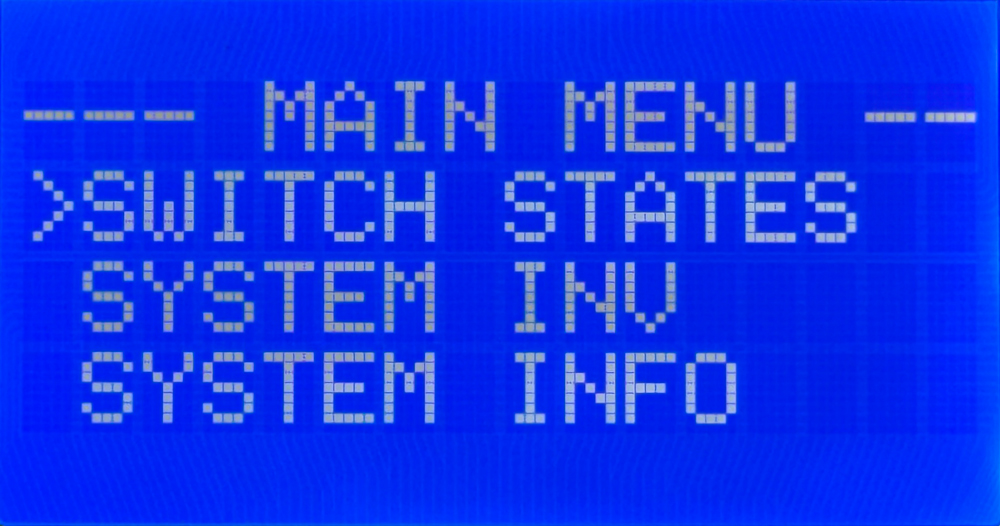
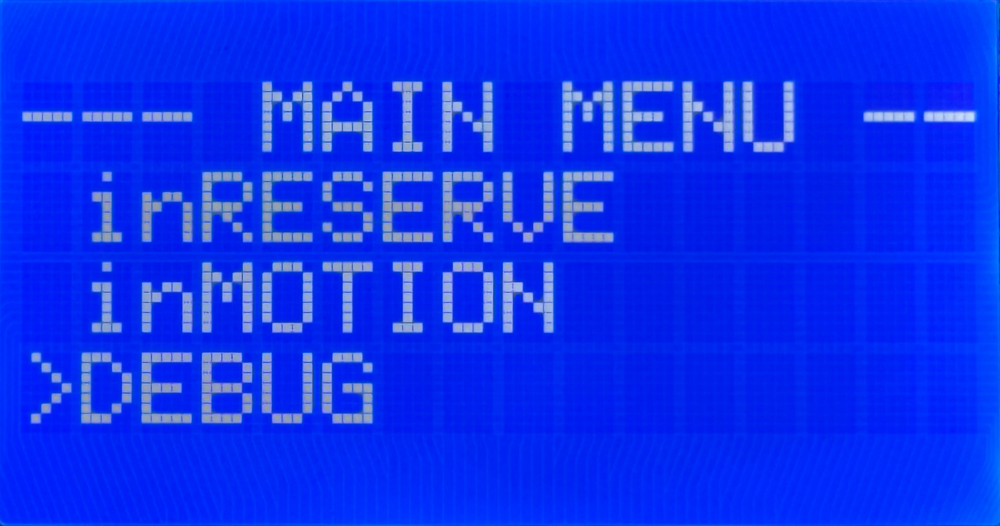
STEP 2. Navigate to the MASTERCELL NGX main menu using the inSIGHT display. Use the UP/DOWN buttons to scroll to inMOTION and press SELECT.

MASTERCELL NGX inSIGHT display showing the main menu with the inMOTION option selected

Select inMOTION from the MASTERCELL NGX main menu to begin configuration.

STEP 3. The inSIGHT display shows the inMOTION CONFIG screen. The MASTERCELL NGX scans the CAN network looking for connected inMOTION NGX modules. When it detects exactly one module, the screen reads “Connect only 1 inMOTION to CAN” with “SELECT to go” on the bottom line. Press SELECT to proceed.

MASTERCELL NGX inSIGHT display showing inMOTION CONFIG connection check screen with SELECT to go prompt

The MASTERCELL NGX confirms it sees exactly one inMOTION NGX on the CAN network.

If the screen displays “Waiting…” instead, the MASTERCELL NGX has not detected any inMOTION NGX modules. Verify that the module has power, is properly grounded and that the CAN wires are correctly spliced to the network.

If the screen shows that more than one inMOTION NGX was found, it will block you from proceeding. Disconnect the extra modules so only one remains on the CAN network, then try again.

STEP 4. The inSIGHT display shows a list of door positions. Use the UP/DOWN buttons to select the position you want to assign to this module: Driver Front, Passenger Front, Driver Rear or Passenger Rear. Press SELECT to confirm your choice.

MASTERCELL NGX inSIGHT display showing the Select Position screen with Driver Front, Passenger Front and Driver Rear options

Use UP/DOWN to choose the door position for this inMOTION NGX module.

STEP 5. A confirmation screen appears showing the position you selected. Press SELECT to confirm or HOME to cancel and go back to the position list. Once you confirm, the MASTERCELL NGX sends the configuration commands over CAN. This takes a few seconds while it writes the new settings and verifies the module responds at its new address.

MASTERCELL NGX inSIGHT display showing configuration confirmation screen for Passenger Front with SELECT to Confirm and HOME to Cancel options

Confirm your selection. Press SELECT to write the configuration or HOME to go back.

STEP 6. When the configuration is complete, the screen displays the new position assignment with a “Success!” message. Press HOME to return to the menu.

MASTERCELL NGX inSIGHT display showing inMOTION CONFIG Success screen with Device is now Passenger Front confirmation

Configuration complete. The inMOTION NGX is now assigned to its door position.

STEP 7. Repeat this process for each inMOTION NGX module in your system. Disconnect the module you just configured from the CAN network, connect the next one and run through the steps again. Continue until every module is assigned to its door position.

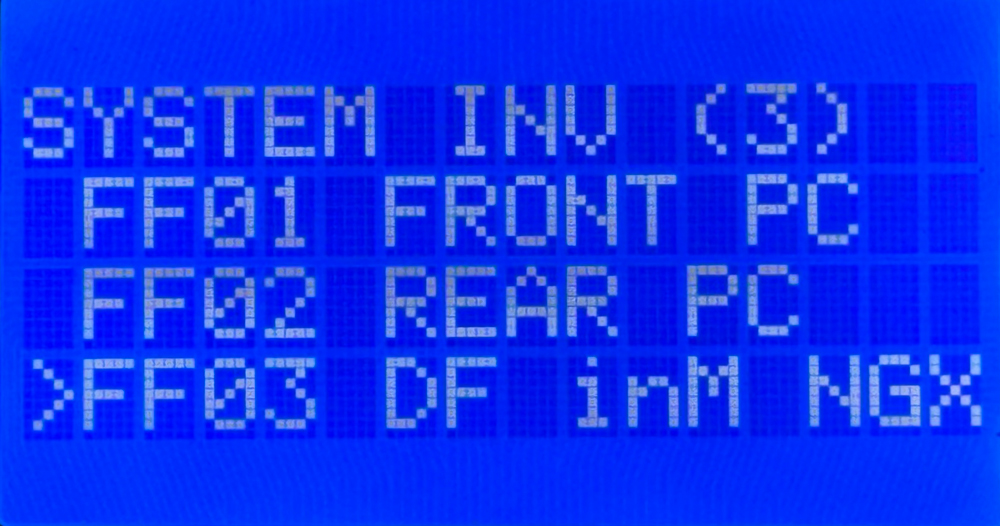
Once all modules are configured, reconnect all of them to the CAN network. Navigate to System Inventory on the MASTERCELL NGX to verify that every inMOTION NGX appears at its correct position.

Troubleshooting

The screen says “Waiting…” and never finds my module.
Check that the inMOTION NGX has power on both red 14-AWG wires and is properly grounded on both black 14-AWG wires. Verify that the green and yellow CAN wires are spliced correctly to the IPM1 CAN cable. Make sure the CAN wires are not reversed — green to green (CAN LO) and yellow to yellow (CAN HI).

The screen says it found more than one module.
Only one inMOTION NGX can be on the CAN network during configuration. Disconnect the CAN wires from all other inMOTION NGX modules and try again.

I configured a module to the wrong position.
Run the process again. Connect only that module to the CAN network and assign it to the correct position. The new configuration overwrites the previous one.

Download the Full Manual

This post covers the configuration process for the inMOTION NGX. For complete installation instructions including mounting, power and ground, CAN wiring, output wiring and switch wiring, download the full inMOTION NGX Installation Manual.

Questions?

If you have any questions about how to configure inMOTION NGX modules or anything else about your Infinitybox system, our technical support team is here to help. Give us a call at (847) 232-1991 or fill out our contact form and we will get back to you.

NGX Configuration Sheet- POWERCELL Outputs

We have completely re-engineered our Infinitybox system to bring the latest in wiring and body control technology to anyone wiring a hot rod, street rod, resto-mod, kit car, race car or Pro-Touring build.  We have also re-engineered the NGX configuration sheet for this system.  This new configuration sheet format makes it easier to read, gives more detail and gives all of the wire colors needed to connect to your switches and your accessories in your car or truck.  This is the standard configuration that comes loaded on all new IPM1 kits.  With our inCODE NGX programming tool, you can modify this configuration to meet the needs of your unique project.

This link will take you to the Front Engine configuration for our IPM1 kit.  Watch the resources section of our website for other setups including the Rear Engine configuration.  This blog post will walk through the details for the POWERCELL output assignments and the outputs on the MASTERCELL NGX.  Watch out blog for details on the inMOTION NGX inputs and outputs.

To start, the configuration sheet is broken down into the different cells in the Infinitybox NGX system.  This includes the front & rear POWERCELLs and the different inMOTION NGX cells for the doors (driver, passenger, driver rear & passenger rear).  Our IPM1 kit comes standard with one MASTERCELL NGX and two of our POWERCELL NGXs.  You can add as many inMOTION NGX door modules as you need for your car or truck.  Most customers will add 2 or 4 inMOTION MGX modules to their system as accessories depending on if they are working on a 2 or 4 door car.  Since the MASTERCELL NGX has low-current outputs to drive indicators on the dash, we added a page that details the wiring for these.  Lastly, we added pages that detail all the wires in the MASTERCELL A & B connector harnesses.

For the front & rear POWERCELL pages, we’ve reorganized the columns to make this easier to read.  The first column lists the function assigned to each POWERCELL output.  This includes things like turn signals, ignition, starter solenoid, lights, cooling fans and fuel pumps.  Any output that is labeled as OPEN is an auxiliary.  There is no set function assigned to the output.  Its corresponding input will turn it on and off.

The next column gives the address of the POWERCELL.  By default, the front POWERCELL is addressed as 1 and the rear POWERCELL is addressed as 2.

The next column lists the POWERCELL output by number for the function.  There are 10 outputs on a POWERCELL and they are listed in numerical order.  Some functions list multiple outputs.  Examples include the 4-ways and the One-Button Start.  In these cases, the function uses two different outputs.  The 4-ways use the left and right turn signal outputs.  The One-Button Start function uses the outputs for both the ignition and starter.

The next column gives you the POWERCELL output connector that the output is connected to.  The manual for your IPM1 kit has a diagram that identifies the A & B output connectors on the POWERCELL.  Please pay attention to this diagram carefully.  The A & B connectors are interchangeable on the POWERCELL.

The next column defines the “personality” assigned to the POWERCELL output and its corresponding input.  The personality is how the output behaves when it is turned on.  The most basic and common personality is “track”.  Outputs assigned the track personality turn on when the input is turned on and turn off when the input is turned off.  The input tracks the state of its input.  You can learn more about the other available personalities by clicking this link.

The next column lists the wire color for each output on the POWERCELL output harness.  Please note that the output harness colors for the outputs are the same for the front and rear POWERCELLs.  Pay attention to the POWERCELL address to make sure you are connecting to the right output.

The last three columns tell you the details for the MASTERCELL inputs that are controlling each POWERCELL output.  The input number, the MASTERCELL connector (A or B) and the wire color are listed.

After the POWERCELL details, the next page details the low-current outputs on the MASTERCELL NGX.  These outputs give you easy access to low-current outputs to drive indicators on your dash.  There are 8 of these outputs.  The first 4 are assigned to the left-turn signal indicator, the right-turn signal indicator, the high-beam indicator and the illumination for your gauges.  The next 4 are auxiliary outputs and can be set up as an advanced feature of the MASTERCELL NGX.  Contact our tech support team for details.

Watch the blog for more details on our new configuration sheet format and the details for the inMOTION NGX.  Click here to contact our tech support team with any questions.