Picture of Lokar 12-Volt Door Handle

Door Poppers with the Lokar 12-Volt Door Switches

How to Wire Lokar 12-Volt Door Handles to Infinitybox Systems for Door Poppers

Wondering how to connect Lokar 12-volt door handles to your Infinitybox system? This comprehensive guide shows you how to wire Lokar billet door handles with door popper solenoids using both the Legacy 20-Circuit Kit and the new inMOTION NGX system.

Understanding Lokar 12-Volt Billet Door Handles

Lokar manufactures premium billet accessories for custom cars and trucks. Their Billet Exterior 12-Volt Door Handles combine classic styling with modern functionality, featuring an integrated switch that activates door popper solenoids when you pull the handle. These bolt-on handles provide a sleek, modern touch to any vehicle’s exterior doors.

Learn more about Lokar Billet Exterior 12-Volt Door Handles

Wiring Lokar Door Handles with the Legacy 20-Circuit Infinitybox System

The Legacy Infinitybox system makes it simple to integrate Lokar door handles with electric door poppers. Follow these step-by-step instructions:

Installation Steps

1. Install the Hardware

  • Mount the Lokar door handles according to manufacturer instructions
  • Install door popper solenoids in each door per the included guidelines

2. Connect POWERCELL Outputs

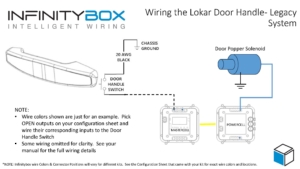
  • Select OPEN outputs on your POWERCELL module for each door
  • Connect the POWERCELL output wire to one lead on the door popper solenoid
  • Ground the other solenoid lead

3. Wire MASTERCELL Inputs

  • Connect the MASTERCELL input (corresponding to your OPEN output) to the switch inside the Lokar door handle
  • Ground the remaining switch wire

How It Works

When you pull the Lokar door handle, the MASTERCELL input grounds out. This triggers the MASTERCELL to command the POWERCELL to activate the output, pulsing the door popper solenoid and releasing the door latch.

Picture of Wiring diagram showing how to wire the Lokar 12-volt Door Handle to the Legacy Infinitybox System to control door poppers.

Picture of Wiring diagram showing how to wire the Lokar 12-volt Door Handle to the Legacy Infinitybox System to control door poppers.

Bonus Security Feature: We can program your system to block door popper switches when security is enabled via inLINK or inTOUCH NET. This ensures doors only open when you disable security using your inLINK key fob or smartphone app.

Wiring Lokar Door Handles with inMOTION NGX System

The Next Generation inMOTION NGX simplifies the installation even further. This door-mounted control module features two H-Bridge relays designed for power locks and power windows.

Simplified NGX Installation

The inMOTION NGX installs directly inside your door, keeping all wiring localized:

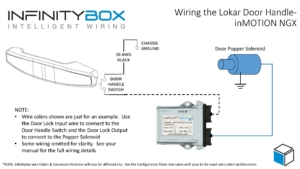
  • Use one output from the power lock relay pair to control the door popper solenoid
  • Wire the Lokar door handle switch directly to the inMOTION NGX in the same door
  • Control both the switch input and popper output from a single module

This configuration dramatically reduces wiring complexity compared to traditional systems.

Picture of wiring diagram showing how to wire the Locar 12-Volt Door Handles to control door poppers using the Infinitybox inMOTION NGX door control module.

Picture of wiring diagram showing how to wire the Locar 12-Volt Door Handles to control door poppers using the Infinitybox inMOTION NGX door control module.

The inMOTION NGX also supports security integration, allowing you to configure door poppers to function only when the vehicle security system is disarmed.

Download Wiring Diagrams

Need Help with Your Infinitybox Installation?

Our team is ready to answer your questions about connecting Lokar door handles or any other Infinitybox wiring project. Contact us at (847) 232-1991 or click here to reach our support team.


Keywords: Lokar 12-volt door handles, Infinitybox wiring, door popper solenoid, inMOTION NGX, Legacy 20-Circuit Kit, billet door handles, electric door poppers, POWERCELL, MASTERCELL, custom car wiring

Nick S's Factory Five Hot Rod wired with the Infinitybox system.

Factory Five Hot Rod Build: How Nick Wired His Dream Car with Infinitybox

Nick S's Factory Five Hot Rod wired with the Infinitybox system.

Nick S’s Factory Five Hot Rod wired with the Infinitybox system.

Celebrating 17 Years in Business: A Look Back at Nick’s Factory Five Hot Rod Build

We’re approaching 17 years in business, and it’s amazing how time flies! Over the years, we’ve helped countless enthusiasts bring their dream cars to life. Each build is special, but some really stand out as favorites.

Last week, we got a call from Nick S. He needed a little technical support for the Infinitybox system he purchased back in 2013 to wire his Factory Five Hot Rod. It was great catching up with him, hearing stories about his car, and knowing we played a part in making his dream build a reality. That inspired us to pull this project from the archives for a quick review—a true blast from the past.  Thinking about wiring your Factory Five Hot Rod? See how Infinitybox can simplify the job.

Nick’s Dream Build

When Nick started planning his Hot Rod, he wanted the best. He chose a Ford 302 built by Norm Wilson of Fortin’s Engines, paired with a Ford AOD transmission from Performance Automatics. For the exhaust, he went with Magnaflow.

Inside, he upgraded from stock gauges to a Dakota Digital VHX-1017 cluster and built a beautiful custom console with wood-grain panels and a custom switch panel. The level of detail in this car is remarkable.

Interior of Nick S's Factory Five Hot Rod wired with the Infinitybox system.

Interior of Nick S’s Factory Five Hot Rod wired with the Infinitybox system.

Wiring the Factory Five Hot Rod

When it came to wiring, Nick also wanted the best. He chose our Infinitybox system to power his build. He wired the core functions of the car with our 20-Circuit Kit (the predecessor to today’s Next Generation IMP1 Kit) and added inLINK for wireless control.

He didn’t stop there—Nick also installed inMOTION to control his power windows. We even customized his programming to let his inLINK key fobs control door poppers and other accessories.

Trunk of Interior of Nick S's Factory Five Hot Rod wired with the Infinitybox system. Showing off rear POWERCELL and inMOTION Cell.

Trunk of Interior of Nick S’s Factory Five Hot Rod wired with the Infinitybox system. Showing off rear POWERCELL and inMOTION Cell.

Step-by-Step Build Documentation

Nick went the extra mile by documenting his entire build on his personal website. He included step-by-step instructions, pictures, videos, and detailed sketches showing exactly how he wired the car with the Infinitybox system. It’s an incredible resource for anyone planning their own Factory Five or hot rod build.  Check out Nick’s website here.

Standing the Test of Time

Nick received his Infinitybox system back in July 2013. More than a decade later, the system continues to perform reliably in his Hot Rod. We’ve been there to answer questions along the way, and we’re proud that our products stand the test of time.

Build Your Dream Car with Infinitybox

Whether you’re working on a hot rod, street rod, muscle car, restomod, kit car, or Pro Touring build, we can help you wire it right. Call us at (847) 232-1991 or contact us here to get started.

New Infinitybox Shorts Series

We’re excited to introduce the New Infinitybox Shorts Series on YouTube & Instagram! These quick, one-minute videos are designed to give you fast answers to the most common questions we hear about the Infinitybox wiring system.

Every day, customers ask us why Infinitybox is the best way to wire a hot rod, restomod, street rod, pro-touring build, or kit car. They also bring us detailed technical questions about wiring specific parts of their system. While our blog posts and long-form videos dive deep into these topics, sometimes you just need a quick, bite-sized answer. That’s exactly what the Infinitybox Shorts Series delivers.

Each video in the series tackles one focused question. You’ll find topics like:

  • How to connect a starter or ignition switch.

  • Wiring tips for headlights, tail lights, and accessories.

  • Troubleshooting power feeds and ground connections.

  • The advantages of using Infinitybox over a traditional wiring harness.

In some cases, we’ll point you to detailed resources on our website or longer tutorials on our YouTube channel so you can dig deeper.  Watch the Infinitybox Shorts playlist on YouTube here.

If there’s a topic you’d like us to cover, leave a comment on one of our Shorts or use the Contact form on our website. You can also explore our complete library of longer Infinitybox videos on YouTube. Don’t forget to subscribe so you never miss a new release.

And remember — if you’d rather talk to a real person about your wiring project, give us a call at (847) 232-1991. We’re always here to help.

Documentation for inMOTION NGX Modules

Our inMOTION NGX revolutionizes the way your wire your door functions in your restoration, street rod, kit car, hot rod, restomod or Pro-Touring build.  Instead of running large bundles of wires through the door hinge, we reduce that down to 4 simple wires.  inMOTION NGX is the next generation of door control modules.  In one box, you can easily wire your power locks and windows with much less wire running to the door than traditional wiring harnesses.  You simply mount the inMOTION NGX module in your door and you get local control with less wire.  You need to simply run power, ground and our two CAN wires through the hinge of the door.  This blog is going to walk through the manual and the configuration sheet for inMOTION NGX.

Since you have one inMOTION NGX module per door, you can easily scale your car or truck build by adding as many as you need.  The modules communicate with each other using a J1939 network.  That means you can easily get central locking from all the doors.  You can also control passenger windows from the driver’s door.  You get late-model conveniences in your classic car or truck.

inMOTION NGX is designed to control your power lock actuator and power window motor from inside the door.  We use special polarity reversing relays to control these features from any switch.  We also build 4 outputs into the inMOTION NGX module for local control of switch indicators, interior lights, accent lighting, puddle lights or other features.

This link will take you to the manual for our inMOTION NGX kit.  This document takes you through the process of wiring your doors with inMOTION NGX.  It describes how inMOTION NGX works, talks about how to properly mount it in your door, details wiring the switches and loads to the module and gives you a check list for each step.

There is a configuration sheet specific to inMOTION NGX.  This sheet details which input wires connect to your switches and which output wires connect to your loads.  It also shows how the different inMOTION NGX modules interact with each other and the other parts of the Infinitybox IPM1 kit.  You can download the standard configuration sheet by clicking this link.

Contact our team to learn more about the inMOTION NGX Kit, the manual and the configuration sheet.  Click here to get in touch with our team.

Wiring Russ Thompson Turn Signal System

Russ Thompson has been making high-quality turn signal assemblies for the full range of Factory Five Cars.  We have been getting a lot of requests for a wiring diagram to show you how to connect his turn-signal switch to our new Infinitybox IPM1 kit.  This blog post will get you those details.  Please note that this post details the wiring using our Next Generation System.  Please click here if you have one of our Legacy Infinitybox systems.

Russ Thompson made high-quality turn signal stalk assemblies for the Factory Five Roadster, Type 63 and the GTM.  You can learn more about his products at this link.

The new Infinitybox IPM1 kit includes the next generation of our MASTERCELL and POWERCELLs.  These products include numerous refinements and enhancements that our customers have requested.  You can learn more about the IPM1 kit at this link.  Turn signals and 4-way flashers have always been easy to wire with the Infinitybox system.  The addition of indicator outputs on the MASTERCELL NGX make this even easier.

The Infinitybox manages all the required functions for turn signals and 4-ways.  The MASTERCELL handles the patterns internally so you do not need a flasher relay.  You simply ground the inputs for the left and right turn signals to make them work.  We manage the rest for you.  The distributed architecture of the system makes running the wire through your car easy.  You have a POWERCELL output module in the front of your car and one in the rear.  Each of these POWERCELLs has outputs for turn signals.  That means that you are running the front turn signals from the front POWERCELL and the rear signals from the rear.  All of your wire is run locally.  This minimizes the total amount of wire needed in the car.

We also manage the 4-ways or hazards internally.  The MASTERCELL generates the pattern so no external flasher is required.  When you ground the input for the 4-ways, the MASTERCELL tells the front & rear POWERCELLs to flash all the turn signals together.

Wiring the turn signal switch and the hazard switch is very easy with the Infinitybox IPM1 kit.  You simply connect the left turn, right turn and 4-way inputs from the MASTERCELL to the switches in the Russ Thompson turn signal stalk.  Instead of connecting the other side of the switch to a flasher, you connect it to ground.  When you turn on a switch, that pulls the MASTERCELL input to ground, which triggers its function.  The following diagram shows how to connect the inputs to the stalk switches.

Picture of Infinitybox wiring diagram showing how to wire Russ Thompson Turn Signal Stalk

Picture of Infinitybox wiring diagram showing how to wire Russ Thompson Turn Signal Stalk

The wire colors for your MASTERCELL inputs are defined in the configuration sheet that came with your kit.  Click on this link to get to our standard front-engine configuration.

For the turn signal wires from the stalk, the black-red wire should connect to ground.  The red-white wire connects to the MASTERCELL input for your left turn signal and the red-yellow wire connects to the input for the right turn signal.

There is another great feature included with our MASTERCELL NGX.  In addition to the inputs, the MASTERCELL NGX has outputs to locally power things like indicators.  Since your MASTERCELL is located close to your switches, it is very easy to run these indicator wires to the indicator lights on your dash for your turn signals and indicators.  When the MASTERCELL is telling the POWERCELLs to flash the turn signals, it is also flashing the indicators.  See the wiring diagram above for details on wiring you dash indicators.

The last feature in the Russ Thompson kit is the button at the end of the turn signal stalk.  This is a momentary button intended to be used to control the high-beams.  With a typical wiring set up, you would need a separate relay or high-beam module to manage this.  With the Infinitybox IPM1 kit, you can control your high-beams from this momentary button internally.  Our high-beam input can be set to toggle the high-beams on and off.  See the diagram above to show how to wire this input to the switch in the Russ Thompson kit.  Both the wires for the button on the Russ Thompson harness are black.  Connect one to ground and the other to the MASTERCELL input for the high-beams.

You can also use this button to control the horn if you want.  Instead of the high-beam input, connect the horn input.  See you configuration sheet for details.

You can download a PDF version of this wiring diagram by clicking this link.

Contact our technical support team if you have any questions about wiring your Factory Five car using our Infinitybox IPM1 kit and the Russ Thompson turn signal stalk kit.

NGX Configuration Sheet- POWERCELL Outputs

We have completely re-engineered our Infinitybox system to bring the latest in wiring and body control technology to anyone wiring a hot rod, street rod, resto-mod, kit car, race car or Pro-Touring build.  We have also re-engineered the NGX configuration sheet for this system.  This new configuration sheet format makes it easier to read, gives more detail and gives all of the wire colors needed to connect to your switches and your accessories in your car or truck.  This is the standard configuration that comes loaded on all new IPM1 kits.  With our inCODE NGX programming tool, you can modify this configuration to meet the needs of your unique project.

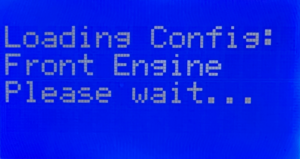
This link will take you to the Front Engine configuration for our IPM1 kit.  Watch the resources section of our website for other setups including the Rear Engine configuration.  This blog post will walk through the details for the POWERCELL output assignments and the outputs on the MASTERCELL NGX.  Watch out blog for details on the inMOTION NGX inputs and outputs.

To start, the configuration sheet is broken down into the different cells in the Infinitybox NGX system.  This includes the front & rear POWERCELLs and the different inMOTION NGX cells for the doors (driver, passenger, driver rear & passenger rear).  Our IPM1 kit comes standard with one MASTERCELL NGX and two of our POWERCELL NGXs.  You can add as many inMOTION NGX door modules as you need for your car or truck.  Most customers will add 2 or 4 inMOTION MGX modules to their system as accessories depending on if they are working on a 2 or 4 door car.  Since the MASTERCELL NGX has low-current outputs to drive indicators on the dash, we added a page that details the wiring for these.  Lastly, we added pages that detail all the wires in the MASTERCELL A & B connector harnesses.

For the front & rear POWERCELL pages, we’ve reorganized the columns to make this easier to read.  The first column lists the function assigned to each POWERCELL output.  This includes things like turn signals, ignition, starter solenoid, lights, cooling fans and fuel pumps.  Any output that is labeled as OPEN is an auxiliary.  There is no set function assigned to the output.  Its corresponding input will turn it on and off.

The next column gives the address of the POWERCELL.  By default, the front POWERCELL is addressed as 1 and the rear POWERCELL is addressed as 2.

The next column lists the POWERCELL output by number for the function.  There are 10 outputs on a POWERCELL and they are listed in numerical order.  Some functions list multiple outputs.  Examples include the 4-ways and the One-Button Start.  In these cases, the function uses two different outputs.  The 4-ways use the left and right turn signal outputs.  The One-Button Start function uses the outputs for both the ignition and starter.

The next column gives you the POWERCELL output connector that the output is connected to.  The manual for your IPM1 kit has a diagram that identifies the A & B output connectors on the POWERCELL.  Please pay attention to this diagram carefully.  The A & B connectors are interchangeable on the POWERCELL.

The next column defines the “personality” assigned to the POWERCELL output and its corresponding input.  The personality is how the output behaves when it is turned on.  The most basic and common personality is “track”.  Outputs assigned the track personality turn on when the input is turned on and turn off when the input is turned off.  The input tracks the state of its input.  You can learn more about the other available personalities by clicking this link.

The next column lists the wire color for each output on the POWERCELL output harness.  Please note that the output harness colors for the outputs are the same for the front and rear POWERCELLs.  Pay attention to the POWERCELL address to make sure you are connecting to the right output.

The last three columns tell you the details for the MASTERCELL inputs that are controlling each POWERCELL output.  The input number, the MASTERCELL connector (A or B) and the wire color are listed.

After the POWERCELL details, the next page details the low-current outputs on the MASTERCELL NGX.  These outputs give you easy access to low-current outputs to drive indicators on your dash.  There are 8 of these outputs.  The first 4 are assigned to the left-turn signal indicator, the right-turn signal indicator, the high-beam indicator and the illumination for your gauges.  The next 4 are auxiliary outputs and can be set up as an advanced feature of the MASTERCELL NGX.  Contact our tech support team for details.

Watch the blog for more details on our new configuration sheet format and the details for the inMOTION NGX.  Click here to contact our tech support team with any questions.


Infinitybox NGX Power Management System

The Infinitybox team is excited and proud to announce the next generation of wiring and body control systems for the Restoration and Performance market.  For over 15 years, our customers have been wiring their hot-rods, street rods, resto-mods, kit cars, race cars and Pro-Touring builds with our Infinitybox system.  Its distributed and multiplexed architecture lets our customers put the control where they need it in their cars to simplify their installs and reduce the total amount of wire needed in the car.  The processing power that we build into our system lets our customers get the electrical functions and features found in all new cars.  Our integrated troubleshooting and diagnostic features let our customers wire their cars faster and find problems on the road with ease.

We have been listening to our customers.  We heard the things they like about our Infinitybox system.  We also heard the changes that they wanted to make using it easier.  We also heard the additional features and functions that they want.  This listening culminated in the creation of our Infinitybox NGX System, the Next Generation of wiring and body control.

Here is what our NGX System brings to the electrical system in your street rod, hot rod, restoration, resto-mod or Pro-Touring build.

  • A rock-solid and robust wiring system that is easy to install
  • The same distributed wiring technology used in all modern cars today
  • Powerful diagnostic features to troubleshoot easier and faster
  • A programmable system that you can configure with a simple computer interface
  • Flexible inputs and outputs to make wiring your switches and loads easier
  • Lower steady-state current draw as compared to our legacy Infinitybox system
  • More options to interface with your car or truck: switches, touch screens, remote control, passive keyless entry and rotary interfaces.

We will be detailing the new features in our new IMP1 Kit and our new accessory products over the next few weeks.  Watch our blog, Instagram and Facebook for details and videos on these new products.  If you have any questions in the meantime, click here to contact our team.

Programming with the Microchip PICKit 4

You can use the Microchip PICKit 4 In-Circuit Debugger to load code onto your Infintybox MASTERCELL, POWERCELL and inMOTION cell.  This is an advanced feature and you would only need to do this when instructed by the Infinitybox team.  There is a special programming harness required.  Contact Infinitybox technical support for more details.  Please follow these instructions to update your cell with the PICKit 4.

1.  You will receive a file to load onto your cell. Save this file to the desktop of your computer.

2.  Download Microchip’s MPLAB X IDE software.  Click this link to get the latest version of their software.  Follow the instructions from Microchip to install the software suite. Once the software is installed, reboot the computer.

3.  Plug the PICKit 4 into your computer and let Windows install the drivers. Once the drivers are installed, reboot the computer.

4.  Click on your computer’s Start button and go to the Microchip folder under Programs. Launch MPLAB IPE.  The application will look like this.

5. Click on the Settings option in the top bar and select Advanced Mode.  This will bring up a dialogue box asking for a password.  The default password is “microchip”.  Type this into the Password field and click on the Log In button.  The dialogue box will look like this.

6. The advanced options buttons will appear on the left of your screen.  Click on the Power button.  This will open a tab with the Power Settings.  Click on the box next to “Power target circuit from PICKit 4”.  A check should appear in the box as shown in this picture.  Make sure that the value in the Voltage Level field is 5.0.

7. Click on the Browse button under the Operate tab as shown in the image below.  This will open a dialogue box.  Use this box to browse to your desktop to select the file that we emailed you.  Select this file and click the Open button.  You will get a message in the Output IPE tab that will read Hex File Loaded Successfully.

8. Confirm that the Device and Tool are correct.  These values are on the Operate tab.  The Device should be dsPIC30F6012A.  The Tool should be PICKit 4.  The following picture shows where these values are located.

9. Plug the black connector on the PICKit 4 harness into the programming port on the cell to be programmed.

10. Click on the Connect button under the Operate tab.  The following picture shows this button.

A warning box will appear, as shown below.  Click on the OK button to accept this warning.

11. Click on the Program button as shown in the picture below.  The PICKit 4 will load the hex file into the process of the cell being programmed.  This will take 20 to 30 seconds to complete.  You will get a message in blue in the Output IPE tab that will say Programming Complete.

12. Click on the Disconnect button as shown in the picture below and unplug the PICKit 4 from the cell being programmed.


1971 Pantera

Here’s another great example of a customer’s car wired with our Infinitybox system.  This is a highly customized 1971 DeTomaso Pantera built by Dave A, the cars owner.  The finished product is beautiful.  The stance is aggressive, the color pops and there are custom details all over the car.  All of the pictures in this post were shot by Jason Peacott of Jason Peacott Photography.  You can click here to get to Jason’s website to see his other work.

Low Front View of 1971 Pantera Wired with the Infinitybox System

Low Front View of 1971 Pantera Wired with the Infinitybox System

Dave started with a rusted-out, narrow body Pantera.  All the rot was repaired and then the car was treated to a Group 4 race prep, including seam welding and doublers.  A fully integrated cage was then added, which is stitch welded to the chassis.  The all-steel exterior is a stylized Group 4 tribute.  It was completely shaved and the engine bay & underbody feature all custom metal work.

Front 3/4 View of 1971 Pantera Wired with the Infinitybox System

Front 3/4 View of 1971 Pantera Wired with the Infinitybox System

Dave’s running a race-built LS7 engine, mated to a built G96.50 transmission, breathing through a custom Harrop ITB intake system and 8-into-1 exhaust.  The exhaust work alone is worth the price of admission.

Amazing Exhaust Work on 1971 Pantera

Amazing Exhaust Work on 1971 Pantera

The car features a completely custom interior with special lighting and many one-off parts.

Interior of 1971 Pantera Wired with the Infinitybox System

Interior of 1971 Pantera Wired with the Infinitybox System

Dave wired the car with our 20-Circuit Kit and inLINK.  The wiring is super clean and practically invisible.  The distributed design of our Infinitybox system let Dave put the MASTERCELL and POWERCELLs where he needed them to keep the wiring simple and clean.

Dave has hidden switches on the outside of the car to control his door poppers.  We custom programmed his poppers so they work from his inLINK fobs.  We also programmed the system so that the poppers are disabled when he locks the system from his key fob.  This is a simple but powerful security feature that you can get with your Infinitybox system.

This car was proudly built by Dave with help with a few specialty shops for some of the details.  This includes White Post Restorations who did paint and final assembly.

If you want to learn more about how our Infinitybox system can help you wire your next project, click on this link to connect to our technical support team.

Rear View of 1971 Pantera Wired with the Infinitybox System

Rear View of 1971 Pantera Wired with the Infinitybox System


Dakota Digital GSS-3000

This blog post will show you the connections that you need to make between your Infinitybox 20-Circuit Kit and the Dakota Digital GSS-3000 Universal Gear Shift Sender.  The GSS-3000 is designed to drive the gear selector indicators on your dash from any automatic transmission.  Their kit has a rotary potentiometer that connects to the shift linkage on the transmission.  It learns the position of the different gears and sends signals to indicators on your dash to show you what gear you are in.  It is a simple and clever product.  The Dakota Digital GSS-3000 has contacts that are designed to drive your back up lights when you have the transmission in reverse.  It also has a set of contacts for a Neutral Safety Switch.  This sends out a signal when the transmission is in park or neutral and it is safe to start the engine.  Your Infinitybox system can take in these two signals to easily drive your back up lights and manage your Neutral Safety Switch.  Keep reading to learn more.

Before you go any further, it is important that you read and carefully understand the instructions for your Dakota Digital GSS-3000 Universal Gear Shift Sender.  You can download these instructions from their website by clicking here.  This blog post is only going to cover the ignition power to the GSS-3000, the neutral safety signal and the connection to the back up lights.  Please follow their instructions for the rest of the wiring to the module.  This picture will show the wiring diagram for the connections to the GSS-3000.

Picture of Infinitybox Wiring Diagram for the Dakota Digital GSS-3000

Picture of Infinitybox Wiring Diagram for the Dakota Digital GSS-3000

First, you need to provide key-on ignition power to the module.  When the key is in the run position, the module will get its power.  You’re going to tap into the ignition output on your front POWERCELL.  Check your configuration sheet for the wire color for your ignition output.  You can splice into this wire directly or you can use one of our Splice Saver Kits to make a simple and clean connection for ignition power.

Next, you can take their Back Up signal and use it to control the back up lights in the back of you car.  The advantage of doing it this way is that you’re running less wire.  The signal will come from the GSS-3000 in the front of the car and connect to the MASTERCELL, also in the front of the car.  The back up lights will get their power from the rear POWERCELL.  You are not running a wire all the way from the GSS-3000 in the front of the car to the back up lights in the rear of the car.  The GSS-3000 puts out a positive signal for the back up lights.  You need to use one of our inVERT Minis to flip this to a ground signal.  See the details in the wiring diagram for how to make these connections.

Lastly, you can use the Dakota Digital GSS-3000 to send the MASTERCELL the signal for the Neutral Safety Switch.  The MASTERCELL needs to see a ground signal through the input for the Neutral Safety Switch.  Check your configuration sheet for specifics on the wire color for your system.  This blog post will get you more details on the Neutral Safety Switch input.  In a lot of transmissions, there is a switch built into them that will give you this signal for when it is safe to start the engine.  If your transmission does not have a built-in safety switch, you can use the signal from the GSS-3000.  This is a ground signal from their SAFETY terminal.  We recommend wiring a 1N4001 diode in series with the MASTERCELL input to isolate the MASTERCELL from the GSS-3000.  This blog post will get you more details about wiring this diode in line.  When you have the transmission in the park or neutral position, the MATERCELL will get the signal that it safe to start the engine.

The is an important consideration here regarding using the GSS-3000 neutral safety signal and the Infinitybox built-in One-Button Start feature.  This feature will not work if you are taking the neutral safety signal from the GSS-3000.  Since the GSS-3000 is getting its power from the ignition output from your POWERCELL, the module will not trigger the neutral safety signal in time for the MASTERCELL to process this.  You will need to use an external neutral safety switch if you want to use our One-Button Start feature and the GSS-3000.

You can download a PDF version of this wiring diagram by clicking this link.

Our technical support team is always available to help you wire your car or truck with our Infinitybox system.  Click this link to contact our team with any questions.