inLINK Radio Board Install

Our inLINK Wireless Control Module is the most popular accessory that guys add to their Infinitybox 20-Circuit Kit.  With inLINK, you can control the functions of your Infinitybox system through a simple key fob.  inLINK seamlessly integrates into your MASTERCELL with no external boxes of modules.  You can enable and disable security.  You can control your lights.  You can pop your doors.  You get a ton of flexibility.

If you buy inLINK with your 20-Circuit Kit, we pre-install it for you at the factory.  If you don’t buy inLINK up front, you can add it at any time.  Installing it to your MASTERCELL is very simple.  You only need a screw driver.  No software updates are needed.  The MASTERCELL is pre-programmed to talk to the inLINK radio receiver board.

The inLINK kit includes the inLINK Radio Receiver Board, two spacers, two screws and two of the inLINK key fobs.  The following instructions show you how to install the inLINK Radio Receiver Board into the MASTERCELL.

STEP 1- Disconnect the MASTERCELL.

inLINK Installation- Figure 01

inLINK Installation- Figure 01

Unplug the MASTERCELL input harnesses and the CAN cable as shown in Figure 1.  Remove the MASTERCELL from the car.

STEP 2- Remove the Screws from the Back of the MASTERCELL.

inLINK Installation- Figure 02

inLINK Installation- Figure 02

Turn over the MASTERCELL so the inSIGHT screen is facing down as shown in Figure 2.  Remove all 8 screws from the back of the MASTERCELL with a Phillips screwdriver.  Put these screws in a safe place.

STEP 3- Remove the Back of the MASTERCELL

inLINK Installation- Figure 03

inLINK Installation- Figure 03

Once the screws are removed, carefully separate the plastic housing (A) from the back cover (B) as shown in Figure 3.  Carefully separate the housing and back cover of the MASTERCELL unit by first turning the unit upside down and gently placing your fingers in the input connector shells.  Gently press up on the connector pins while holding the plastic housing (A) with your thumbs until the back cover is separated from the housing.  Be sure to keep the plastic housing facing down to keep the buttons in place. If they do fall out, locate all five buttons and put them to the side.  Set aside the plastic housing, keeping it upside-down so that the buttons do not fall out.

STEP 4- Prepare the inLINK Radio Receiver Board.

inLINK Installation- Figure 04

inLINK Installation- Figure 04

Disconnect the daughter board (A) in Figure 4 from the sockets (C) on the radio receiver board (B).  Be careful not to bend the pins when removing.

STEP 5- Place the Spacers on the MASTERCELL Board.

inLINK Installation- Figure 05

inLINK Installation- Figure 05

Place the two clear spacers (A) on the board (B) as shown in Figure 5.  The two spacers should go over the holes in the MASTERCELL printed circuit board.

STEP 6- Install the inLINK Radio Receiver Board.

inLINK Installation- Figure 06

inLINK Installation- Figure 06

While keeping the spacers in place, carefully align the pins on the radio receiver board (A) with the header on the MASTERCELL board (B) as shown in Figure 6.  Insert the radio board pins (A) into the MASTERCELL connecting header (B) and push in the board until the plastic connector on the radio receiver board meets with the header on the MASTERCELL board.  Ensure that the spacers are still aligned with the holes prior to securing the radio receiver board with screws. If the spacers are not aligned, CAREFULLY put them back in place using a small tool.

STEP 7- Install inLINK Board Screws.

inLINK Installation- Figure 07

inLINK Installation- Figure 07

Fasten the radio receiver board to the MASTERCELL board by inserting the included screws into the holes as shown in Figure 7 and tighten the screws until the board is secure.  DO NOT OVER-TIGHTEN THESE SCREWS.

STEP 8- Reinstall the inLINK Daughter Board.

inLINK Installation- Figure 08

inLINK Installation- Figure 08

Align daughter board (A) pins with the top row of holes on the radio board header (B) as shown in Figure 8 and insert pins. Push in the daughter board until both headers are flush.  Wrap antenna wire (D) in Figure 7 and Figure 8 in a large circle around the inSIGHT diagnostic module (C) in figure 8. Make sure that it does not interfere with the pins or plastic mating surfaces.

STEP 9- Replace the MASTERCELL Buttons

inLINK Installation- Figure 09

inLINK Installation- Figure 09

If any of the MASTERCELL buttons fell out of the housing, reinstall them as shown in Figure 9.

STEP 10- Reassemble MASTERCELL.

inLINK Installation- Figure 10

inLINK Installation- Figure 10

Keeping the housing upside-down, insert the MASTERCELL board and back cover (A) as shown in Figure 10 by aligning the input pins with the correct holes in the housing. DO NOT flip over the front cover as this will cause the buttons to fall out. Gently press the cover down until all pins have gone through their corresponding openings
on the housing and the back cover fits snugly in place.

STEP 11- Reinstall Screws on Back Cover of MASTERCELL.

inLINK Installation- Figure 11

inLINK Installation- Figure 11

Insert screws back into the holes on the back cover and tighten until the cover is securely fastened.  DO NOT OVER-TIGHTEN THESE SCREWS.

STEP 12- Reinstall MASTERCELL In Car.

inLINK Installation- Figure 12

inLINK Installation- Figure 12

Mount MASTERCELL input unit back into your vehicle and plug all connectors back into their proper location as shown left in Figure 12.

Power up your Infinitybox system once you have completed these steps.  You will need to train your inLINK key fobs to the MASTERCELL after the Radio Receiver Board has been installed.  Click on this link to get to the instructions to train your inLINK Key Fobs.

Contact our technical support team if you have any questions on how to install your inLINK module in your Infinitybox 10 or 20-Circuit Kit.

1955 Chevy Bel Air wired with the Infinitybox System

1955 Chevy Bel Air- Great 8 Winner

Our Infinitybox team is thrilled to be a part of Bob Matranga’s 1955 Chevy Bel Air.  This car was awarded as one of the Great 8 winners for the 2020 Ridler Award at the Detroit Autorama.  The car is appropriately named Brute Force.

1955 Chevy Bel Air wired with the Infinitybox System

1955 Chevy Bel Air wired with the Infinitybox System

Bob and his team built a stunning 1955 Chevy Bel Air.  You could spend hours looking at all of the details in this car.  From the engine, to the chassis, to the one-off lights, to the leather treatment to the emblems, this is an impressive car.

1955 Chevy Bel Air wired with the Infinitybox System

1955 Chevy Bel Air wired with the Infinitybox System

1955 Chevy Bel Air wired with the Infinitybox System

1955 Chevy Bel Air wired with the Infinitybox System

1955 Chevy Bel Air wired with the Infinitybox System

1955 Chevy Bel Air wired with the Infinitybox System

You can see an interview with Bob going through the details of the car here.  Thanks to EClassic Autos for the video content.

1955 Chevy Bel Air: Great 8 Winner at 2020 Detroit Autorama from eclassicautos on Vimeo.

Bob’s team started with our Infinitybox 20-Circuit Kit to wire the car.  From there, they added inMOTION to control their power locks and power windows.  They added inLINK for remote control from a key fob.  inRESERVE for active battery management.  inTOUCH NET so they can control the car from a tablet or smart phone.  And inVIRONMENT so they can control their Vintage Air Gen-IV from their touch screen.  They have the cells strategically located in the car to optimize the wiring harness and get them the most features.

We had a chance to talk to Chris Brown of Brown Auto Design at the Autorama.  Chris is the mastermind behind the design of this car.  He mentioned to us that he had very limited room to run wires in the car.  Using the Infinitybox system made wiring the car much easier for him and his team.

1955 Chevy Bel Air wired with the Infinitybox System

1955 Chevy Bel Air wired with the Infinitybox System

We are very proud to be a part of this project.  Congratulations to Bob and the entire team at Matranga Hot Rods for making it to the Great 8.

Click on this link to contact our team to learn more about wiring your car with our Infinitybox system.

1955 Chevy Bel Air wired with the Infinitybox System

1955 Chevy Bel Air wired with the Infinitybox System

1955 Cadillac DeVille at the 2020 Detroit Autorama

1955 Cadillac DeVille- Great 8 Winner

Congratulations to Frank Hinmon for being a Great 8 Winner at the 2020 Detroit Autorama.  Frank and his team have put a ton of effort into this car to make it the best and it shows.  In addition to making it to the Great 8 at the Detroit Autorama, his car was one of the Select Six at the Chicago World of Wheels.

1955 Cadillac DeVille at the 2020 Detroit Autorama

1955 Cadillac DeVille at the 2020 Detroit Autorama

The car is an engineering masterpiece.  It is full of detail.  They started with a 2-door and re-engineered it to make it a 4-door.  From there, the paint, the interior, the engine, the chassis are all integrated seamlessly to create this Great 8 Winner.  Check out this video to see the full details.

1955 Cadillac Deville: Great 8 Winner at Detroit Autorama from eclassicautos on Vimeo.

Thanks to EClassic Autos for the great video coverage at the show.

1955 Cadillac DeVille at the 2020 Detroit Autorama

1955 Cadillac DeVille at the 2020 Detroit Autorama

Frank wired the car with a complete Infinitybox system including our 20-Circuit Kit, 2 inMOTION cells, inTOUCH NETinRESERVE and inVIRONMENT.

Beyond all of the body modifications and mechanical details in the car, this is a complicated car, electrically.  Using the Infinitybox system made creating a complicated wiring system very easy.  The car was wired with off-the shelf components from Infinitybox and configured through software to do what Frank wanted it to do.  The distributed architecture of the Infinitybox system made the runs of wire short and kept the bulk of the harness to a minimum.

1955 Cadillac DeVille at the 2020 Detroit Autorama

1955 Cadillac DeVille at the 2020 Detroit Autorama

Frank has inTOUCH NET as part of this system so he can control the entire car from his iPad tablet or a touch screen head unit mounted in the dash.  His windows can be controlled from the iPad so can the door poppers.  This also includes using our inMOTION motor controller cell to raise the hood and the trunk by pushing a button on his tablet.

We also customized the system to manage his fuel tank controller.  Frank has two different fuel tanks: one for pump gas and one for racing gas.  He has a special valve that flips between these two different tanks and their fuel pumps.  By using outputs from one of his inMOTION cells, we control the actuator that flips the valves between these two tanks.

The power, flexibility and versatility of the Infinitybox system gave Frank the control he needed to wire this winning car.  The entire Infinitybox team is proud to be a part of this project.  Congratulations again to Frank for an award well deserved.

1955 Cadillac DeVille at the 2020 Detroit Autorama

1955 Cadillac DeVille at the 2020 Detroit Autorama

Click on this link to contact the Infinitybox team to learn more about our full range of wiring and electrical products.


Dementor Camaro

Dementor Camaro at Detroit Autorama

We had a chance to wander thorough the 2020 Autorama at Cobo Hall in Detroit.  It was full of some amazing automotive engineering.  One of the best cars there was built by Chris Walker and his team at Premier Motorworkz in Louisville, KY.   They built this exceptional 1968 Camaro called Dementor.

The engine is a 6.2 liter LSA paired with a 6-speed automatic.  The exhaust is a piped through a Varex Variable Exhaust system.  The interior is spectacular and was done by Sewn Tight Custom Interiors.  The car is a slick silver with flake and a ton of pearl, all from House of Kolor.  It absolutely pops in the sunlight.

Chris wired the car with our 20-Circuit KitinMOTIONinRESERVEinTOUCH NET and inVIRONMENT.

Chris mounted the front POWERCELL next to the driver’s core support under the hood.  This makes all of the wires going to the front of the car short and simple to run.  The rear POWERCELL and inMOTION are in the trunk.  The MASTERCELL is behind the dash, just forward of the head unit.

They are controlling the car primarily from the customer’s phone using inTOUCH NET.  They also have a head unit in the dash that gives them complete control of the car from the touch screen.  This includes controlling all of the functions of their Vintage Air Gen-IV with our inVIRONMENT module.

We worked with Chris and his team to customize the code on his Infinitybox system.  We’re controlling the headlight covers from inMOTION when he turns the headlights on and off.   We also customized his system to control the motors for this exhaust system so he has manual control.  We also tuned the way his interior and accent lights work.

Recently, ScottyDTV did an interview with Chris covering the car at the 2020 Street Rod Nationals in Louisville, KY.  You can see the video of the car below.

Congratulations to Chris and his team for building an exceptional car.  We’re proud to be a part of this car.  You can learn more about Premier Motorworkz by visiting their website at www.premiermotorworkz.com or calling them at (502) 749-2324.

You can click on this link to contact our Infinitybox technical team if you have questions about how you can wire your car or truck with our Infinitybox system.

Setting Up inTOUCH NET

inTOUCH NET

inTOUCH NET

This blog post is going to show you how you connect your smart device to the Infinitybox inTOUCH NET module.  We just published a video showing the details which can be seen below.  This video also demonstrates the standard screens that you get with inTOUCH NET.

You can get more details on inTOUCH NET and its capabilities by clicking this link.  You can also download the installation manual for inTOUCH NET by clicking this link.

Your smart phone or tablet communicates with inTOUCH NET using Wi-Fi.  This is a local connection.  You are not going to the Internet or the Cloud.  There is no subscription or data plan required.  We just use Wi-Fi as the pipeline to pass data between your smart device and inTOUCH NET.  Connecting to inTOUCH NET is just like connecting your smart device to your home of office Wi-Fi network.  It is a simple process and is very secure.

Before you make the connection, you need to connect your inTOUCH NET module to the CAN cable of your Infinitybox 20-Circuit Kit.  Please follow the instructions in the inTOUCH NET manual.

Once you have the inTOUCH NET module spliced into the CAN cable of your 20-Circuit Kit, you need to power up the Infinitybox system.  You also need to have your smart device in range of the car.  Any closer than 20 feed would be fine for this process.

Here are the steps to pair your smart device to inTOUCH NET.

  1. Go to the SETTINGS for your smart phone or tablet.
  2. Search for Wi-Fi networks.
  3. Find the network name (SSID) being broadcast from your inTOUCH NET.  It will be in the form of inTOUCH_XXX.   The XXX represents the specific numbers for your inTOUCH NET.  These will be printed on the configuration sheet that came with your inTOUCH NET.
  4. Connect to inTOUCH_XXX.  You will be asked for the password.  This is the 10 digit Module Password printed on your inTOUCH NET Configuration Sheet.  This is unique to your inTOUCH NET module.
  5. Open a browser on your smart device.  Any browser will work including Google Chrome, Internet Explorer, Safari and Firefox.  Type the IP address for your module into the address bar of your browser.  This is 192.168.1.50.
  6. When the Security window appears, enter the default password that is printed in your inTOUCH NET Configuration Sheet.

This video will go through these steps in more detail.

Once this is done, you can control your entire Infinitybox electrical system from your phone or tablet.

Click on this link if you have any additional questions about connecting your smart device to inTOUCH NET.

Infinitybox Cell Outline Drawings

This blog post has the outline drawings for our Infinitybox MASTERCELL, POWERCELL and inMOTION Cell.  You can use these drawings to plan the layout of these cells in your car or truck project.  All of the dimensions on these drawings are in inches.

The basic footprint for the MASTERCELL, POWERCELL and inMOTION cell is exactly the same.  The mounting tabs for all three cells are identical.  The holes in the mounting tabs are designed for a 1/4″ X 5/8″ shoulder bolt.

Outline dimensions for the Infinitybox MASTERCELL

Outline dimensions for the Infinitybox MASTERCELL

Outline dimensions for the Infinitybox POWERCELL

Outline dimensions for the Infinitybox POWERCELL

Outline dimensions for the Infinitybox inMOTION Cell

Outline dimensions for the Infinitybox inMOTION Cell


You can download PDF versions of these drawings at these links.

MASTERCELL

POWERCELL

inMOTION Cell

Click on this link to contact our technical support team if you have any additional questions about our Infinitybox system.

20-Circuit Kit Power Up Video

This blog post has a simple video that shows you what to expect on your Infinitybox MASTERCELL when you power up your 20-Circuit Kit.  The Infinitybox system is full of simple tools to help you troubleshoot and diagnose your electrical system.  You can download a complete troubleshooting and diagnostic guide by clicking here.

This video shows you the start up messages that you will see on your MASTERCELL inSIGHT LCD module.  It also shows you the different indicator lights on the MASTERCELL and describes what they mean.  This video also shows you how to take an inventory of all of cells connected to the MASTERCELL including your POWERCELLs, inMOTION Cells, inVIRONMENT and inTOUCH NET.  By simply pressing the HOME button on the MASTERCELL, you get a real-time confirmation that the MASTERCELL is communicating with all of the accessories in your system.

Our YouTube channel is full of product and technical videos to help you wire your car or truck with our Infinitybox system.  Be sure to subscribe and click on the bell icon so you get notified when we post more videos.

Click on this link if you want to contact our team directly.

inTOUCH NET Introduction Video

Our Infinitybox system is the most powerful and flexible electrical system on the market.  It can be used to wire any restoration, resto-mod, hot rod, street rod, kit car or Pro-Touring build.  Over the entire range of our products and accessories, you can get complete control of the electrical system in your car.  Our inTOUCH NET product gives you a whole new level of control.  With inTOUCH NET, can control all of the features of your car from a smart phone or a tablet.  The following inTOUCH NET Introduction Video walks through the highlights of what inTOUCH NET can do.

Scott Roth and his team at The Auto Shoppe in Vermont built an amazing 1967 Corvette with our inTOUCH NET.  inTOUCH NET controls all of the functions of the car.  We shot this video with Scott and the car to show off how inTOUCH NET works and what it can do.  Check out inTOUCH NET in action here.

Click on this link to contact our technical support team to learn more about inTOUCH NET and how you can control your car or truck from any smart device.

Digital Guard Dawg PBS II Wiring

Picture of the Digital Guard Dawg PBSII System

Picture of the Digital Guard Dawg PBSII System

Our Infinitybox system plays nicely with any other electrical accessory that you would want to install in your hot rod, restoration, resto-mod, street rod, kit car or pro-touring build.  This blog post is going to cover the Digital Guard Dawg PBS II wiring.  It will show you how to connect the PBS II push-button start PKE module to your Infinitybox 20-Circuit Kit.  This gets you the passive keyless entry features of the Digital Guard Dawg PBS II paired with the power and flexibility of the Infinitybox system.  We have blogged before about wiring their iKey system into our Infinitybox system.  You can see that post by clicking this link.

Before you go anywhere, it is very important that you thoroughly read and understand the manual for the Digital Guard Dawg PBS II.  You can access that by clicking this link.  Once you are familiar with their instructions, it is time to get into the Digital Guard Dawg PBS II wiring and the Infinitybox system.  This blog post is only going to cover the connections between the PBS II and the Infinitybox system.  Follow their instructions for all constant power and ground connects.  Also follow their instructions for wiring their push to start button and their training button.

The PBS II will give you passive keyless entry (PKE) capability for your car.  As you approach the car, the PBS II system detects the presence of the key fob in your pocket.  It engages the ignition and lets you start the car.  The PBS II connects to the MASTERCELL of your 20-Circuit Kit and replaces the need for a traditional ignition/start switch.  This diagram shows the necessary connections that you need to make.

Picture of Infinitybox wiring diagram showing to to wire the Digital Guard Dawg PBSII

Picture of Infinitybox wiring diagram showing to to wire the Digital Guard Dawg PBSII

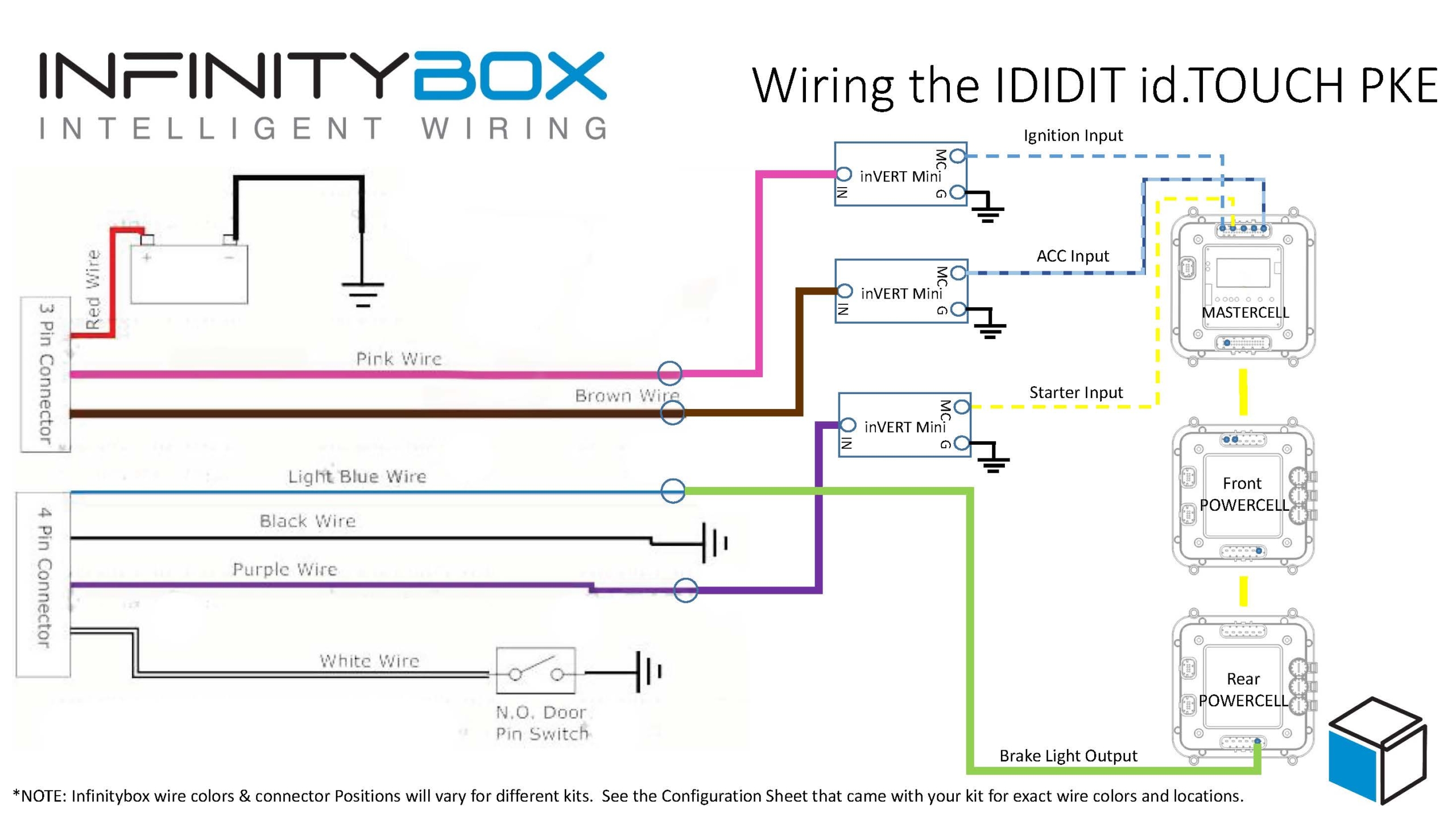
The PBS II will send the signals to the MASTERCELL for the ignition and the starter.  When the MASTERCELL sees these inputs turn on, it will send the required signals to the POWERCELLs to power your ignition and starter outputs.  The PBS II wires for the ignition and starter are positive signals.  The MASTERCELL requires ground triggers for the inputs so you will need to wire in our inVERT Minis to buffer their positive signal.  You can learn more about the inVERT Mini and purchase them at this link.  The diagram above shows where to put the inVERT Minis in the circuit.

The PBS II also needs a signal to know that you are stepping on the brake pedal.  This signal must be positive 12-volts.  Since our MASTERCELL inputs work by being triggered to ground, you cannot get this positive brake signal from the brake pedal switch directly.  You need to get this from the POWERCELL output for the brake lights.  You can simply splice into the brake light output on the rear POWERCELL.  Alternately, you can use an OPEN output on the front POWERCELL as the brake pedal trigger.  You would wire the corresponding input to your OPEN output to the brake pedal switch, in parallel with your usual brake light input.  Doing it this way keeps the run of wires in the car short.

The PBS II also has provisions to control door locks and trunk poppers.  If you purchased inMOTION for your Infinitybox system, you can wire the MASTERCELL inputs for your door locks to the Unlock and Lock signals on the PBS II Accessory Harness.  We recommend using a diode to isolate the MASTERCELL from any stray voltages that may exist in the PBS II.  This diode should be a 1N4001 and must be oriented per the diagram above.  These inputs will not work if the diodes are installed incorrectly.

The PBS II also has provisions to control a trunk popper from their key fob.  You can take any of the OPEN outputs on your rear POWERCELL to control you trunk popper.  You would wire the corresponding MASTERCELL input to the white Trunk wire in their accessory harness.  Just like the signals for the door locks, we recommend isolating the MASTERCELL inputs from the PBS II with a 1N4001 diode as shown in the wiring diagram.

You can download a PDF version of this wiring diagram by clicking this link.

Please contact our team if you have any questions about this Digital Guard Dawg PBS II Wiring diagram.  You can reach out team by clicking this link.

inVIRONMENT Video

Our Infinitybox system offers you the broadest level of electrical control for your hot-rod, street rod, resto mod, kit car, component car and Pro-Touring build. No other wiring harness can do what the Infinitybox system can do. One of our most popular accessories is inVIRONMENT.

Our inVIRONMENT module is a revolutionary connection between your Infinitybox system and a Gen IV climate control system from Vintage Air. Using our inTOUCH NET and inVIRONMENT, you can completely control your heating and air conditioning from a smart phone or tablet in your car. You can control the blower fan speed, the temperature and the blend from a simple and intuitive touch screen interface. You can learn more about the inVIRONMENT module by clicking this link.

This video will show you the features of the inVIRONMENT module.

Click on this link to contact our technical support team with any questions.