Infinitybox Introductory Video

Infinitybox is excited to announce a new series of videos going through the details of our Infinitybox system.  We’ve shot them in a very simple and effective way to get the point across.  Jay Harris, the president of Infinitybox, will take you through every piece of our system.  He will also walk you through the process to wire your car with our Infinitybox system.

In this introductory video, Jay describes how our Infinitybox system works and how it is different from traditional wiring harnesses.  Until Infinitybox came onto the scene in 2009, little had changed in the way you wire a car since the Model T.  Our system revolutionized the way restorations, kit cars, resto-mods, street rods, hot rods, race cars and Pro-Touring cars were wired.  Instead of a single, central box of fuses and relays, the Infinitybox gives you separate modules that you put in the car where you need them.  The separate Infinitybox modules are connected with a simple and thin data cable.  You can watch the introductory video here.


This is the first video in the series.  There are more coming that go through each of our specific products.  Be sure to subscribe to our YouTube channel Infinityboxllc and click on the bell icon to get notified when we post new videos.

Click this link to contact our team with any questions about our Infinitybox system.

Custom-BMW-E9-John wired with the Infinitybox system

Custom BMW E9

Here is another great example of what our customers can do.  This car is stunning and we can honestly say that we’ve never seen another like it.  John Ward of Fuel Bespoke Design in Australia just had a great article published in Silodrome magazine.  The article covers the details of his stunning restoration of a 1970 BMW 2800CS lovingly named “Von Trapp”.  The article covers the car in detail and the pictures are awesome.  Andrew Jones shot the pictures and we heartily thank him for their use in this blog post.

Custom-BMW-E9-Left-Side wired with the Infinitybox system

Custom-BMW-E9-Left-Side wired with the Infinitybox system

John started with a pretty rough car for this project.  It took a ton of body work, straightening and reinforcing to get the car to what you see today.  John wanted to do this car as a true restomod:  keep it original on the exterior and interior but put modern features under it.  For example, he replaced the original powerplant with a modern E46 M3 3.2 litre 330HP S54 motor and the E36 M3 5-speed manual transmission.

Custom-BMW-E9-Engine wired with the Infinitybox system

Custom-BMW-E9-Engine wired with the Infinitybox system

He also wanted to use the latest and greatest for his electrical and wiring system.  He wired the car with our 20-Circuit Kit, with inMOTIONinLINK and inRESERVE.  The end product is seamless.  You can see no trace of the modern electrical system in this car.  For example, check out the trunk-mounted rear POWERCELL and inMOTION cell.

Infinitybox POWERCELL and inMOTION Cell wired into a Custom-BMW-E9

Infinitybox POWERCELL and inMOTION Cell wired into a Custom-BMW-E9

When the trim piece is installed in the trunk, all traces of the electrical system disappear.

John has a detailed build history on his website.  You can see all of the details on the building of “Vonn Trapp” by clicking this link.

You can also read the full article featured on Silodrome by clicking this link.

We want to extend thanks to John Ward at Fuel Bespoke Design, Ben Branch at Silodrome for the great article and Andrew Jones at Lens Flare Air for the awesome pictures.

Click on this link if you want to learn more about how you can use our Infinitybox system to wire you car or truck project.


Infinitybox Programming Options

Since 2008, Infinitybox has created the most comprehensive electrical system on the market for restorations, resto-mods, street rods, kit cars, race cars and Pro-Touring builds.  No other company can provide a single system to control your lighting, ignition system, starter, cooling fans, fuel pumps, power locks, power windows, alarms, security, heating & air-conditioning control, battery management and touch screen control.  In addition to that, no one else can give you the options to customize the way your electrical system works like Infinitybox can.  We wanted to update our menu of programming options for the Infinitybox system.  This blog post is going to summarize the different ways we can tailor your system to your specific car.  We strongly encourage you to review this list before you start to work through setting up a custom configuration with our team.

All of the options on this list can be added to any of our 20-Circuit Kits.  We do not charge for these modifications.  There are certainly options beyond this that we can evaluate for you.  Please contact our technical support team with additional requirements that are not included in this blog post.  

Ignition & Starter

Ignition and Starter Outputs

  • The MASTERCELL inputs and POWERCELL outputs for the ignition and starter as defined on the configuration sheet that came with your kit cannot be moved.  There are safety and security constraints that require that they stay in their assigned locations.  The same is true for the MASTERCELL input for the Neutral Safety switch.  This cannot be moved to another input.

Traditional Ignition/Starter control vs. One-Button Start

  • You have two options to manage your ignition and starter outputs.  These are built into all of our configurations and selecting the options requires no custom code.
    1. You can use a traditional keyed ignition switch with contacts for the ignition and starter.  Wire the MASTERCELL inputs for Ignition and Starter to your ignition switch and connect their respective POWERCELL outputs to your Ignition system and your Starter solenoid.  Click on this link for more detail on wiring your ignition switch.  Also, the MASTERCELL inputs for the ignition and starter do not need to be wired to a keyed ignition switch.  You can wire them to any type of switch that you like.  The ignition input must be connected to a switch that latches on and off.  The starter input must be wired to a momentary switch.
    2. You can also use our One-Button Start feature.  This manages the POWERCELL outputs for the Ignition and Starter from a single momentary button.  To start the engine, you press and hold the momentary button that is wired to the MASTERCELL input for the One-Button Start.  This turns on the Ignition output, waits one-second then turns on the POWERCELL output for the Starter.  Once the engine starts, you release the button.  That turns off the starter output but leaves the Ignition output on.  To shut down the car, you simply press and release the button again.  Click on this link for more details.

Extra Ignition Activated Outputs

  • We can program the system to turn on extra outputs with the Ignition.  For example, you may want an extra output on the rear POWERCELL to turn on with the Ignition to power an amplifier and a sub-woofer.  Any of the outputs defined as OPEN can be programmed to turn on and off with either the standard Ignition input or the Ignition triggered by the One-Button Start input.

Ignition-Only Outputs

  • We can program specific outputs so that they can only turn on when the Ignition is on.  These outputs will turn off when the ignition is turned off.  For example, you could take one of the OPEN outputs on the rear POWERCELL and use that to power your back up lights.  You would connect the corresponding MASTERCELL input to the switch on your transmission.  When the transmission is in reverse, that would trigger the MASTERCELL input and turn on the POWERCELL output connected to the brake lights.  We can program this MASTERCELL input so that the output will only turn on when the Ignition is on.  That way, your reverse lights will not stay on if you leave the transmission in reverse and turn off the Ignition.  By default, your turn signals are programmed using this Ignition-Only function.  You cannot turn on your turn signals unless the Ignition is on.

Headlights and High-Beams

  • There are several options for your Headlights and High-Beams that are pre-programmed into our standard configurations.  By choosing different MASTERCELL input wires, you can get different functions for your Headlights and High-Beams.  No programming changes or custom code are required to make these work.
    1. The standard inputs for the Headlights and High-Beams use soft-starting to turn on their respective POWERCELL outputs.  This means that we gradually ramp up the POWERCELL output current over the first half of a second.  This gradually applies power the lights and will minimize the in-rush current to incandescent bulbs.  You can use these inputs for traditional Headlight and High-Beam bulbs or LED’s.  If you are using HID Headlights or HID High-Beams, you must use the MASTERCELL inputs for the HID options.  These inputs eliminate the soft-starting on the outputs.  Check out this blog post for more detail.  
    2. There is an Alternating Headlight option built into all of our standard configurations.  This function lets you toggle between your Headlights and High-Beams using a momentary button.  This link will get you more details.

Headlight Delays

  • We can program a delay on your Headlights.  This delay will keep the Headlight output on for a period of time after the switch is turned off.  This delay can be set between 10 and 60 seconds.

Lighting Switch Options

  • Our standard programming for Headlights, High-Beams, 4-Ways and Parking Lights is TRACK.  This means that the lights will TRACK the state of the switch.  When the switch is on, the output is on.  When the switch is off, the output is off.  We can program these MASTERCELL inputs so that the outputs TOGGLE.  You would connect the MASTERCELL input to a momentary button.  A momentary press of the button would turn the output on.  A second momentary press of the button would turn the output off.

Turn-Signals

  • The turn signal outputs must remain as outputs 1 & 2 on your front and rear POWERCELLs.  These cannot be moved.  You have several options for your Turn-Signals that are built into our standard configurations.  These require no code changes.  You simply choose the MASTERCELL inputs that you need to get the Turn-Signal set up that you want.
    1. Our most popular Turn-Signal option is our Mechanical Column option.  That means that the MASTERCELL inputs for the Turn-Signals are controlled by the mechanism in the steering column and the are mechanically canceled when the steering wheel is returned to its normal position after completing a turn.  The left and right Turn-Signals will flash as long as the switch is closed in the column.
    2. We also have an option called Self-Canceling Turn-Signals.  To use this function, you simply choose these MASTERCELL inputs.  You would only be using this function if you are building a car without a traditional Turn-Signal mechanism in the steering column.  Mostly, this feature is used by customers building Factory Five Roadsters.  They have momentary switches on the dash for left and right turn.  The momentary switch triggers the MASTERCELL input and the POWERCELL flashes the turn signals for a period of time then self cancels.  Please read this blog post for more detail on the Self-Canceling Turn-Signal feature.

Brake Lights

  • Your brake lights must remain as output 3 on the rear POWERCELL if you’re using the multi-filament brake lights.  You have two options for controlling your Brake Lights that are build into the standard configuration.  These options require no code changes.  You simply choose the MASTERCELL inputs that you need to get the Brake Light set up that you want.
    1. If you have a dedicated Brake Light bulb in the back of the car, you are going to choose the MASTERCELL input that is called “Brake Lights with Multi-Filament Bulbs”.  This means that there is a separate bulb that works as the Brake Lights in the rear of your car.  There is a quick rule of thumb that you can use.  Use the “Brake Lights with Multi-Filament Bulbs” input if your turn signal lenses are amber.  Please read this blog post for more detail.
    2. We also have a Brake Light option called “Brake Lights with 1-Filament Bulbs”.  This means that there is a single filament on your Turn-Signal bulbs that acts as both the Turn-Signals and the Brake Lights.  As a rule of thumb, you are going to use the MASTERCELL input for “Brake Lights with 1-Filament Bulbs” if your Turn-Signal lenses are red.  Read this blog post for more details.

Theater Dimming

  • Any of the OPEN outputs on your configuration sheet can be used to power your interior lights or accent lights.  You simply connect the MASTERCELL input to your switch and connect the OPEN POWERCELL output to your dome lights, interior light or accent light.  When the switch is on, the lights are on.  This blog post will get you more detailing on wiring pin switches on doors.  We can program the output that you choose for these lights to be Theater Dimmer.  That means that the light will gradually fade away when the MASTERCELL input is turned off.  Theater Dimming can only be programmed to OPEN outputs between outputs 1 and 8.  Outputs 9 and 10 cannot be programmed to be Theater Dimmed.  We have two timing options: 5 seconds and 10 seconds.

inLINK Key Fob Options

Security and Immobilizer Options

  • These features require our inLINK wireless control module option.  By default, pressing the LOCK button on the inLINK Key Fob enables security.  The Parking Lights will flash once and the MASTERCELL inputs for the Ignition, Starter and Fuel pump will be blocked so that you cannot start the car.  Pressing the UNLOCK button on the inLINK Key Fob will disable security.  The Parking Lights will flash twice and the MASTERCELL inputs that control the Ignition, Starter and Fuel Pump will let you start the car.  We can program these additional functions related to Security and Immobilization.
    1. We can program other MASTERCELL inputs to be blocked when security is enabled.  For example, some customers may want to block external switches for door poppers when security is enabled.  Please click on this link to see this in action.
    2. We can program other outputs to indicate when security is being enabled or disabled.  For example, we can set the Horn output to honk once when security is enabled and twice when it is disabled.
    3. We can program the lock outputs on inMOTION to lock the doors when security is enabled and unlock when security is disabled.  This option requires our inMOTION cell.

Door Poppers and Trunk Poppers

  • The system can be programmed to control popper solenoids from the inLINK key fob.  Any of the OPEN outputs on the POWERCELLs can be programmed to be controlled by inLINK.  We program these outputs to be pulsed for 1-second when triggered from a button on the inLINK Key Fobs.

Express-Down Feature for Power Windows with inMOTION

  • This feature requires inMOTION in addition to inLINK.  We can program the system so that a press of a button on the inLINK Key Fob will express down one or multiple power windows that are powered by inMOTION.

Other OPEN Output Options

  • The OPEN outputs can be used to control auxiliary functions is your car or truck.  For example, these can be used to power extra lights, fuel pumps, fans, audio systems, poppers and valves.  Their default action is TRACK (Input is on, output is on.  Input is off, output is off.)  This default is how most of our customers use these outputs.  There are additional ways that these outputs can be controlled by their respective inputs.
    1. We can program an OPEN output to be timed.  When the MASTERCELL input is turned on, the POWERCELL output will turn on for a pre-programmed time then shut off.  The most common use of this option is for door or trunk poppers.  We can program the timer on an OPEN output in the range of 1 to 120 seconds.
    2. We can program an OPEN output to TOGGLE.  A momentary switch closure to the MASTERCELL input would turn the POWERCELL output.  A second momentary switch closure would turn the POWERCELL output off.
    3. We can program a single MASTERCELL input to control multiple OPEN outputs.  You can use this function to turn on several POWERCELL outputs from a single switch.

Pulse-Width Modulation (PWM)

  • This is an advanced function.  We can program MASTERCELL inputs to pulse-width modulate outputs 1 through 8 at a fixed duty cycle.  Outputs 9 and 10 cannot be pulse-width modulated.  The base frequency is 200 Hz.  Duty cycles can be set between 10 and 90%.  We can program multiple MASTERCELL inputs to control a single POWERCELL output at multiple PWM duty cycles.  This would let you control multiple levels of brightness or fan speeds on a single POWERCELL output with different MASTERCELL inputs.  Please contact Infinitybox technical support with questions about this features.

Please click on this link to get to our Custom System Configuration form.   

Updating inTOUCH MAX Screen

This blog post will walk you through the steps to update the screens and code on an Infinitybox inTOUCH MAX Screen.

Please note that these instructions are for the legacy inTOUCH MAX screens that were manufactured through 2013.  If you have an inTOUCH NET smart device interface, this does not relate to you.  Unless specifically directed by a technical support representative from Infinitybox, you do not need to do this.  You can stop reading here.  

Here are the instructions.

  1. You will need an SD card that is a maximum size of 2GB (a smaller card will work fine).  It must be formatted as FAT16 (or just FAT) not FAT32 on a PC not a Mac.  You can find a video showing how to do this by clicking this link.
  2. You will receive an email from Infinitybox technical support that will have the files needed to be loaded onto the SD card.  Save these files to the SD card.  Do not put these in a folder on the SD card.
  3. Power down the touch screen and the complete Infinitybox system.  Insert the SD card into the slot on the screen. The SD card slot is located on the opposite side of the circuit board where the REACH serial number sticker is.  This picture will show you where the SD card slot is and the proper orientation of the card.

    Location of the SD Card Slot on the Infinitybox inTOUCH MAX Screen

    Location of the SD Card Slot on the Infinitybox inTOUCH MAX Screen

  4. Power up the system, the screen should be blank and the green LED labeled D1 on the back of the screen should be lit and the LED labeled D2 should be flashing rapidly. After about 30 seconds, the D2 LED will stop flashing and the screen back light will turn on.
  5. The screen is now reprogrammed, remove power from the screen and remove the SD card.

Please contact Infinitybox technical support with additional questions.

Chevy S10 Show Truck wired with the Infinitybox system.

Chevy S10 Show Truck

We occasionally get customers dropping by our office to show off their projects.  Chris C. brought his Chevy S10 show truck by the Infinitybox HQ to show us what he did and to get a few quick code changes.  He and his girlfriend were on their way to a truck show near Indianapolis.

Chevy S10 Show Truck wired with the Infinitybox system.

Chevy S10 Show Truck wired with the Infinitybox system.

Chris really loves this truck.  It is the first car that he ever owned.  He had done some modifications to it but it was totaled in an accident.  He started over from scratch and it has become something pretty cool.

First, he dropped in a bored-over Chevy 350.  It has a great rumble to it.  Then, he channeled and bagged it.  With the air dumped, it sits on its frame rails.  Then, there are the little details.  The doors and tail gate are shaved.  The interior, bed and engine compartment are done up with accent LED’s.  Lastly, he has a simple 150 hp of Nitrous to keep things interesting.

He chose to yank out the original OEM wiring and start over from scratch with our Infinitybox System.  He started with our 20-Circuit Kit, added inMOTION for the windows and lastly upgraded to inTOUCH NET to control the truck from phone.

inTOUCH NET really makes this truck.  His phone is the key to the truck.  He uses it to disable security, pop the doors, control the lights and the windows.  He can push a button to dump the air solenoid to drop the truck to the ground.  Also, we modified his code to automatically roll up the windows when he enables security.  It will be a hit at the show this weekend.

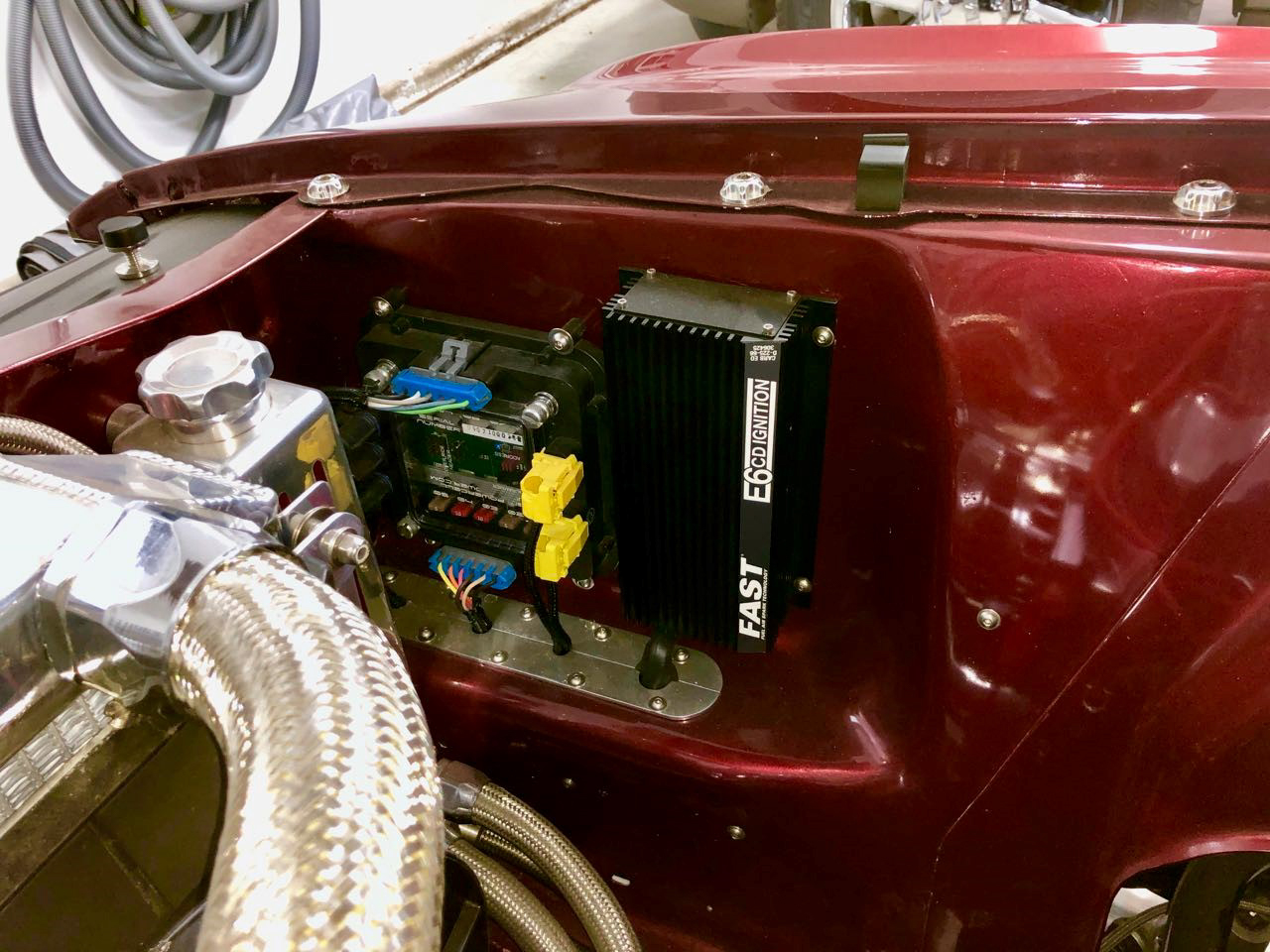
He proudly shows off the wiring in the truck.  His front POWERCELL is mounted right on the firewall.  The Infinitybox system is designed to handle the roughest environments so this location is fine.  This also makes wiring the front of the car very easy.  All of his runs of wire are very short.

Front POWERCELL under the hood of a Chevy S10 Show Truck wired with the Infinitybox system.

Front POWERCELL under the hood of a Chevy S10 Show Truck wired with the Infinitybox system.

He has his rear POWERCELL mounted to the inside wall of the truck’s bed.

Rear POWERCELL in a Chevy S10 Show Truck wired with the Infinitybox system.

Rear POWERCELL in a Chevy S10 Show Truck wired with the Infinitybox system.

Rear POWERCELL in bed of a Chevy S10 Show Truck wired with the Infinitybox system.

Rear POWERCELL in bed of a Chevy S10 Show Truck wired with the Infinitybox system.

Finally, he has his MASTERCELL and inMOTION cells prominently displayed between the two seats in the cab.

MASTERCELL and inMOTION Cell in a Chevy S10 Show Truck wired with the Infinitybox system.

MASTERCELL and inMOTION Cell in a Chevy S10 Show Truck wired with the Infinitybox system.

Contact our team if you want to learn more about how our Infinitybox System can simplify the wiring in your car or truck plus give you features that no other electrical system can.  Keep watching our blog for more examples of how our customers are wiring with Infinitybox.

Australia Built Cobra Replica wired with the Infinitybox system

Australian-Built Cobra

Australia Built Cobra Replica wired with the Infinitybox system

Australia Built Cobra Replica wired with the Infinitybox system

We have our Infinitybox systems powering cars all across the world.  One of our Australian customers just sent us some great pictures of his Cobra replica.  Peter K. started building this car in February 2012 and finished it in November 2017.  The car is wired with our Infinitybox system and has been running flawlessly on the road.

Here are the build specs on the car:

  • Manufacturer    DRB Sportscars (chassis unit #67)
  • Model                  DRB Boss Cobra
  • Engine                 Ford Racing 5.0 litre (302ci) 32 valve Modular Coyote
        • 412 bhp (303kw), 390ft-lb (529Nm) at 4250rpm
  • Exhaust               Custom fabricated by Scott’s Rods
  • Gearbox              Tremec TKO 500 wide ratio 5 speed
  • Suspension        Jaguar XJ6 Series III front and rear
        • E-type 3.54 ratio differential with USA limited slip
  • Wheels                American Racing – Shelby
        • Front 17” x 8”
        • Rear 17” x 9.5”
  • Paint                    Holden Special Vehicles “Poison Ivy” Painted by Stuart Blackburne
  • Upholstery          Australia leather “Charcoal” Upholstered by Kerry Morrow

Peter wired the car with our Infinitybox 20-Circuit Core Kit.  Our engineering team customized his system to accommodate some of his unique requirements for the Australian market.  He also added inLINK for security, immobilizer and other remote features.

Peter mounted the MASTERCELL and the front POWERCELL in the footwell on the left-side of the car.  Since this is a right-hand drive car, this is the passenger side.  His front POWERCELL is powering the ECU, the starter solenoid, the headlights, high-beams, front turn-signals, front parking lights, cooling fan, horn and dash.

This picture shows the locations of the MASTERCELL and front POWERCELL.

MASTERCELL and Front POWERCELL in Australia Built Cobra Replica wired with the Infinitybox system

MASTERCELL and Front POWERCELL in Australia Built Cobra Replica wired with the Infinitybox system

He made a clever interior trim piece that hides both the MASTERCELL and front POWERCELL.  At the same time, it gives him easy access to these cells for troubleshooting and diagnostics.  Here is the trim piece in stalled with the panel open to the MASTERCELL.

MASTERCELL in Australia Built Cobra Replica wired with the Infinitybox system

MASTERCELL in Australia Built Cobra Replica wired with the Infinitybox system

Here is the trim piece with the MASTERCELL panel in place.  You can see how easily the electrical system in this car disappears.

MASTERCELL hidden in Australia Built Cobra Replica wired with the Infinitybox system

MASTERCELL hidden in Australia Built Cobra Replica wired with the Infinitybox system

His rear POWERCELL is mounted in a compartment in the trunk.  This rear POWERCELL is controlling the brake lights, rear turn-signals, rear running lights, fuel pump and other accessories in the rear of the car.  This picture shows the POWERCELL mounted in the rear of the car with the battery and the primary fusing.

Australia Built Cobra Replica wired with the Infinitybox system

Australia Built Cobra Replica wired with the Infinitybox system

This picture shows the trim panels installed in trunk.  In a small car like this Cobra replica, the Infinitybox system completely disappears.

Australia Built Cobra Replica wired with the Infinitybox system

Australia Built Cobra Replica wired with the Infinitybox system

Peter installed the Ford Racing Coyote engine in this Cobra replica.  You can see how neatly this engine fits under the hood of this car.

Australia Built Cobra Replica wired with the Infinitybox system

Australia Built Cobra Replica wired with the Infinitybox system

The finished car is beautiful, powerful and functional.  We thank Peter for sharing these pictures with us.  The Infinitybox team is proud to be a part of this build.

Click here if you would like to learn more about how you can wire your car with our Infinitybox system.

Australia Built Cobra Replica wired with the Infinitybox system

Australia Built Cobra Replica wired with the Infinitybox system


Logo for the Illegal Garage

Illegal Garage’s Alumacobra Switch Install

We just received a great video from a local customer building a Factory Five Roadster.  Jose G. has been building this car for a few years and he’s wiring it with our Infinitybox system.  He is installing our 20-Circuit Kit with inLINK.

He has a very slick and elegant aluminum dash that has modular panels.  He can easily remove and install panels for his switches and gauges.  It would certainly make working on the dash very easy.  Jose was recently at the London Cobra show in Ohio and saw a new set of switches he wanted to integrate into his dash.  These are nice looking billet buttons and he wants to use them for his lights, fans, wipers, fuel pump and one-button start.  These buttons are from Billet Automotive Buttons in Australia.  Installing these buttons shows the simplicity and the ease of wiring your car with our Infinitybox system.

First, our MASTERCELL inputs are ground triggered.  This gives you a lot of flexibility of how you can wire your switches.  This simple diagram shows how you wire a MASTERCELL input to your switch.

Simple diagram showing how to wire a switch to the Infinitybox MASTERCELL

Simple diagram showing how to wire a switch to the Infinitybox MASTERCELL

You can click on this link to get a more detailed blog post talking about wiring switches.

Another significant advantage of wiring your switches with our Infinitybox system is the fact that it takes very little current to turn on an input.  It takes less than 1 milliamp (1/1000 of an amp) to trigger an input.  That gives you the flexibility of using any switch to control the functions in your car.  With a lot of billet buttons, you have to use them to trigger a relay because they cannot handle the full load current of things like lights, starter solenoids and fans.  This is very easy with our Infinitybox system.

Since it takes so little current to turn on a MASTERCELL input, you can use very light-gauge wires between your switches and the MASTERCELL.  Our standard harnesses use 22-AWG wire.  This helps keep behind your dash clean and easy to service.

Lastly, we give you the power of advanced electrical control functions.  In the case of Jose’s car, he’s using our One-Button Start feature.  A single MASTERCELL input connected to a momentary button lets him start his car with ease.  Check out this blog post for more details on our One-Button-Start feature.

Jose just posted a great video to his YouTube channel, The Illegal Garage, showing off how he installed these billed buttons into his Cobra.  You can check it out below.


You can check out additional videos of his Factory Five Cobra build at his YouTube channel by clicking this link.

Click this link to get in touch with our team to learn more about how you can wire your car or truck with our Infinitybox system.

Picture of a finished Factory Five GTM wired with the Infinitybox system

Showing off inLINK in a Factory Five GTM

We have been working with a customer to finish the details of a Factory Five GTM build.  This car was wired with our 20-Circuit KitinMOTIONinRESERVEinTOUCH NETinVIRONMENT and inLINK.  Essentially, the car has the works.  It was originally built and wired by Shane Vacek at Vraptor Speed Works.  Izzy Dunn at Dunn Customz just finished the details on the car for the customer.

This video shows a walk around of the finished car.  It turned out great.  You can see the front POWERCELL mounted under the hood.

In this blog post, we want to feature one of the simplest accessories in the Infinitybox lineup.  That is inLINK.  inLINK gets you wireless control of your car or truck from a simple key fob.  You can turn on your lights remotely, pop your doors and trunk, and enable the Infinitybox security system.

Since your Infinitybox system is controlling the ignition, fuel pump and starter, we can easily stop someone from starting the car and driving off with it.   When you press the “lock” button on the inLINK key fob, we disable the ability to turn on the ignition, power the fuel pump and crank the starter.  Even if someone where able to get in the car with inLINK security enabled, the MASTERCELL completely blocks the ability to get the engine running.  The best part is that this is completely integrated into our Infinitybox system.  You do not need to buy a separate security or immobilizer system and integrate it into your wiring harness.

When you’re ready to drive the car, you simply press the “unlock” button on the key fob and you’re ready to go.

The owner of this car wanted door poppers.  They are using POWERCELL outputs to power a solenoid in each door.  They can push a button inside the car to pop these solenoids.  They also have buttons on the outside of the doors that let them pop the doors.  They also wanted to be able to pop the doors from buttons on the key fob.

All of this is very easy with the Infinitybox system.  Our team custom programmed the door popper outputs to pulse for 1 second.  The customer can push buttons on the key fob or use buttons on the door.  Very simple.

Here’s the coolest part of all.  The customer wanted buttons on the outside of the car to be able to pop the doors.  However, the customer does not want those buttons to work when security is enabled.  That is a very simple thing to do with our Infinitybox system.  As part of our custom programming, we set the MASTERCELL inputs to be disabled when security is on.  That way, no one can walk up to the car and open the doors unless they have the inLINK key fobs specifically programmed to that car.  The video below shows how this works.  You can see how security is enabled and disabled.  You can see how the doors can be popped from the inLINK key fobs and you can see how inLINK security disables the exterior switches.

Thanks to Izzy for sharing these pictures and videos.

Click on this link to contact our team to learn more about what our Infinitybox system can do for your build.

Updating inVIRONMENT

This blog post will cover the steps to update the software on our inVIRONMENT Vintage Air Gen-IV Interface Controller.

Before you get too far, 99.99% of our customers will never need to update inVIRONMENT in the field.  This blog post is intended to have this documented for the 0.01% of them that will.  The only reason why you’d need to update inVIRONMENT would be if you are converting a legacy system to a newer version.  In the overwhelming majority of cases, you can stop reading here.  You need to do nothing with the code on your inVIRONMENT unless explicitly directed by one of our technical support engineers.  

You also would not be updating inVIRONMENT without updating the MASTERCELL and other cells in your system.  This blog post is going to assume that you have already installed the software to run the inCODE programmer and you have followed the steps to set that up.

NOTE: DO NOT PLUG THE inCODE CONNECTOR INTO THE inVIRONMENT PROGRAMMING HEADER UNTIL AFTER YOU HAVE SET THE PROGRAMMING JUMPERS IN STEP 6.  DOING DO WILL DAMAGE THE inVIRONMENT PROCESSOR AND WILL VOID THE WARRANTY.  

Here are the steps.

  1. Save the inVIRONMENT HEX file to the desktop of your computer.  This would be in the email sent to you from Infinitybox technical support.
  2. Disconnect the battery.
  3. Remove all connectors from the inVIRONMENT module and take inVIRONMENT out of the car.
  4. Remove the 4 screws from the back of inVIRONMENT and take off the cover.
  5. Identify the Programming Header Connector and the Programming Jumpers.  This picture will show you where they are on the inVIRONMENT board.

    Picture of the Infinitybox inVIRONMENT Board Showing the Programming Header and Programming Jumpers

    Picture of the Infinitybox inVIRONMENT Board Showing the Programming Header and Programming Jumpers

  6. Move the two Programming Jumpers from the RUN position to the PROG position.  The PROG position puts the two jumpers on the pins closest to the Programming Header.  You can use a pair of needle-nose pliers or a pair of tweezers to remove these jumpers and move them to the PROG position.  FAILURE TO DO THIS STEP WILL DAMAGE THE inVIRONMENT PROCESSOR AND WILL VOID THE WARRANTY.  This picture will show you the jumpers in the PROG position.

    Picture of the Infinitybox inVIRONMENT Board Showing the Board Set for Programming

    Picture of the Infinitybox inVIRONMENT Board Showing the Board Set for Programming

  7. Plug the inCODE connector into the Programming Header on the inVIRONMENT board.
  8. Launch the inCODE Program PIC software.
  9. Click on the BROWSE button in the Program PIC software and select the HEX file that we emailed to you.  See the following picture for details.

    Picture of the inCODE Graphical User Interface

    Picture of the inCODE Graphical User Interface

  10. Click on the PROGRAM button.
  11. Wait for the green light on the inCODE programmer to stop blinking.  The last line of text in the Program PIC window should read “No Errors”.
  12. Unplug the inCODE connector from the Programming Header on the inVIRONMENT board.
  13. Move the Programming Jumpers back to the RUN position.  The RUN position puts the two jumpers on the pins furthest from the Programming Header.  This picture will show you the correct position.

    Picture of the Infinitybox inVIRONMENT Board Showing the Board Set for Run

    Picture of the Infinitybox inVIRONMENT Board Showing the Board Set for Run

  14. Replace the cover on the inVIRONMENT module and replace the 4 screws on the back.
  15. Reinstall the inVIRONMENT module in the car and plug in all of the connectors.
  16. Reconnect the battery.

If you have any questions about this process, please click on this link to contact our technical support team.

Picture of a door pin switch

Wiring Door Pin Switches

This blog post is going to cover how to wire your interior and dome lights.  In most cases you want these lights to turn on when you open a door to your car.  We’ll show you the best way to wire your door pin switches and connect your POWERCELL outputs to your dome lights and interior lights.

Picture of a door pin switch

Picture of a door pin switch

Each door in your car has a pin switch.  Sometimes these are called door jamb switches.  They are very simple devices.  They have one terminal on them.  This terminal originally connected to the ground side of your dome light circuit.  The threaded metal part of the switch connected to your cars ground through the metal part of the door jamb.  These switches work backwards from most people would expect.  When the car door is open, the contact on the switch is closed to ground.  If you think about it, that is what you want.  You want the circuit completed when the door is open.  In the original wiring on most cars, you had battery power supplied to one side of your dome light.  The other side of the light was connected to ground through the door pin switch.  When you opened the door, the switch closed.  This completed the circuit to ground so the dome light came on.

The inputs to an Infinitybox MASTERCELL work the same way.  They get activated when they are connected to ground through a switch.  You can learn more about how the MASTERCELL inputs work by clicking this link.

We do not dedicate a POWERCELL output for dome lights or interior lights.  You can use any of the OPEN outputs that are listed on your configuration sheet to do this.  Simply choose an OPEN output on a POWERCELL and connect that to one side of your dome light circuit.  This link will get you more information on using OPEN outputs.  Connect the other side of your dome light circuit to ground.  Check your configuration sheet and get the MASTERCELL input that corresponds to the OPEN POWERCELL output that you picked.  That input is going to connect to your door pin switches.

In most cases, you will want to have your dome lights turn on if any of your car’s doors are opened.  This is the same if you have a 2 or 4-door car.  To do this, you are going to wire the pin switches in each of your doors in parallel.  You are going to take your MASTERCELL input and connect it to each of the terminals on your door pin switches.  You can splice off of the input wire at the MASTERCELL and run separate wires to each switch.  You can also daisy-chain from one switch to the next in the car.  This wiring diagram shows how to connect the MASTERCELL input for your dome lights to the door pin switches.

Picture of an Infinitybox wiring diagram showing how to wire door pin switches

Picture of an Infinitybox wiring diagram showing how to wire door pin switches

If you open one of your doors, the door pin switch will ground the MASTERCELL input.  The MASTERCELL will send a command to the POWERCELL to turn on the output for the dome lights.  If you open a second door, the input will still be grounded because the switches are wired in parallel.  The dome lights will not turn off until you close all of the open doors.

An added bonus of our Infinitybox system is the ability to theater dim your dome lights.  When the doors close, we can set your dome light to slowly fade away over 10 seconds.  Give our technical support team a call to get this feature on your system.

You can download a PDF copy of this wiring diagram at this link.

If you have questions on how to wire your door pin switches with our Infinitybox system, click on this link to get in touch with our technical support team.