
MASTERCELL NGX Switch States
The Switch States screen on your MASTERCELL NGX is one of the most powerful diagnostic tools in your Infinitybox IPM1 Kit. It gives you a real-time view of every switch input on your MASTERCELL NGX, so you can confirm that your switches are wired correctly and quickly track down problems. This blog post is part of our series on the diagnostic functions built into the inSIGHT screen. We introduced this screen in our overview of the MASTERCELL NGX main menu. In this post, we take a deeper look at how to read and use the Switch States screen.
Please note that this blog post covers the MASTERCELL NGX in our Next Generation IPM1 Kit. These inSIGHT diagnostic tools are specific to our Next Generation hardware. If you have our Legacy 3-Cell Kit or 20-Circuit Kit, search through our blog archives for the diagnostic tools that came with those systems.
How to Read the Switch States Screen
To get to the Switch States screen, press the HOME button on your MASTERCELL NGX to bring up the main menu, use the SCROLL UP and SCROLL DOWN buttons to move the cursor to Switch States and press SELECT. When the screen opens, you will see a series of digits arranged across four rows.
Each digit represents one switch input on your MASTERCELL NGX. The rule is simple. A 0 means that input is off. A 1 means that input is on.
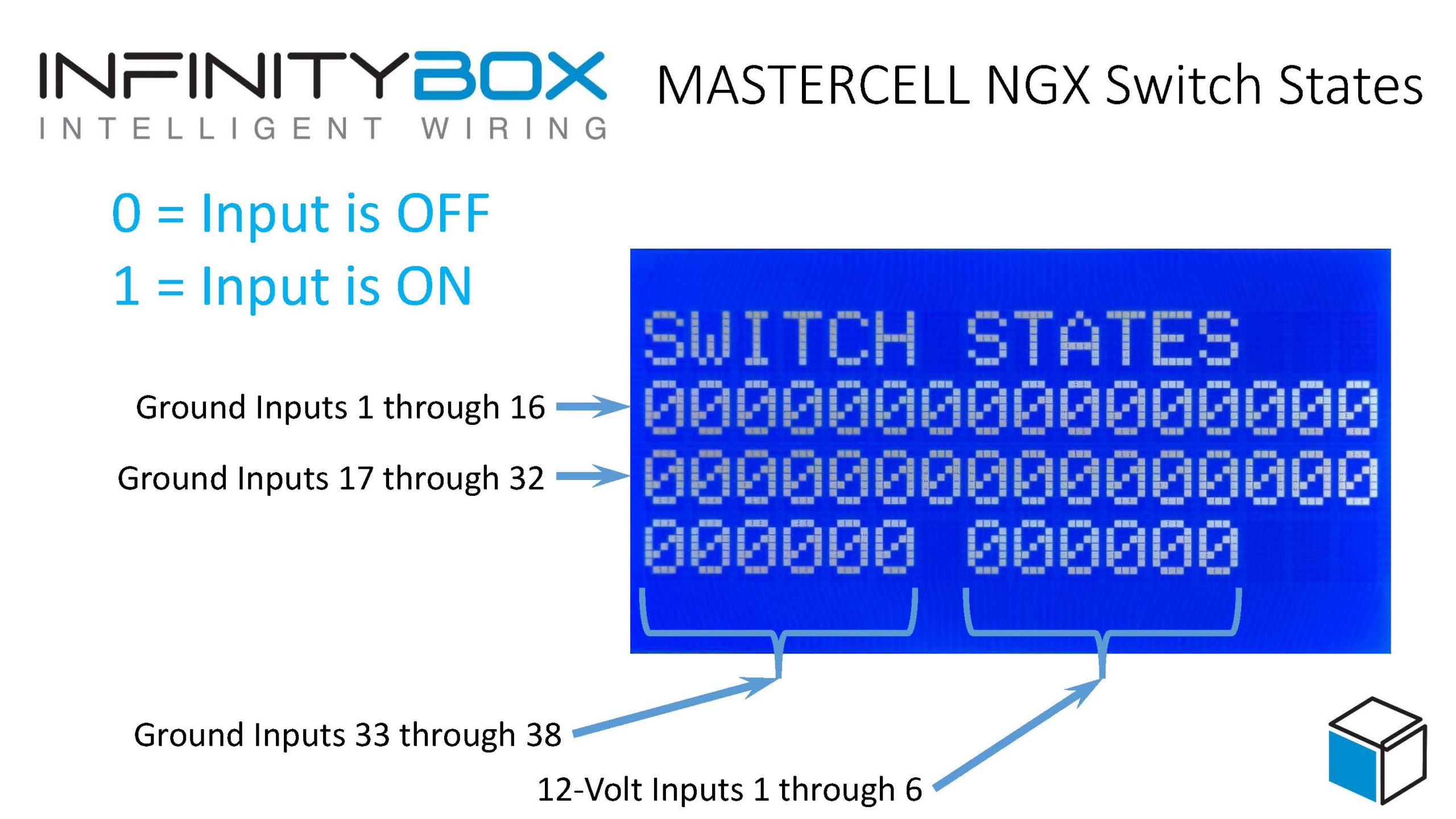
MASTERCELL NGX Switch States, with callouts identifying each row of inputs and the 0 = OFF, 1 = ON legend.
The MASTERCELL NGX has 38 ground-switched inputs and 6 high-side switched inputs. The digits are laid out so that you can find any input quickly:
- The top row shows ground-switched inputs 1 through 16.
- The next row shows ground-switched inputs 17 through 32.
- The bottom row shows ground-switched inputs 33 through 38 on the left.
- After a gap, the right side of the bottom row shows the 6 high-side switched inputs, 1 through 6.
A quick note on terminology. We label the high-side switched inputs as 12-volt inputs on the screen and on your configuration sheet. Our customers use the terms “high-side switched input” and “12-volt input” interchangeably. They mean the same thing: an input that turns on when it sees 12 volts, rather than a ground. We will use 12-volt inputs through the rest of this post to match what you see on your screen.
When you are in the Switch States mode, the backlight on the inSIGHT screen will remain on. When you are done monitoring the Switch States, you can press and release the HOME button to get back to normal operation.
Ground-Switched and 12-Volt Inputs
The MASTERCELL NGX reads two kinds of switch inputs, and the Switch States screen shows you both.
A ground-switched input turns on when it is connected to ground. This is how most of the switches in your car work with our Infinitybox system. When you flip a headlight switch, you connect the MASTERCELL NGX input to ground and the input turns on.
A 12-volt input turns on when it sees 12 volts. These are useful for connecting to devices that put out a 12-volt signal, like the fuel pump or cooling fan trigger from an EFI system. With our legacy MASTERCELL, you needed an external inVERT Mini to flip a 12-volt signal into a ground before the MASTERCELL could read it. The MASTERCELL NGX reads these 12-volt signals directly, so the inVERT Mini is no longer needed for these inputs. The Switch States screen shows you the state of both your ground-switched and 12-volt inputs in one place.
Watching the Screen in Real Time
The real power of the Switch States screen is that it updates live. As a switch turns on or off, you will see its digit change on the screen. There can be a lag of up to one second between flipping a switch and seeing the digit change, so give it a moment.
When all of your switches are off, every digit on the screen reads 0.
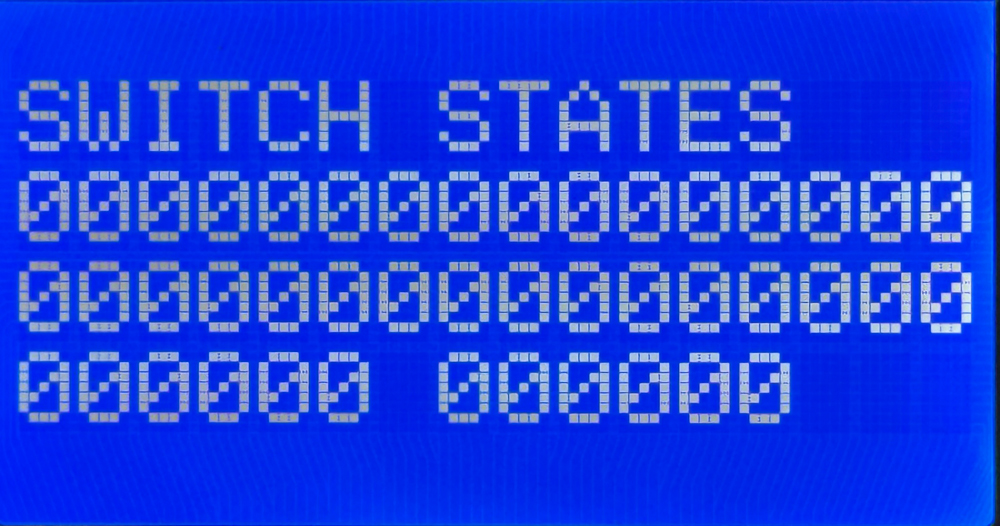
The Switch States screen with all inputs off. Every digit reads 0.
Now turn on one switch. In this example, we turned on the switch wired to ground-switched input 5. Watch the fifth digit in the top row. It changes from a 0 to a 1, while every other digit stays at 0.
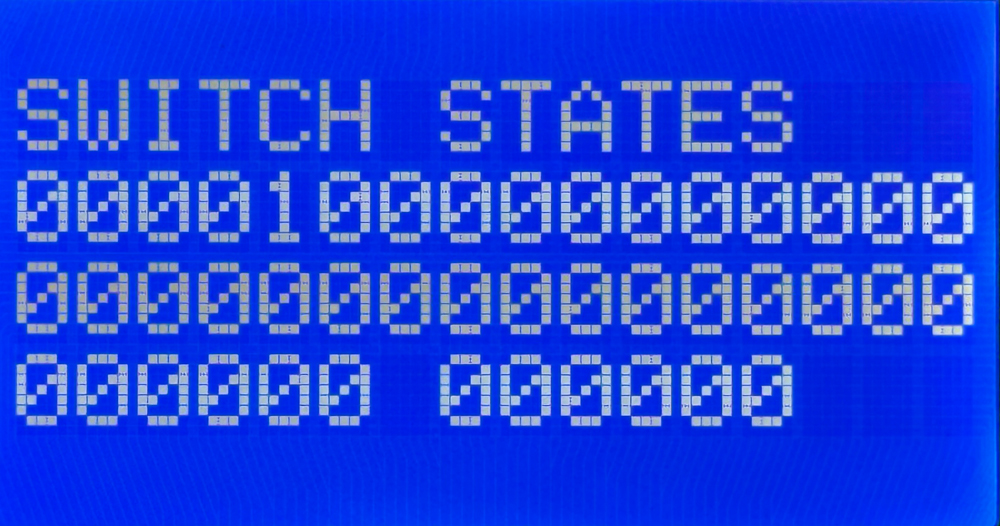
The Switch States screen with one input on. The digit for that input changes from 0 to 1.
To know which function each numbered input controls, refer to your configuration sheet. The configuration sheet is the single source of truth for which switch connects to which input on your MASTERCELL NGX. For example, on the standard front-engine configuration, input 5 is your headlights and input 6 is your parking lights. You can see an example of the standard front-engine configuration sheet by clicking this link. Always check the configuration sheet that came with your kit, since your assignments may be different if you have a custom configuration.
Wire and Test Your Switches Before Connecting Your Loads
One of the most useful things about the Switch States screen is that it lets you wire and test every switch in your car without connecting anything to a POWERCELL.
Because the MASTERCELL NGX reads your inputs directly, you can work through your entire car one switch at a time. Wire a switch, flip it, and watch the screen confirm that the MASTERCELL NGX sees it turn on and off. You can verify your entire switch harness is correct before you ever power up a load. This lets you break your wiring project into smaller, more manageable steps and confirm each one as you go.
Track Down Problems with Switch States
The Switch States screen is also a powerful diagnostic tool when something in your car is not working the way you expect.
A question we hear often is, “Why are my parking lights on?” The Switch States screen answers this quickly. Open the screen and look at the digit for your parking light input. If that digit reads 1 when the parking light switch is off, then the MASTERCELL NGX is seeing that input turn on for some reason.
In most cases, this points to one of two things. Either the switch is wired incorrectly, or the input wire is shorted to ground somewhere in your car. Because a ground-switched input turns on when it sees ground, a wire that is accidentally pinched, chafed or shorted to ground will turn that input on just as if you had flipped the switch. The Switch States screen lets you see exactly what the MASTERCELL NGX sees, so you can focus your troubleshooting on the input that is misbehaving instead of guessing.
Summary
The Switch States screen on the MASTERCELL NGX inSIGHT display gives you a real-time, at-a-glance view of every ground-switched and 12-volt input on your system. Use it to wire and test your switches without a POWERCELL, to confirm your harness is correct as you build, and to track down shorts and wiring mistakes when something is not working. Paired with your configuration sheet, it is one of the fastest ways to understand and troubleshoot your Infinitybox system.
You can download a PDF copy of the MASTERCELL NGX Switch States diagram by clicking this link.
You can download the entire MASTERCELL NGX inSIGHT document by clicking this link. This includes all the features and functions.
Keep watching our blog for more details on the menus and diagnostic functions on the inSIGHT screen. If you have any questions, give us a call at (847) 232-1991 or contact us here.
 Copyright 2026 Infinitybox, LLC. All Rights Reserved.
  Copyright 2026 Infinitybox, LLC. All Rights Reserved.
  Copyright Infinitybox, LLC 2021. All Rights Reserved.
 Copyright 2026 Infinitybox, LLC. All Rights Reserved.
  Copyright 2026 Infinitybox, LLC. All Rights Reserved.
  Copyright 2026 Infinitybox, LLC. All Rights Reserved.
  Copyright 2026 Infinitybox, LLC. All Rights Reserved.
  Copyright 2026 Infinitybox, LLC. All Rights Reserved.
  Copyright 2026 Infinitybox, LLC. All Rights Reserved.
Leave a Reply
Want to join the discussion?Feel free to contribute!