
 Copyright 2026 Infinitybox, LLC. All Rights Reserved.
 MASTERCELL NGX Main Screen
The inSIGHT LCD screen on your MASTERCELL NGX is your window into your Infinitybox system. With a few simple button presses, the screen lets you set up your IPM1 kit plus gives you powerful diagnostic tools. We’ve talked about the features under the cover of your MASTERCELL NGX in a separate blog post. You can learn about the inSIGHT screen, the menu buttons and other features by clicking this link. In this post, we want to talk about the main screen on your MASTERCELL inSIGHT screen. Please note that this blog post discusses the MASTERCELL NGX in our Next Generation IPM1 kit. If you have our Legacy 3-Cell Kit or 20-Circuit Kit, search through our blog posts for details.
MASTERCELL NGX HOME Screen
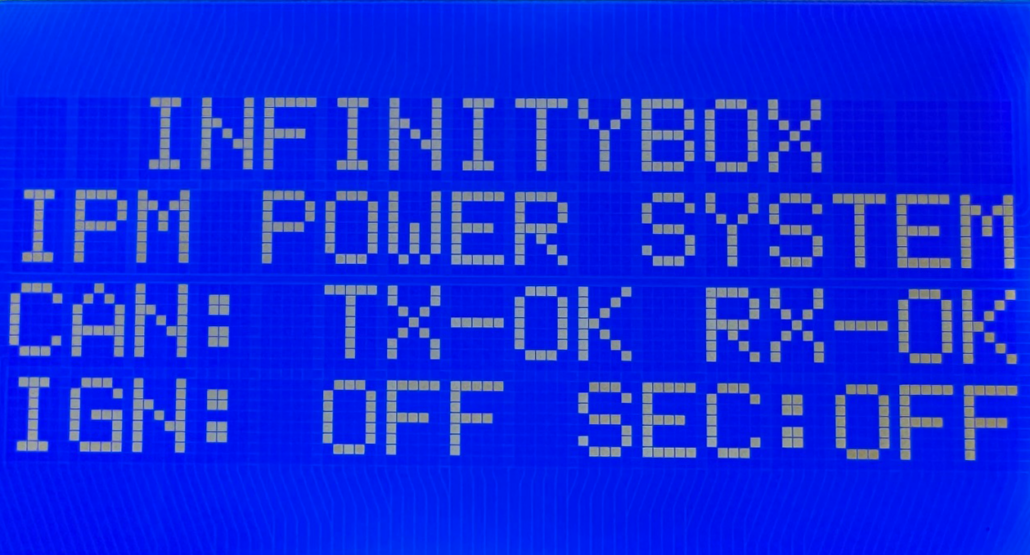
After your IPM1 kit powers up, you will see this screen on your MASTERCELL.
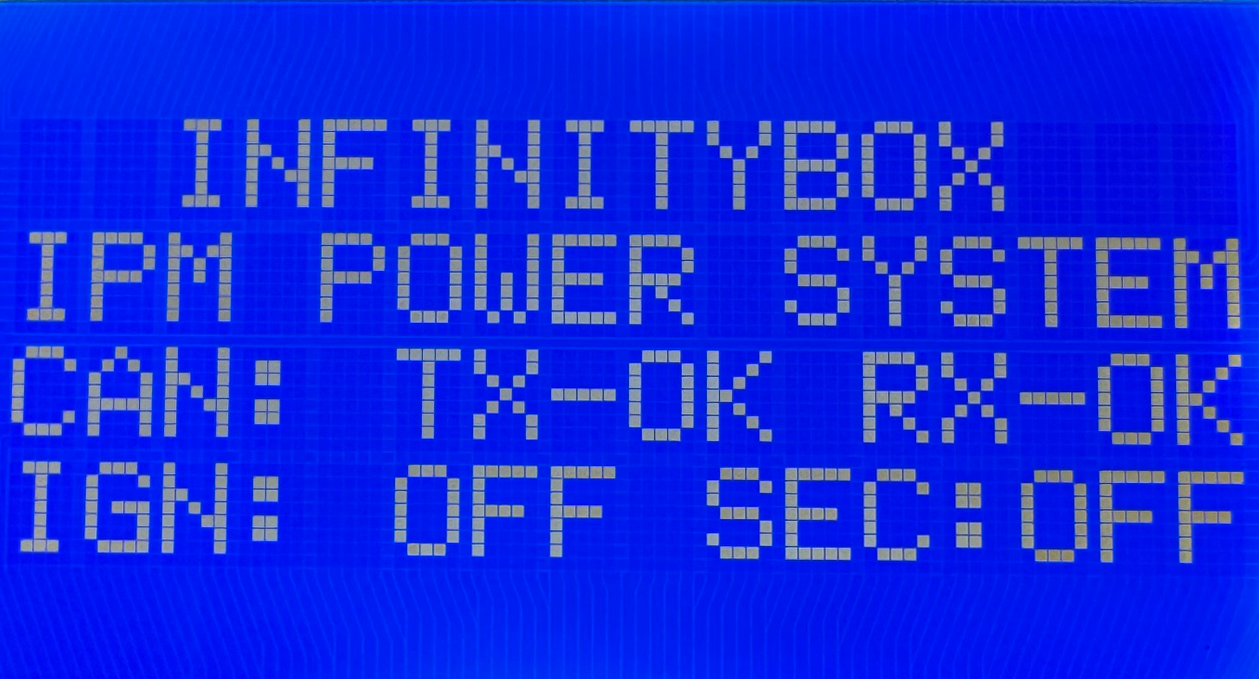
The main status screen on the MASTERCELL NGX inSIGHT display.
The backlight on the screen will remain on for 5 to 10 seconds then will turn off to reduce power drawn from the battery. To return to this screen at any time, you can press and release the HOME button.
This screen gives you several important pieces of information about your Infinitybox system. First, it tells you the status of the CAN network. Second, it tells you the state of ignition. Lastly, it tells you the state of security.
CAN Status
Your Infinitybox system is connected together using a J1939 CAN network. This is a simple 2-wire system that connects your MASTERCELL to your POWERCELLs, to your inMOTION NGX cells, to your inVIEW and to any other devices connected in your car. At a high-level, the main screen shows you the status of the CAN network. It shows the status of the transmit circuit (TX) and the receive circuit (RX). You will see OK for both TX and RX when the system is communicating correctly. If you see ERR for either TX or RX, you should check your CAN cables to make sure they are connected correctly. You should also make sure that you have the terminator resistor that came with your IPM1 kit correctly plugged into your system. Check your IPM1 manual for more details on the termination resistor. If you are seeing ERR for either TX and RX, contact our technical support team by clicking this link.
Ignition State
The next important thing that the main screen displays is the state of ignition. When the ignition is on, you will see IGN: ON. When the ignition is off, you will see IGN: OFF. This monitors the ignition from either the switched ignition input, the one-button start input or ignition control from inTOUCH. Specific functions in the system can be controlled with ignition. The most common example is turn signals. Out of the box, the system is set so that your turn signal inputs will only work when the ignition is on. Using our inCODE NGX tool you can set other functions to be dependent on the state of ignition. Check out the inCODE NGX details to learn more.
Security State
The last important piece of information on the main screen is the state of security. You will see SEC: OFF when security is disabled and SEC: ON when security is enabled. Security can be enabled and disabled from the inLINK Key Fobs and from the inTOUCH feature on inLINK. Out of the box, the system blocks the ignition, starter and fuel pump when security is enabled. This is a very powerful immobilizer for your car that is built into your IPM1 kit with inLINK NGX. Using the inCODE NGX software tool, you can set other functions in the Infinitybox system to be disabled when security is enabled. The main screen gives you a quick and simple way to check whether security is on or off.
Summary
The main screen on the inSIGHT LCD display on the MASTERCELL NGX gives you a quick snapshot of the health of the network, the state of ignition and the state of security. Keep watching our blog for more details of the menus and functions on inSIGHT in our Next Generation System.
You can download the entire MASTERCELL NGX inSIGHT document by clicking this link. This includes all the features and functions.
Give us a call at (847) 232-1991 or contact us here if you have any questions.
 Copyright 2026 Infinitybox, LLC. All Rights Reserved.
  Copyright 2026 Infinitybox, LLC. All Rights Reserved.
  Copyright 2026 Infinitybox, LLC. All Rights Reserved.
  Copyright Infinitybox, LLC 2021. All Rights Reserved.
  Copyright 2026 Infinitybox, LLC. All Rights Reserved.
  Copyright 2026 Infinitybox, LLC. All Rights Reserved.
  Copyright 2026 Infinitybox, LLC. All Rights Reserved.
  Copyright 2026 Infinitybox, LLC. All Rights Reserved.
 Copyright 2026 Infinitybox, LLC. All Rights Reserved.
Leave a Reply
Want to join the discussion?Feel free to contribute!