
MASTERCELL NGX System Inventory
The System Inventory screen on your MASTERCELL NGX gives you a list of every device connected on your Infinitybox network. It is a simple but powerful tool that confirms your POWERCELLs, inMOTION Cells and other peripherals are connected, communicating and addressed correctly. This blog post is part of our series on the diagnostic functions built into the inSIGHT screen. We introduced this screen in our overview of the MASTERCELL NGX main menu. In this post, we take a deeper look at how to read and use the System Inventory screen.
Please note that this blog post covers the MASTERCELL NGX in our Next Generation IPM1 Kit. These inSIGHT diagnostic tools are specific to our Next Generation hardware. If you have our Legacy 3-Cell Kit or 20-Circuit Kit, search through our blog archives for the diagnostic tools that came with those systems.
How to Read the System Inventory Screen
To get to the System Inventory screen, press the HOME button on your MASTERCELL NGX to bring up the main menu, use the SCROLL UP and SCROLL DOWN buttons to move the cursor to System Inv and press SELECT.
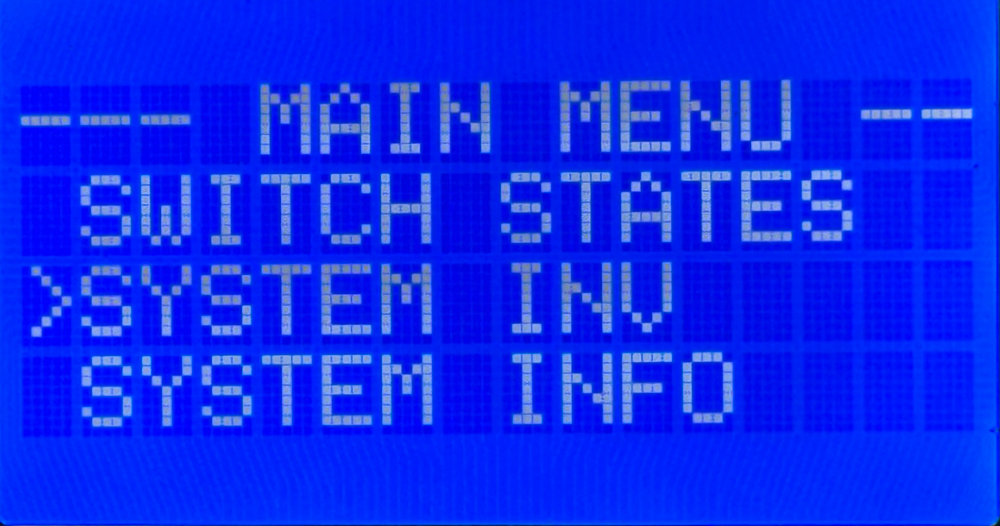
Selecting System Inv from the MASTERCELL NGX main menu.
When the screen opens, you will see a list of every device that the MASTERCELL NGX finds on your network. The header at the top of the screen reads SYSTEM INV followed by a number in parentheses. That number tells you how many devices are on the network. It will change with the number of devices that are connected. In the example below, the header reads SYSTEM INV (3), so there are three devices on the network.
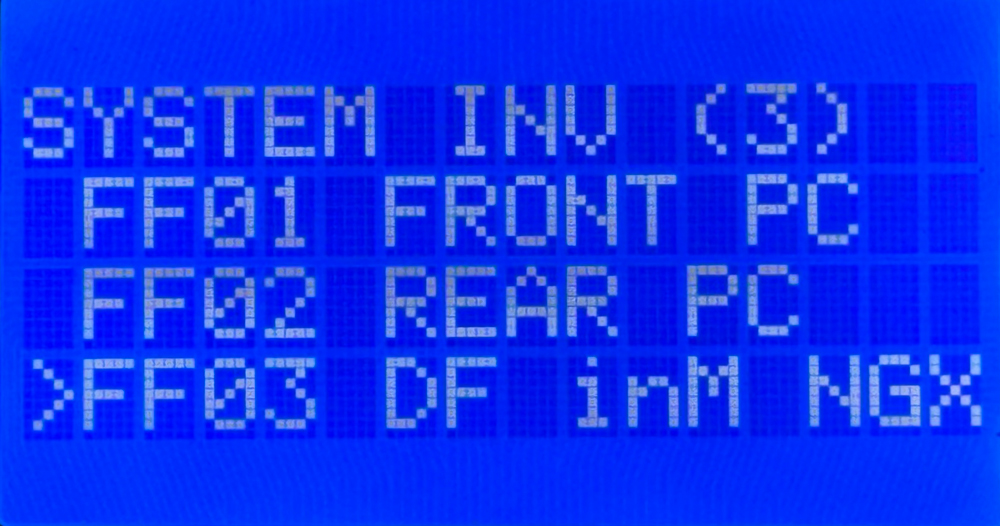
The System Inventory screen showing three devices on the network: a front POWERCELL, a rear POWERCELL, and a Driver Front inMOTION NGX.
Each device shows up on its own row with two pieces of information. On the left is the PGN for that device. This is an internal identifier that the MASTERCELL NGX uses to validate the device on the network. You do not need to decode it. On the right is the human-readable name that tells you what the device is. This is the part you will use to confirm what is connected.
You can use the SCROLL UP and SCROLL DOWN buttons to move the cursor through the list of devices. In this separate blog post, we show you how to use the SELECT button to drill down into a specific device and see much more detail about it, like the state of its outputs and its voltage. For this post, we are focused on the inventory list itself.
What the Devices Look Like on the Network
Each type of device in the Infinitybox system shows up in inventory with its own name so you can identify it at a glance. Here is what the different devices look like on the network.
- POWERCELLs:
- Address 1 shows as the front POWERCELL (FRONT PC)
- Address 2 shows as the rear POWERCELL (REAR PC)
- Additional POWERCELLs begin at FF07 and are labeled by number, such as POWERCELL 3
- inMOTION Cells (FF03 through FF06):
- Driver Front- DF inM NGX
- Passenger Front- PF inM NGX
- Driver Rear- DR inM NGX
- Passenger Rear- PR inM NGX
- inVIEW: inVIEW
- inCONTROL: inCONTROL
Confirm Your Devices Are Connected and Communicating
The first thing the System Inventory screen tells you is whether every device you installed is actually on the network. When a device is powered correctly and its CAN cables are connected correctly, it announces itself to the MASTERCELL NGX and shows up in inventory.
Start with the device count in the header. Compare the number in parentheses to the number of devices you installed in your car. If you installed three POWERCELLs but the header only shows two, then one of them is not communicating. The same is true for any device in your system.
When a device is missing from inventory, it usually points to one of two things. Either the device is not being powered correctly, or there is a problem with the CAN cable that connects it to the rest of the network. The System Inventory screen lets you confirm quickly that every device is present before you spend time chasing a problem somewhere else.
Confirm Your Devices Are Addressed Correctly
The second thing the System Inventory screen tells you is whether each device is addressed as the device you intended. This is a more subtle problem, and it is one that can be very hard to find any other way.
Every POWERCELL is set to a specific address with its address jumpers. The MASTERCELL NGX sends commands to each POWERCELL based on that address. If a POWERCELL is addressed incorrectly, the commands meant for it never reach it, even though everything is powered and communicating perfectly.
Here is a common example. A customer is having trouble getting the outputs on a POWERCELL to work. Everything is wired correctly and the cell is communicating, but the functions still do not work. After some troubleshooting, we find that the address jumpers were set to the wrong cell. Instead of being set to cell 1, the POWERCELL was set to cell 8. The System Inventory screen makes this easy to spot. The customer can look at inventory and see that a device is on the network, but it is not showing up as the cell they intended it to be. That tells them the address is wrong.
This is what makes the System Inventory screen so powerful. It takes an invisible problem, a device that is powered and communicating but addressed incorrectly, and makes it visible. We will cover how to set and change device addresses in more detail in a later blog post.
Summary
The System Inventory screen on the MASTERCELL NGX inSIGHT display gives you a quick, at-a-glance list of every device on your Infinitybox network. Use it to confirm that every device you installed is powered and communicating, and to confirm that each device is addressed as the cell you intended. Paired with the other diagnostic tools on the inSIGHT screen, it is one of the fastest ways to understand what is happening on your network.
You can download the entire MASTERCELL NGX inSIGHT document by clicking this link. This includes all the features and functions.
Keep watching our blog for more details on the menus and diagnostic functions on the inSIGHT screen. If you have any questions, give us a call at (847) 232-1991 or contact us here.
 Copyright Infinitybox, LLC 2021. All Rights Reserved.
 Copyright 2026 Infinitybox, LLC. All Rights Reserved.
 Copyright 2026 Infinitybox, LLC. All Rights Reserved.
  Copyright 2026 Infinitybox, LLC. All Rights Reserved.
  Copyright 2026 Infinitybox, LLC. All Rights Reserved.
  Copyright 2026 Infinitybox, LLC. All Rights Reserved.
  Copyright 2026 Infinitybox, LLC. All Rights Reserved.
Leave a Reply
Want to join the discussion?Feel free to contribute!