
 Copyright 2026, Infinitybox LLC. All Rights Reserved.
How to Use inCODE NGX: Complete Video Series
Last updated: November 24, 2026
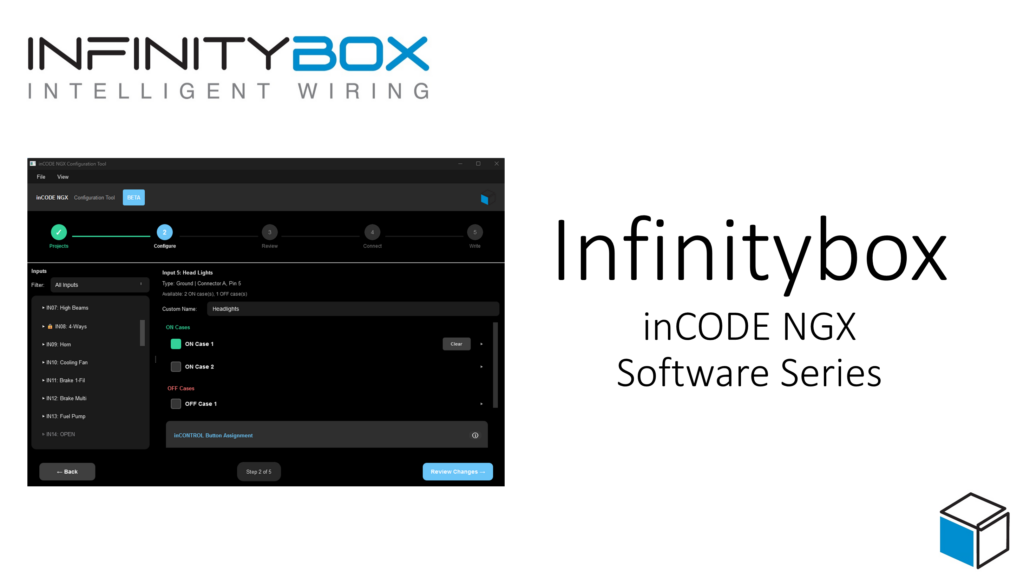
inCODE NGX is the configuration tool you pair with the inCODE NGX programmer to set up your Infinitybox NGX next-generation power distribution system. It’s powerful, but it’s also simple and easy to use. This video series walks you through the software one step at a time, from your first download to sharing configurations with others.
We add new videos as we publish them, so check back often or subscribe on YouTube so you don’t miss one.
In this series
- How to Download & Install inCODE NGX
- Creating & Managing Projects
- Importing & Exporting a Project
- Configuring a Basic Case
- Reviewing, Connecting & Writing to the MasterCell
- Configuring a Popper
Reference video: IPM1 Configuration Sheet Explained. We refer back to this one throughout the series.
Need the software? Go to infinitybox.com, then Resources > Software Downloads > inCODE NGX Downloads. Windows and Mac versions are available.
Reference: IPM1 Configuration Sheet Explained
Your configuration sheet is the roadmap for your IPM1 system, and inCODE NGX is how you tailor it. We refer back to this video throughout the series, so it’s worth watching first. It also works as a standalone guide to reading your sheet.
What you’ll learn:
- Where to find your configuration sheet on infinitybox.com
- What each column means: function, address, output, connector, personality, wire colors, and switch input
- Which areas are locked (yellow) and which you can change with inCODE NGX (white)
- How “open” auxiliary outputs and dual-input functions work
Video 1: How to Download & Install inCODE NGX
Start here if you haven’t installed the software yet. This video shows you how to find the download on our website, choose the Windows or Mac version, extract the file, and run the application for the first time.
What you’ll learn:
- Where to find the inCODE NGX download on infinitybox.com
- Downloading the Windows or Mac version
- Extracting the zip file
- Getting past the Windows “unknown app” security warning (the software is safe; click More info, then Run anyway)
Video 2: Creating & Managing Projects
Learn how to set up a new project in inCODE NGX. Projects let you manage multiple vehicles or multiple configurations in one place, and keep a revision history of every change.
What you’ll learn:
- Creating and naming a new project
- Choosing a starting configuration: Front Engine, Rear Engine, Blank, or an imported configuration
- Using revision history to track changes over time
- Archiving, sharing, or deleting a configuration
Video 3: Importing & Exporting a Project
Importing and exporting let you load a configuration our team created for you, back up your own work, and share configurations with other members of the Infinitybox community.
What you’ll learn:
- Exporting a project and choosing where to save it
- Importing a project file into inCODE NGX
- Loading a configuration from Infinitybox or another builder
Video 4: Configuring a Basic Case
Now it’s time to start configuring. Using a 1979 CJ7 as the example, this video walks through the Configure screen in Basic mode and sets up input 19 on the MasterCell NGX to run an electric water pump from output 10 on the front PowerCell.
What you’ll learn:
- Navigating the Configure screen and filtering ground switched and high side switched inputs
- How the input list matches your configuration sheet, and which inputs are locked
- What a case is, and why naming it matters
- Personality: Track vs. Soft Start
- Output mode: Track, Toggle, and Timed, plus output patterns
- Track Ignition and Requires Security
Video 5: Reviewing, Connecting & Writing to the MasterCell
Your changes are made, so now it’s time to put them on the MasterCell NGX. This video shows you how to review your changes, connect the inCODE NGX programmer, and write the new configuration to the device.
What you’ll learn:
- Using Review Changes to confirm exactly what you changed
- Selecting the GridConnect CAN USB adapter and plugging it into your computer and an open CAN port on a PowerCell
- Choosing the COM port and connecting
- Writing the configuration to the MasterCell with Write to Device
- Finishing up, or configuring another device
Video 6: Configuring a Popper
Door poppers, trunk releases, and tailgate latches can all be driven from a POWERCELL output. This video shows how to set one up in inCODE NGX with a single button, using a tailgate latch solenoid on a 1979 CJ7 as the example.
What you’ll learn:
- What a popper is and when to use one
- Finding the right output and input on your configuration sheet
- Naming the input and using the Configure as Popper button in Basic mode
- Why the output fires for half a second (most popper solenoids are intermittent duty and can overheat if left on)
- Reviewing your change and writing it to the MasterCell, as shown in Video 5
More videos coming soon
Next up, we’ll dig into the advanced configuration features. Subscribe on YouTube to be notified when each one is released.
Questions? Give us a call at 847-232-1991 or visit infinitybox.com.
About Infinitybox: We design, engineer, and manufacture advanced electrical power distribution and control systems for automotive and commercial truck applications, including POWERCELL, NGX, IOX, CAN Gateway, and inTOUCH NET. Made in the USA for 18 years, from one-off prototypes to high-volume production.
 Copyright Infinitybox, LLC 2021. All Rights Reserved.
 Copyright Infinitybox, LLC 2021. All Rights Reserved.

 Copyright Infinitybox, LLC 2021. All Rights Reserved.
 Copyright 2025 Infinitybox, LLC. All Rights Reserved.
 Copyright Infinitybox, LLC 2021. All Rights Reserved.
 Copyright Infinitybox, LLC 2021. All Rights Reserved.

 Copyright 2026, Infinitybox LLC. All Rights Reserved.
Leave a Reply
Want to join the discussion?Feel free to contribute!