
MASTERCELL NGX Main Menu
The inSIGHT LCD screen on your MASTERCELL NGX is your window into your Infinitybox system. From the main menu, you can set up key features and access a powerful set of diagnostic tools with a few simple button presses. We covered the main status screen that you see when your system powers up in a separate blog post. You can learn about the main screen and how to read your CAN, ignition and security status by clicking this link. In this post, we want to walk through the six options on the MASTERCELL NGX main menu and explain what each one does. We will follow up with separate blog posts that take a deeper dive into each option.
Please note that this blog post covers the MASTERCELL NGX in our Next Generation IPM1 Kit. These inSIGHT diagnostic tools are specific to our Next Generation hardware. If you have our Legacy 3-Cell Kit or 20-Circuit Kit, search through our blog archives for the inSIGHT diagnostic tools that came with those systems.
The MASTERCELL NGX Main Menu
To get to the main menu, press and release the HOME button on your MASTERCELL NGX. The main menu has six options. You use the SCROLL UP and SCROLL DOWN buttons to move the cursor through the list and the SELECT button to open the option that the cursor is pointing to. Because the menu is longer than the screen, you will scroll through two views to see all six options.
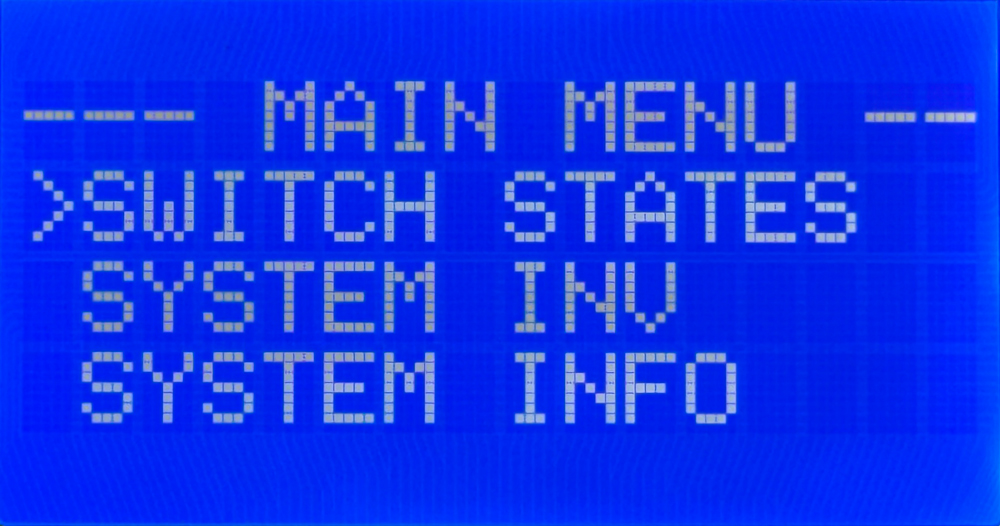
The top of the MASTERCELL NGX main menu, with options for Switch States, System Inv, and System Info.
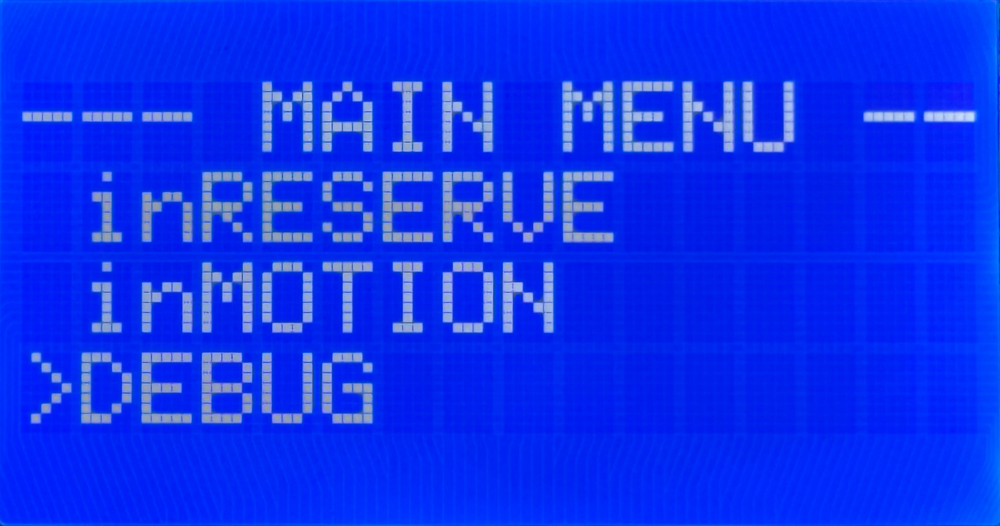
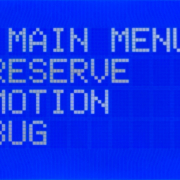
The MASTERCELL NGX main menu scrolled down to the inRESERVE, inMOTION, and DEBUG options.
The six options are Switch States, System Inv, System Info, inRESERVE, inMOTION and DEBUG. Let’s walk through each one.
Switch States
The Switch States option gives you a real-time view of every switch input on your MASTERCELL NGX. The MASTERCELL NGX has 38 ground-switched inputs and 6 high-side switched inputs. When you open Switch States, you see a screen of digits arranged across four rows. The ground-switched inputs run across the rows, and the six high-side input states appear on the right side of the bottom row. A 0 means the input is off and a 1 means the input is on. The screen updates in real time, so if a switch turns on or off while you are watching, you will see it change, with a lag of up to one second.
This is a powerful way to confirm that your switches are wired correctly. You can work through your car one switch at a time and watch the screen confirm that the MASTERCELL NGX sees each input. Click on this link to take the deeper dive into the Switch States feature on the MASTERCELL NGX.
System Inventory
The System Inv option is your system inventory screen. It gives you a list of every peripheral connected to your MASTERCELL NGX. This can include POWERCELLs, inMOTION Cells, inVIEW Cells and inCONTROL knobs. Each device shows up with its CAN address and a name so you can confirm that the MASTERCELL NGX sees everything in your network.
You can use the SCROLL UP and SCROLL DOWN buttons to highlight a device in the inventory and the SELECT button to dig deeper into it. From there, you can see details like the state of its outputs, its voltage and more. Click here for more details on the System Inventory function.
System Info
The System Info option lets you see the software revision of the code loaded onto your system. It also shows you the configuration that is loaded. The IPM1 Kit has options for a front-engine configuration and a rear-engine configuration, along with the option for a Custom configuration. If your system shows a Custom configuration and you have questions about it, contact our technical support team for more information. You can learn more about how to read the software revision and the loaded configuration by clicking this link.
inRESERVE
The inRESERVE option lets you set up our inRESERVE Active Battery Management accessory. inRESERVE connects a POWERCELL output to a special latching solenoid and monitors your battery voltage. When the ignition is off and the voltage drops below a set threshold for a period of time, the POWERCELL pulses the solenoid and disconnects power to the system. This proactively eliminates drain from your battery.
Every IPM1 Kit ships without inRESERVE set up. If you purchase the inRESERVE option, this menu lets you enable the feature, pick the POWERCELL and output that control the solenoid, and choose the timing and voltage threshold. We have an existing blog post that walks through this whole process. You can learn how to enable inRESERVE on your MASTERCELL NGX by clicking this link.
inMOTION
The inMOTION option walks you through the process of setting up your inMOTION NGX door modules. inMOTION NGX installs in the door, and each module must be set with its proper address so it knows which commands to obey. The default locations are Driver Front, Passenger Front, Driver Rear and Passenger Rear. You order as many inMOTION NGX modules as you need for your build, two for a 2-door car or four for a 4-door car. We ship them set up generically, so you run this process once to tell each module where it is installed in the car. You can learn how to configure your inMOTION NGX door modules by clicking this link.
DEBUG
The DEBUG option puts the MASTERCELL NGX into what we call Messaging Mode. Where Switch States shows you whether an input is on or off, Messaging Mode goes a step deeper. It displays in real time when the MASTERCELL NGX sees an input turn on or off, and then shows you what the MASTERCELL NGX does in response.
This is a powerful tool for confirming that your switches are wired correctly and that your MASTERCELL NGX is programmed the way you expect. For example, if your headlights are not working, you can put the MASTERCELL NGX into Messaging Mode and turn the headlight switch on. The inSIGHT screen will display the input it saw turn on and confirm which POWERCELL and which output it is commanding to turn on. We will take a closer look at Messaging Mode in its own blog post.
Summary
The main menu on the MASTERCELL NGX inSIGHT display is your gateway to the setup and diagnostic functions built into your Next Generation Infinitybox system. From these six options, you can check your switches, review your system inventory, see your software and configuration, set up inRESERVE, configure your inMOTION NGX modules and dig into advanced diagnostics with Messaging Mode. Keep watching our blog as we publish a detailed deep dive into each one.
You can download the entire MASTERCELL NGX inSIGHT document by clicking this link. This includes all the features and functions.
Give us a call at (847) 232-1991 or contact us here if you have any questions.

 Copyright 2026 Infinitybox, LLC. All Rights Reserved.
  Copyright 2026 Infinitybox, LLC. All Rights Reserved.
  Copyright 2024, Infinitybox, LLC. All Rights Reserved.
 Copyright Infinitybox, LLC 2021. All Rights Reserved.
 Copyright 2026 Infinitybox, LLC. All Rights Reserved.
  Copyright 2026 Infinitybox, LLC. All Rights Reserved.
  Copyright 2026 Infinitybox, LLC. All Rights Reserved.
Leave a Reply
Want to join the discussion?Feel free to contribute!